
Until now, you could only edit your Home page. Now you can create pages such as About or Services, copy an existing one, or delete the ones you no longer need.
Where to find it
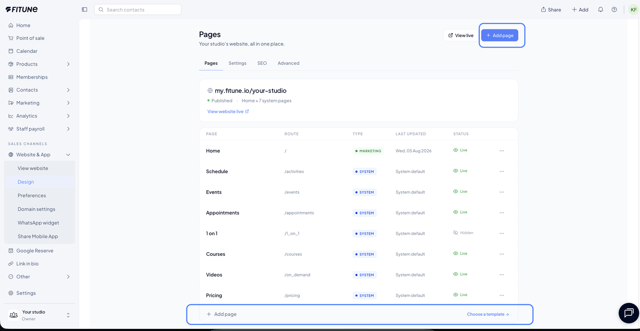
Website & App → Design → Pages tab. There you will see the + Add page button (top right and at the end of the list) and the ⋯ menu on each row.
Page types
The list shows each page's type:
- MARKETING: pages you can edit in the visual builder. You design the content. Home is one of them.
- SYSTEM: functional pages rendered by Fitune, such as Schedule, Events, or Pricing.
Add a page
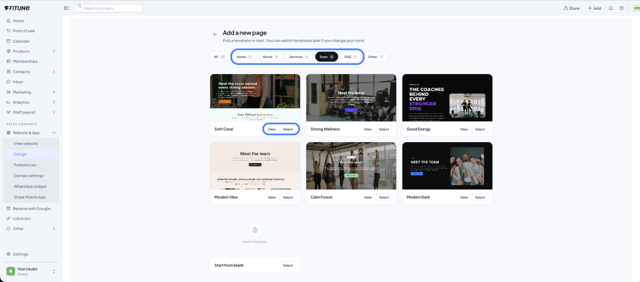
- Click + Add page. The Add a new page gallery opens.
- Pick a template with Select. Use View to preview it first. You can also start with Start from blank.
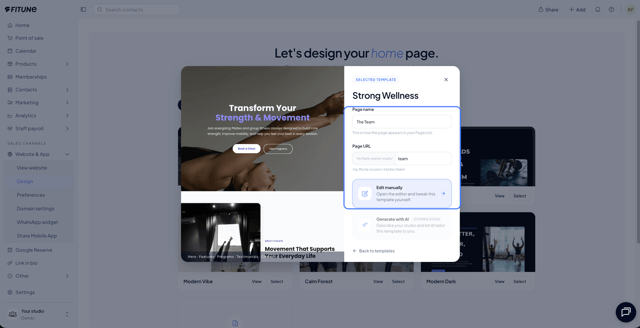
- Enter the Page name. The Page URL is generated automatically and you can edit it. It is validated so it does not clash with other marketing pages or system pages.
- Click Edit manually to open the editor and adjust the template.
The new page goes Live right away.
Duplicate a page
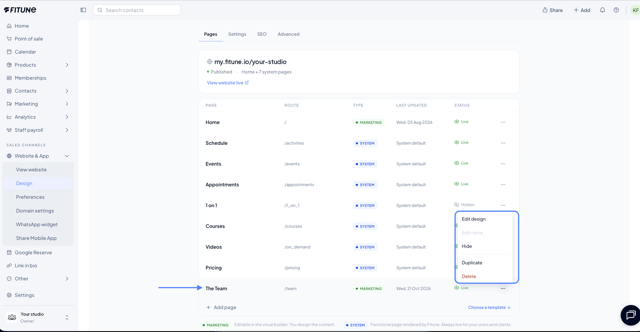
You can duplicate any marketing page, including Home. Click ⋯ on its row and choose Duplicate.
- The copy appears below the original.
- It has its own URL.
- It starts as Hidden, so you can edit it before setting it to Live.
System pages cannot be duplicated.
Delete a page
Click ⋯ and choose Delete. You are asked to confirm, and the page is permanently deleted. This applies to the marketing pages you created.
Home and system pages cannot be deleted.
Frequently Asked Questions
▶ Can I delete my Home page? No. Home and system pages cannot be deleted.
▶ Does a duplicated page go live automatically? No. The copy starts as Hidden and you decide when to set it to Live.
▶ Can I duplicate a system page? No. Only marketing pages can be duplicated.
▶ Can I change a page's URL after creating it? No. The URL is set when the page is created and cannot be changed afterwards.