
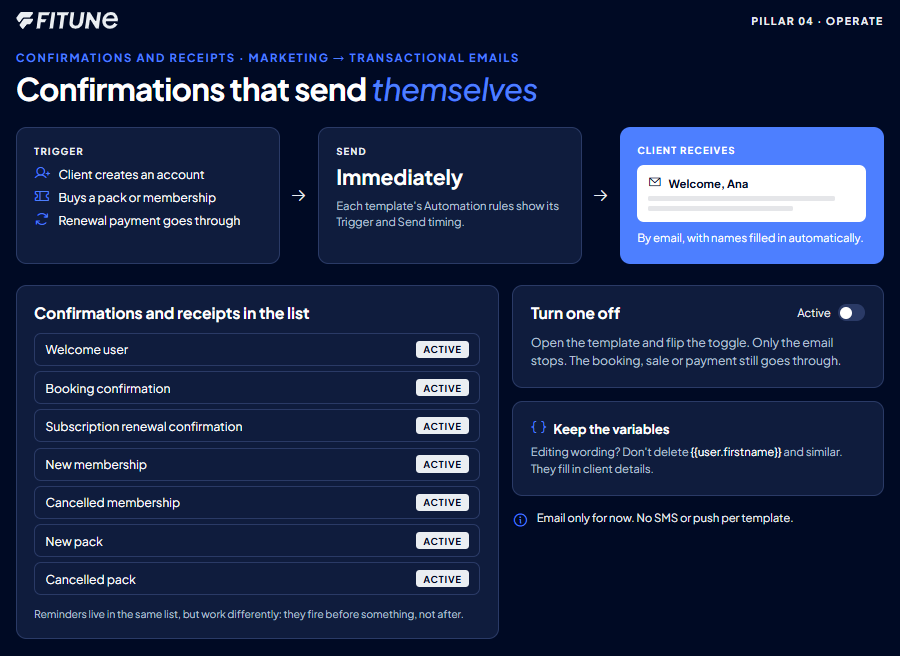
This counts toward the Operate pillar of your Fitune Health Score. Every time a client creates an account, buys a pack, or has a renewal payment go through, Fitune can send them a confirmation automatically — nobody on your team has to remember to type it. This check is about knowing exactly which of those automatic messages are switched on, and where to turn one off if it doesn't fit how your studio runs.
Where to find your automatic confirmations and receipts
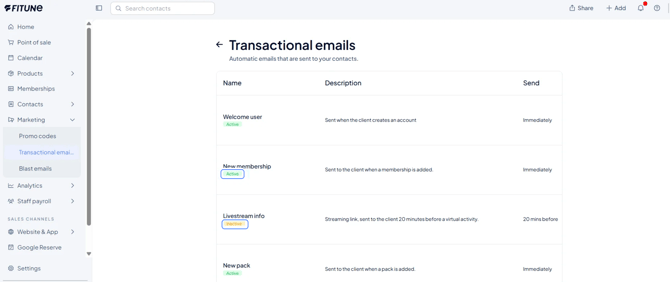
Go to Marketing > Transactional emails. You'll see a list of every automatic email Fitune can send, each one showing its status (Active), a short line explaining what sets it off, and when it goes out.
Confirmation and receipt-type emails you'll find here include things like Welcome user, Booking confirmation, Subscription renewal confirmation, New membership, Cancelled membership, New pack, and Cancelled pack — reminder-type emails (like appointment or booking reminders) live in this same list too, but they're covered in their own article, since they work a little differently.
Turning a confirmation or receipt on or off
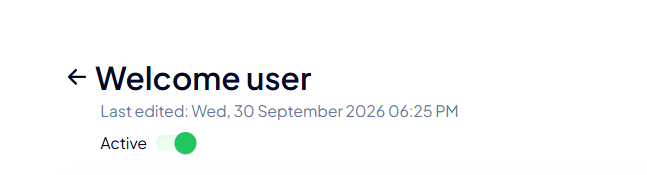
Click into any template from the list, and you'll see an Active toggle at the top of the page. Flip it off, and clients simply stop receiving that specific message — everything else about the booking, sale, or payment still happens exactly as normal, Fitune just stays quiet about it.
Seeing exactly what triggers each one, and when
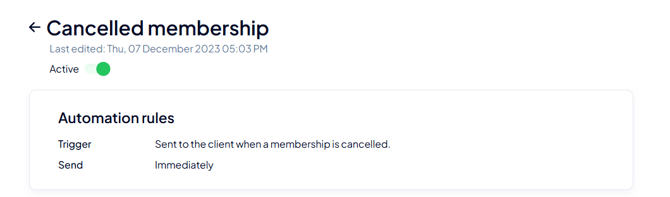
Every template has its own Automation rules box, with two fields: Trigger (what has to happen for it to fire) and Send (how soon after that it goes out). For example, the "Welcome user" template is triggered when a client creates an account, and sends immediately; "Subscription renewal confirmation" is triggered on a successful subscription renewal payment, and also sends immediately.
Each template also pulls in real client and booking details automatically, through variables like the client's name or your studio's name. If you want to tweak the wording, tone, or add an image to any of these emails — not just turn them on or off — see Customize Your Email Templates.
A quick note on channel
Right now, every one of these automatic messages goes out by email — there's no separate channel picker (like SMS or app push) per template. The Active toggle is really the on/off switch for each one; there isn't a choice of channel to make beyond that today.
Frequently asked questions
▶ If I turn off a confirmation, does the booking or payment still go through?
Yes — turning a template off only stops the email. The booking, payment, or membership change itself isn't affected.
▶ Can I tell reminders apart from confirmations and receipts in the list?
Yes — they sit in the same Transactional emails list, each with its own Trigger and Send timing, but reminder templates are covered in their own dedicated article since they follow a slightly different logic (they fire ahead of something, rather than after it).
▶ What happens if I accidentally delete a variable like while editing a template?
The email loses that piece of context — each template's Variables section links you to the full list of variables you can safely use, so you can paste it back in.