
Google Analytics lets you see how many people visit your site, where they come from, and which pages they check out the most. Connecting it to your Fitune site takes just a couple of minutes.
Step 1: Get your measurement ID from Google Analytics
- Go to Google Analytics with your Google account.
- Create an account and a property for your studio (if you don't have one yet).
- Go to Admin → Data Streams → your web data stream.
- Copy the Measurement ID, which starts with "G-" (for example, G-XXXXXXXXXX).
Step 2: Paste the ID into Fitune
- Go to Website and App → Design.
- Open the Advanced tab.
- In the Third-party analytics section, paste your ID into the "Google Analytics Measurement ID" field.
- Save your changes.
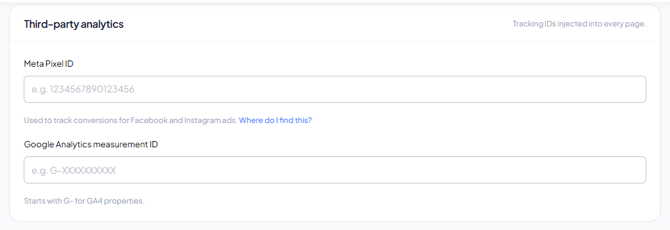
Note: in this same Advanced tab you'll also see the Custom tracking code section, but this is exclusive to the Ultra plan. If you're on a different plan, you'll only be able to use the Meta Pixel and Google Analytics fields.
Step 3: Confirm it's working
You can verify data is coming through correctly from the Realtime report inside Google Analytics, by visiting your own site and confirming your visit shows up.
Frequently Asked Questions
▶ Do I need a Google account to use Analytics? Yes, you need a Google account to create your Google Analytics property.
▶ What if I don't have the Ultra plan? The Google Analytics field is available on all plans — only the custom tracking code is exclusive to Ultra.
▶ How long until it starts showing data? Once the ID is saved, data starts recording almost immediately, though full reports can take up to 24-48 hours to fully populate.
▶ Can I use the same ID across multiple studio locations? It depends on how you want to measure your data — you can use a single property for everything, or create one property per location if you'd rather see them separately.