
Every page has a Settings option that opens the Page settings panel with everything important about that page.
Where to find it
Website & App → Design → Pages tab → ⋯ on the page's row → Settings.
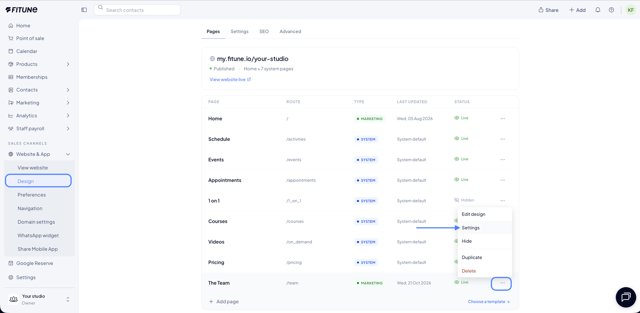
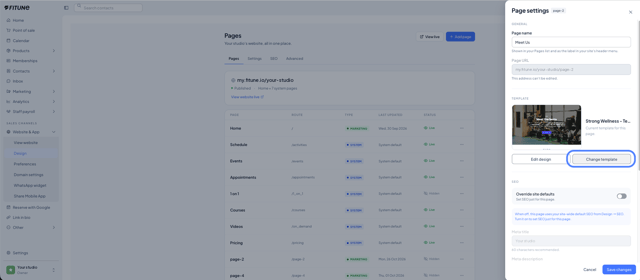
What the panel includes
Page name. Shown in the Pages list and as the label in your site's header menu.
Page URL. Shown with your site's full address, custom domain or Fitune subdomain, for reference. It is set when the page is created and cannot be edited afterwards.
Template (marketing pages only). Shows a preview and the name of the current template.
- Edit design takes you straight to the editor.
- Change template lets you switch it. See the article on changing a page's template.
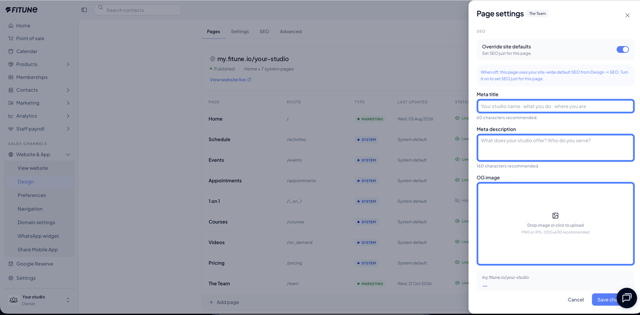
SEO per page
On marketing pages you will see the Override site defaults toggle.
- Off (default): the page uses the site-wide SEO, set in Design → SEO.
- On: you can set just for that page the Meta title (60 characters recommended), the Meta description (160 characters recommended), and the OG image (PNG or JPG, 1200x630 recommended).
The panel includes a preview of how the page will look in search results.
When you are done, click Save changes. If you do not want to apply changes, click Cancel.
Frequently Asked Questions
▶ Can I change a page's URL? No. The URL is set when the page is created and cannot be edited afterwards.
▶ Do new pages have their own SEO? Not by default. Override site defaults is off, so they use the site's SEO.
▶ Do system pages have a template? No. The Template section only appears on marketing pages.
▶ Where do I change the name shown in the menu? In Page name, inside Page settings.