
This counts toward the Operate pillar of your Fitune Health Score. A clear cancellation and no-show policy protects your schedule from last-minute empty spots — but it only works if it's actually written down somewhere your clients can see it, not just something your team knows informally.
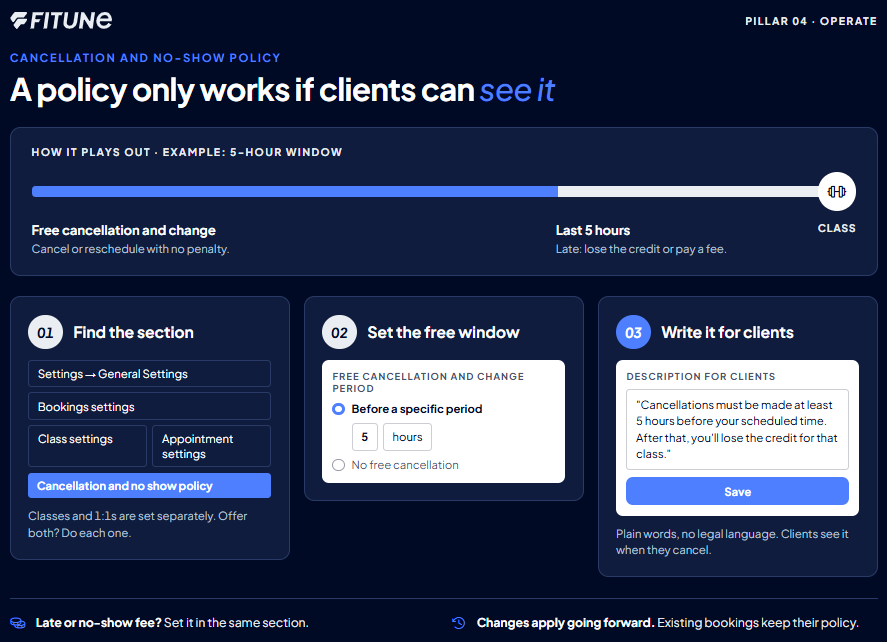
Where to set it up
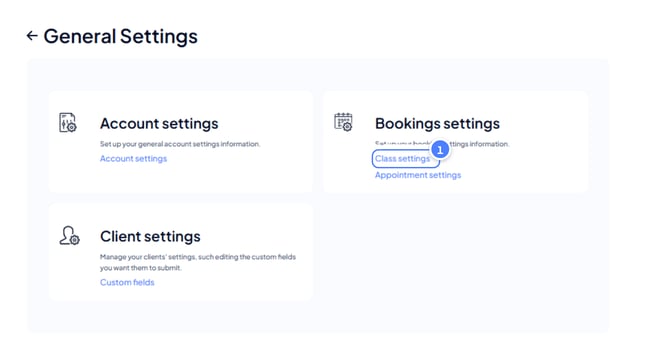
- Go to Settings from the side menu and click General Settings.
- Open Bookings settings.
- Click Class settings for group classes, or Appointment settings for 1:1 bookings. 💡 They are set separately, so if you offer both, do each one.
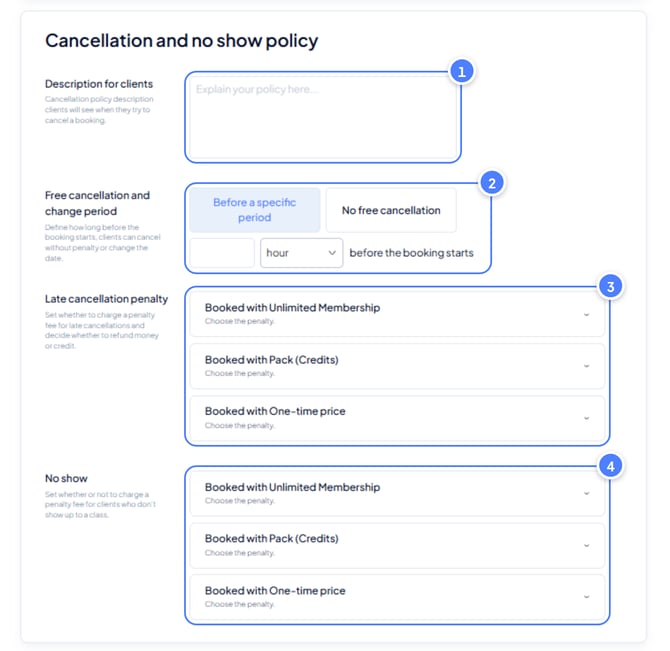
- Scroll down to Cancellation and no show policy.
Set your free cancellation window
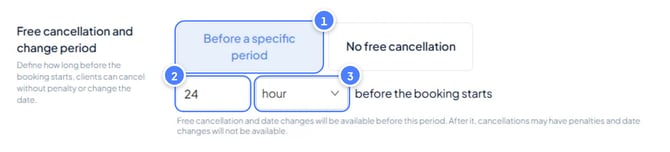
- Under Free cancellation and change period, choose Before a specific period to let clients cancel or reschedule without a penalty, or No free cancellation if you'd rather not offer one.
- If you chose a specific period, enter the number of hours (or the unit you prefer) before the booking starts. For example: 5 hours before the class begins.
Write the policy clients will actually see
This step makes your policy real for clients. What you write here is what they see when they try to cancel.
- In the Description for clients field, write your policy in plain, friendly words. Keep it consistent with the window you set above, and explain what happens if your client cancels after the free cancellation window, for example losing the credit or paying a fee. Also add anything not covered elsewhere, like a flat no-show fee for unlimited memberships.
- Here's an example: "Cancellations must be made at least 5 hours before your scheduled time. After that, you'll lose the credit for that class." You don't need legal language, just clarity.
- Click Save. Your policy is live, and clients see it the moment they go to cancel a booking.
Exemple of Cancellation policy: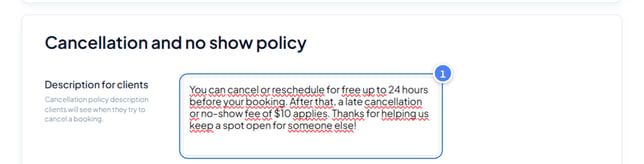
Exmple of a client cancelation after the free cancellation window: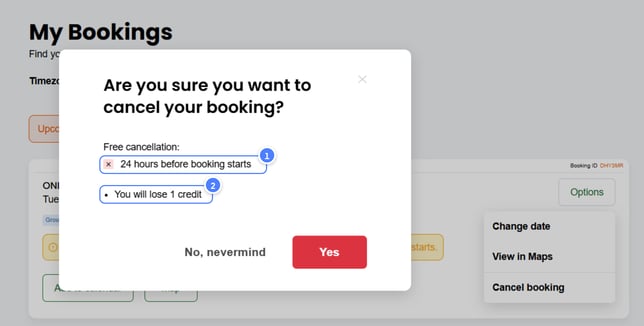
Good to know
If staff members handle cancellations at the front desk, share the Team and Front Desk – Frequently Asked Questions! article with them. It covers everyday situations like canceling a class or checking a client in.
Want to charge a fee for late cancellations or no-shows? That's set in the same section. The steps are in How to Apply Penalties for Cancellations, No-Shows, and Pending Payment Bookings.
Frequently asked questions
▶ Do I need to set the exact same policy for classes and appointments?
No — Class settings and Appointment settings are independent, so you can set a different cancellation window and description for each if that fits your studio better.
▶ What happens if I choose "No free cancellation"?
Clients won't have a penalty-free window to cancel or reschedule at all — every cancellation would be treated as late, based on whatever penalty settings you have configured.
▶ Where exactly does the client see the Description for clients text?
It appears when a client goes to cancel a booking, so it's the right place to explain both the free cancellation window and what happens after it — including any no-show or late-cancellation rule you want them to know about upfront.
▶ Can I change the policy later without affecting existing bookings?
Yes, updating the window or description going forward doesn't retroactively change bookings already made under the previous policy.