
You can now create About, Services, Team, and FAQ pages from a template instead of starting from scratch.
Where to find it
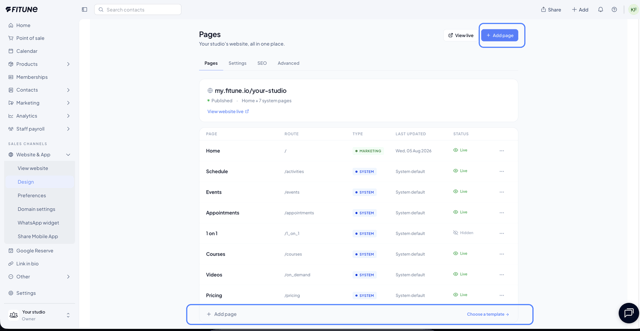
Website & App → Design → + Add page, or in any page's Page settings → Template → Change template.
How the gallery works
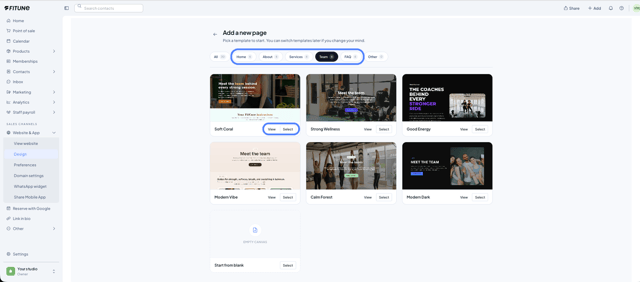
The Add a new page gallery is organized by category, with the number of templates in each: All (30), Home (6), About (6), Services (6), Team (6), FAQ (6), and Other (0).
- Pick a category.
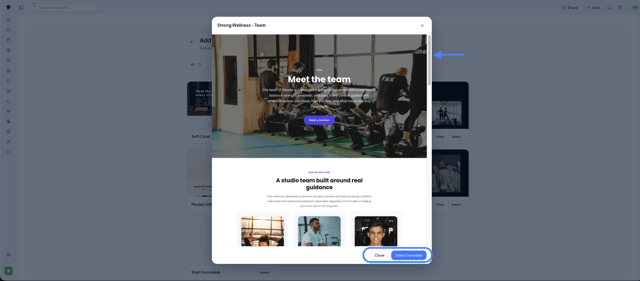
- Click View to preview the template. In the preview you can choose Select template or Close.
- Click Select to use it.
What is available
The About, Services, Team, and FAQ categories have 6 templates each. That is 24 new designs which, added to the 6 for Home, make 30 templates.
- Each template is designed for its page type, with a layout and placeholder content that fit what that page needs to say.
- Each one has a working preview.
- You can use them to create a new page or to redesign an existing one.
What stays the same
- You can still start from a blank page with Start from blank.
- The AI assistant can still rework any page based on what you ask.
- The Other category is still shown but has no templates yet. Picking it starts you from a blank page.
Frequently Asked Questions
▶ How many templates are there in total? 30: 6 for Home and 6 each for About, Services, Team, and FAQ.
▶ Do I have to use a template? No. You can start from a blank page with Start from blank.
▶ Can I use these templates on a page that already exists? Yes. They are also available when changing a page's template from Page settings.
▶ What happens if I pick the Other category? It has no templates yet, so you start from a blank page.