
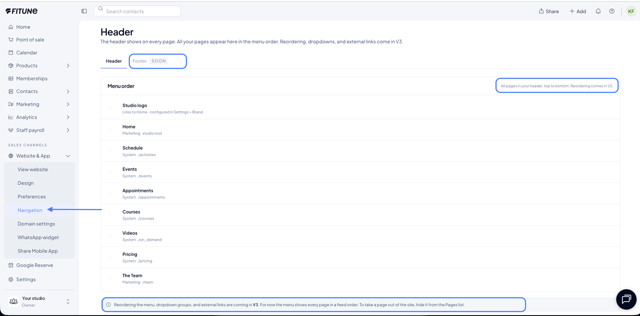
The Navigation section shows a preview of your site's menu, top to bottom, in its current order.
Where to find it
Website & App → Navigation → Header tab.
What the preview shows
The Menu order list shows:
- Studio logo, always first. It links to Home and is configured in Settings > Brand.
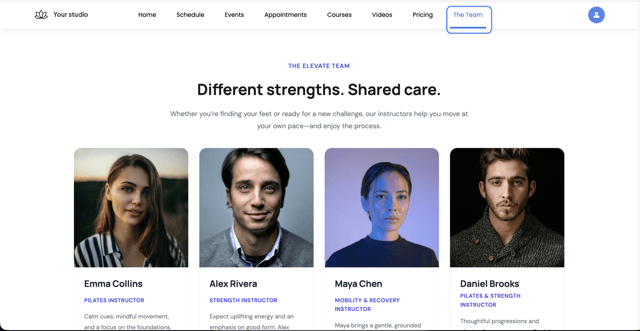
- Every Live system and marketing page (Schedule, Events, Pricing, The Team, etc.), each with its type and route, for example System · /activities or Marketing · /team. Home appears as Marketing · studio root.
Hidden pages do not appear. Each page's name is the Page name you set in its settings.
What you can do for now
The preview is read-only and the order is fixed. There are no Save or Cancel buttons.
- To take a page out of the site, hide it from the Pages screen: click ⋯ and choose Hide. To show it again, choose Show.
- Creating, hiding, duplicating, or editing pages still happens in Pages, not here.
Reordering the menu, dropdown groups, and external links are coming in V3. The Footer tab is visible with a SOON label and is not clickable yet, also because of V3.
Frequently Asked Questions
▶ How do I change the order of my pages in the menu? You cannot yet. The order is fixed and reordering is coming in V3.
▶ How do I remove a page from the menu? Hide it from Pages with ⋯ > Hide. Hidden pages do not appear in the menu.
▶ Why can't I see one of my pages in the menu? Only Live pages appear. Check that the page is not Hidden.
▶ Where do I change the menu logo? In Settings > Brand.