
How to update the payment method
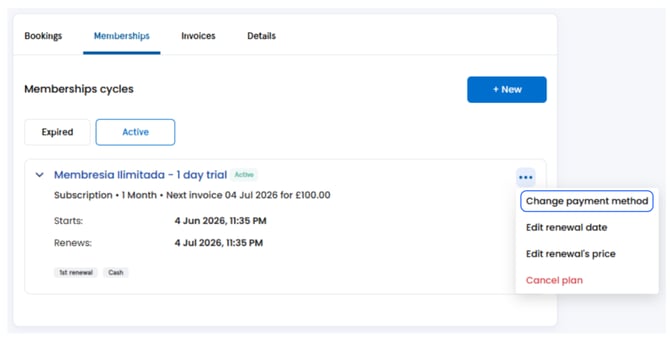
- Go to Contacts and open the client's profile.
- Go to the Memberships tab.
- Click the three dots for the membership options menu.
- Select Change Payment Method.
- Add a new card or select an existing one.
- Save your changes.
How to handle a failed payment
If a membership renewal fails, you have two options:
Option 1 — Send the client a payment link
- Go to Contacts and open the client's profile.
- Go to the Invoices tab.
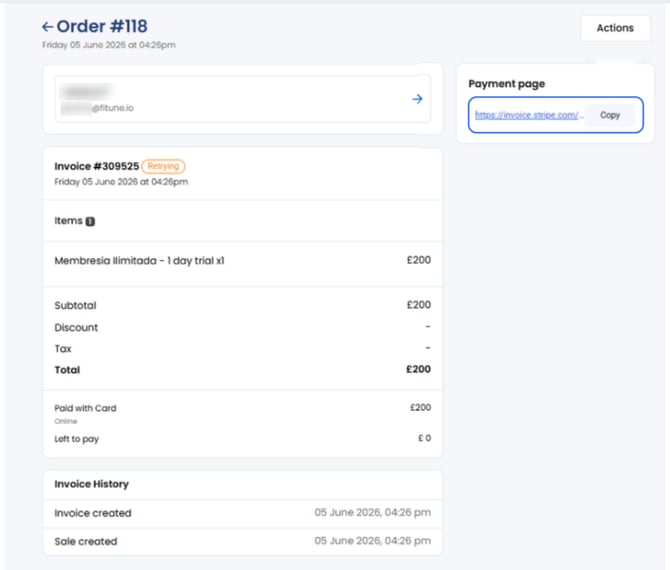
- Open the pending invoice.
- Copy the Stripe Payment Link and send it to the client.
- The client can complete the payment online using their preferred payment method.
Option 2 — Mark the invoice as paid manually
- Go to Contacts and open the client's profile.
- Go to the Invoices tab.
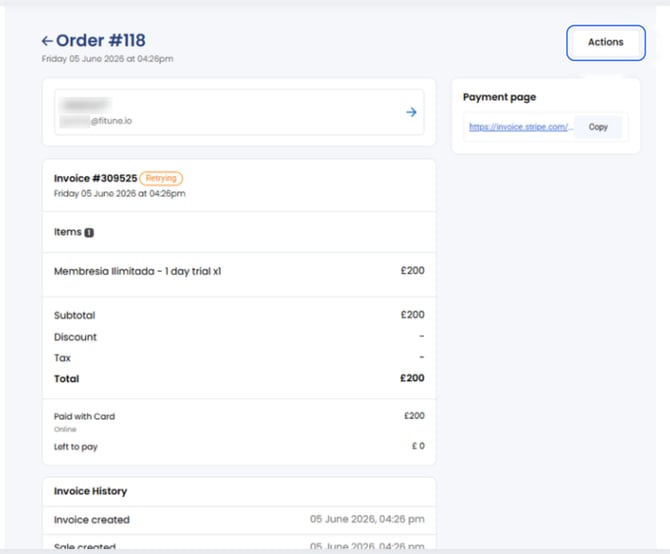
- Open the invoice.
- Click Actions.
- Select Change Invoice Status.
- Choose Paid.
- Select the payment method used by the client.
- Save your changes.
Tip: if a client experiences failed renewals due to an expired card, updating the payment method can help restore automatic billing without creating a new membership.
Frequently asked questions
▶ Do I need to cancel the membership before updating the payment method? No. The payment method can be updated without affecting the membership.
▶ Will future renewals use the new payment method? Yes. Future membership charges will use the updated payment method.
▶ Why should I update the payment method instead of creating a new membership? Updating the payment method allows the membership to continue without interruption, maintaining accurate membership history and avoiding unnecessary cancellations.