
This report is available only on the Fitune Ultra plan.
How does this report help you?
- See at a glance how many classes were scheduled, booked, attended, cancelled, or had no-shows.
- Know your average occupancy, booking, attendance, no-show, and cancellation rates.
- Identify your highest- and lowest-occupancy class, your busiest weekday, and your peak hour.
- See your occupancy rate trend over time.
- Filter all of the above by class, class type, staff, location, location type, and date range.
Available Visualizations
-
Summary
Shows totals (Class Schedules, Bookings, Attendances, No-shows, Cancellations) and average rates (Occupancy rate, Booking rate, Attendance rate, No-show rate, Cancellation rate) based on applied filters.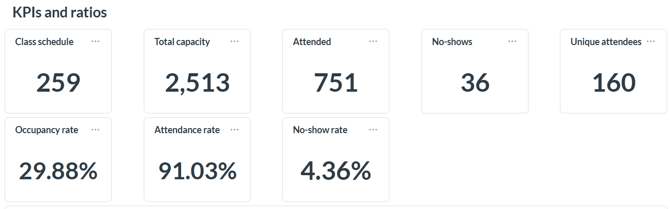
-
Total Attendance
Stacked bar chart showing, by week, the breakdown between Attendances, No-shows, and Unoccupied Spots within the selected date range.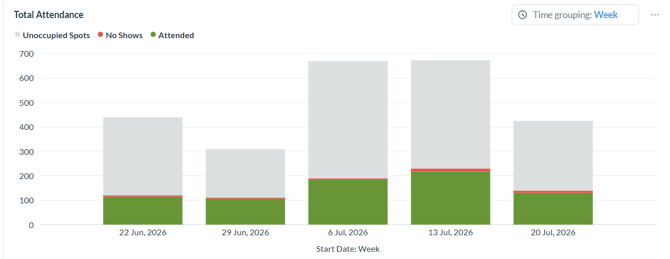
Information Available in the Report
- Class – name of the class or event.
- Class type – group class or event.
- Start weekday – day of the week the schedule occurred.
- Start date – date of the schedule.
- Start time – time the schedule started.
- Staff – assigned trainer or instructor.
- Location – venue where the class took place.
- Location type – in-person or online.
- Total capacity – maximum capacity for the schedule.
- Booked – number of people who booked.
- Attended – number of people who attended.
- Cancelled – number of people who cancelled.
- No shows – number of people who didn't attend without cancelling.
- Waitlisted – number of people on the waiting list.
- Occupancy rate – percentage of capacity used.
- Booking rate – percentage of capacity booked.
- Attendance rate – percentage of bookings that attended.
- No show rate – percentage of bookings that didn't attend.
- Cancellation rate – percentage of bookings that were cancelled.
Frequently Asked Questions
▶ Why don't I see this report in my account? This report is only available for accounts on the Fitune Ultra plan.
▶ Do the insights and charts change if I apply filters? Yes. All totals, rates, insights, and the trend graph automatically update based on the filters you apply (class, class type, staff, location, location type, or date range).
▶ What happens if two classes have the same occupancy rate? The report shows only one result, prioritizing first the class with the most scheduled sessions, then the one with the highest total attendances, and if still tied, the one that comes first alphabetically. The same logic applies to weekday and peak hour.
▶ What's the default date range shown? The last 30 days, including today.
▶ Does the trend graph skip days with no occupancy? No. If a day within the selected range had 0% occupancy, it will show as a value of 0 — it is not skipped.