
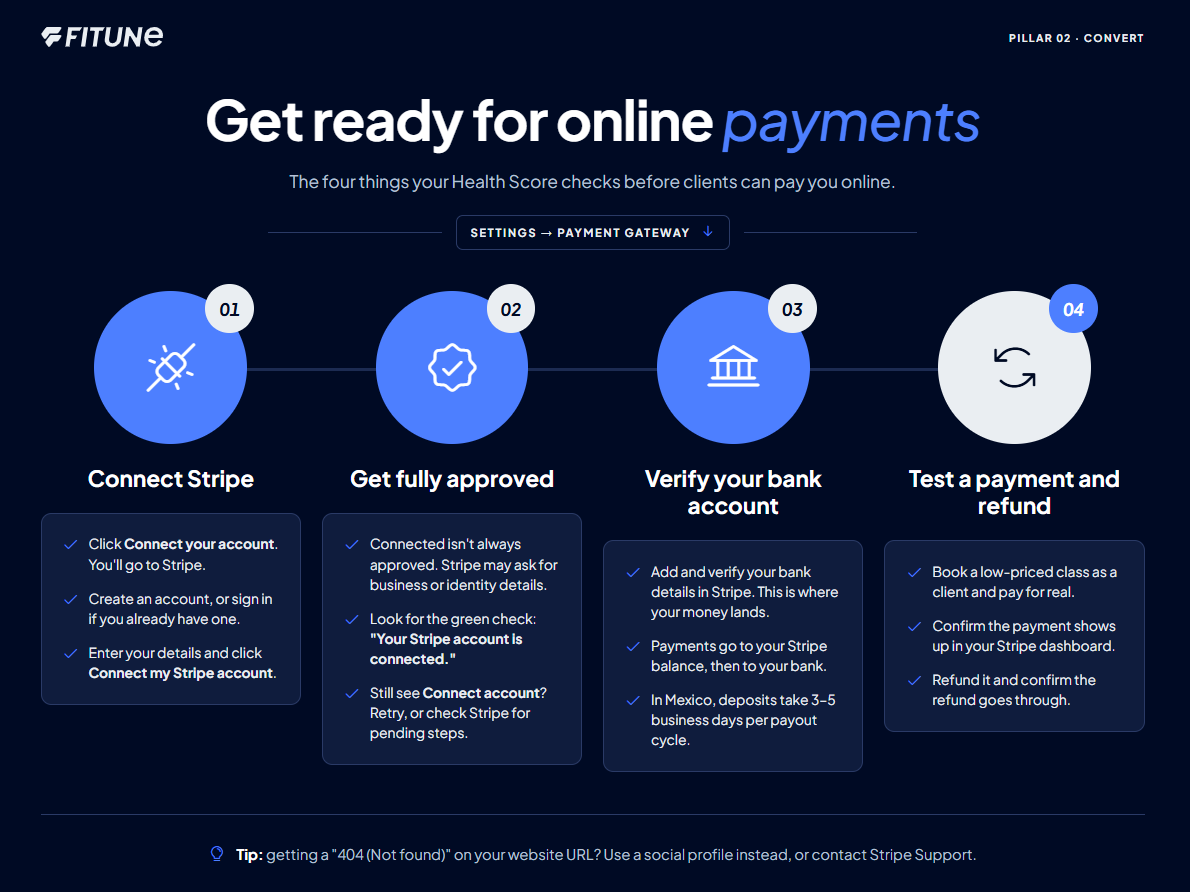
This counts toward the Convert pillar of your Fitune Health Score. Online payments are what turn a "maybe" into a booking. If a client is ready to pay right now and your payment setup isn't fully working, you don't just lose that sale — you lose the momentum of them wanting to book at all. This article covers the four things your Health Score checks here: that Stripe is connected, that it's fully approved (not just connected), that your payout bank account is verified, and that you've actually tested a real payment and refund.
Before you start
Fitune uses Stripe as its payment processor: it lets your clients pay by credit or debit card directly on your site or app, with no Stripe account needed on their end, and no setup or monthly fees on yours — you're only charged per transaction. Funds go straight to your own connected bank account.
The 4 points your Health Score checks here
1. Your Stripe account is connected
- Go to Settings → Payment gateway.
- Click Connect your account — you'll be redirected to Stripe.
- If you don't have a Stripe account yet, fill in the form to create one. If you already have one, click "Already have a Stripe account? Sign in" in the top right corner.
- Enter your details and click Connect my Stripe account on the confirmation screen.
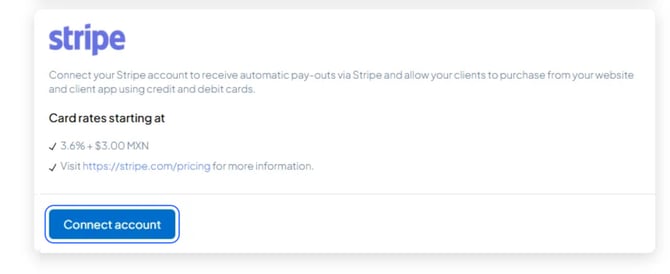
Tip: if you get a "404 (Not found)" error when entering your website URL, you can enter one of your business's social media profiles instead (Facebook, Instagram, etc.), or contact Stripe Support to validate your URL.
2. Your Stripe account is fully approved — not just connected
This is the point that's easy to miss: connecting your account and being fully approved to receive payments aren't always the same moment. Stripe may ask for a bit more information (business details, identity verification) before your account can actually go live.
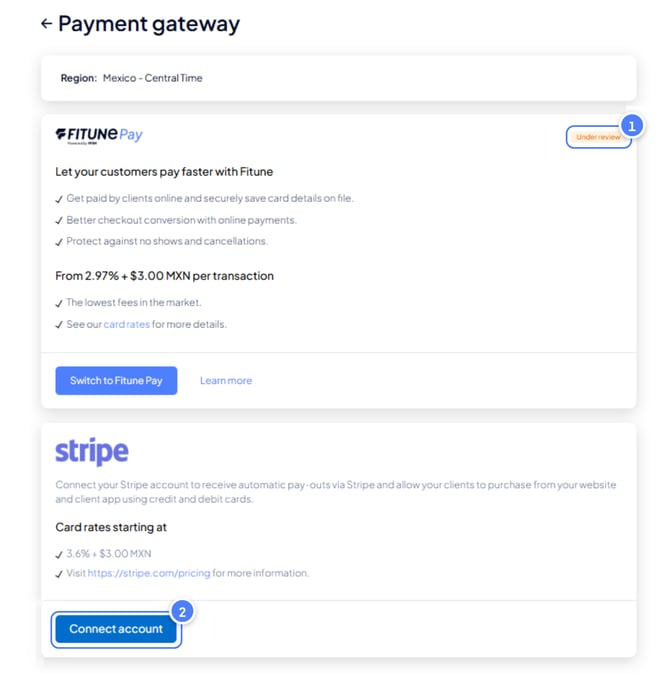
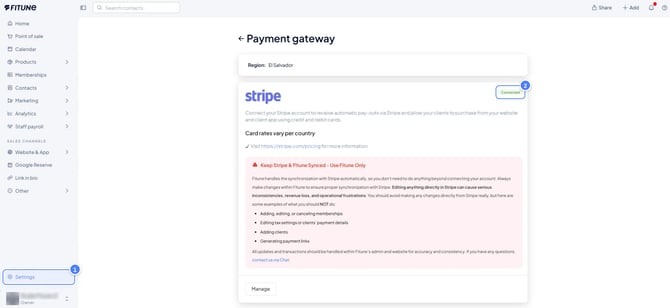
- Go back to Settings → Payment gateway after connecting.
- Look for a green checkmark with the text "Your Stripe account is connected." That's your confirmation.
- If the button still says "Connect account" instead of showing that confirmation, the connection didn't fully complete — try again, or check your Stripe dashboard directly for any pending verification steps it's asking you to complete.
❌
✅
3. Your payout bank account is added and verified
Once connected, make sure your bank account details are entered and verified on the Stripe side — this is where your money actually lands.
- Funds move on a rolling schedule: Stripe sends payments to your Stripe balance, then out to your bank account.
- In Mexico, deposits typically take 3–5 business days after each payout cycle — a little longer for brand-new accounts, since Stripe runs an initial verification the first time.
- Over time, as your account builds a track record (transaction history, low dispute rate, up-to-date compliance info), Stripe may speed this up.
You can review or update your linked bank account anytime from your Stripe dashboard.
4. You've tested a real payment and refund
Don't just trust that it's working — check it. Before you tell clients they can pay online, run through the full flow yourself with a real (small) transaction:
- Book a class or service as if you were a client, and complete a real payment — a low-priced class works well for this.
- Confirm the payment shows up in your Stripe dashboard.
- Issue a refund for that same test payment, and confirm it goes through cleanly.
If either step trips you up, that's exactly the kind of gap this check is meant to catch — better to find it now than when a real client is paying.
Frequently asked questions
▶ Do I need a registered business to use Stripe?
Not always — requirements vary by country, but you'll need to provide some basic business information either way.
▶ Does Stripe accept international cards?
Yes, Stripe accepts credit and debit cards from around the world.
▶ Can I use Stripe as a freelancer or sole trader?
Yes, Stripe supports individual accounts for freelancers and sole traders.
▶ Are there hidden fees?
No — no setup fees, no monthly fees, no card storage fees. You're only charged per transaction.
▶ Can I update my bank account after connecting Stripe?
Yes, anytime, directly from your Stripe dashboard.