
This counts toward the Attract pillar of your Fitune Health Score. A well-set-up website is your studio's front door — it's what turns someone who's never heard of you into someone who books a class. This article covers the 11 points your Health Score checks on your site.
Before you start
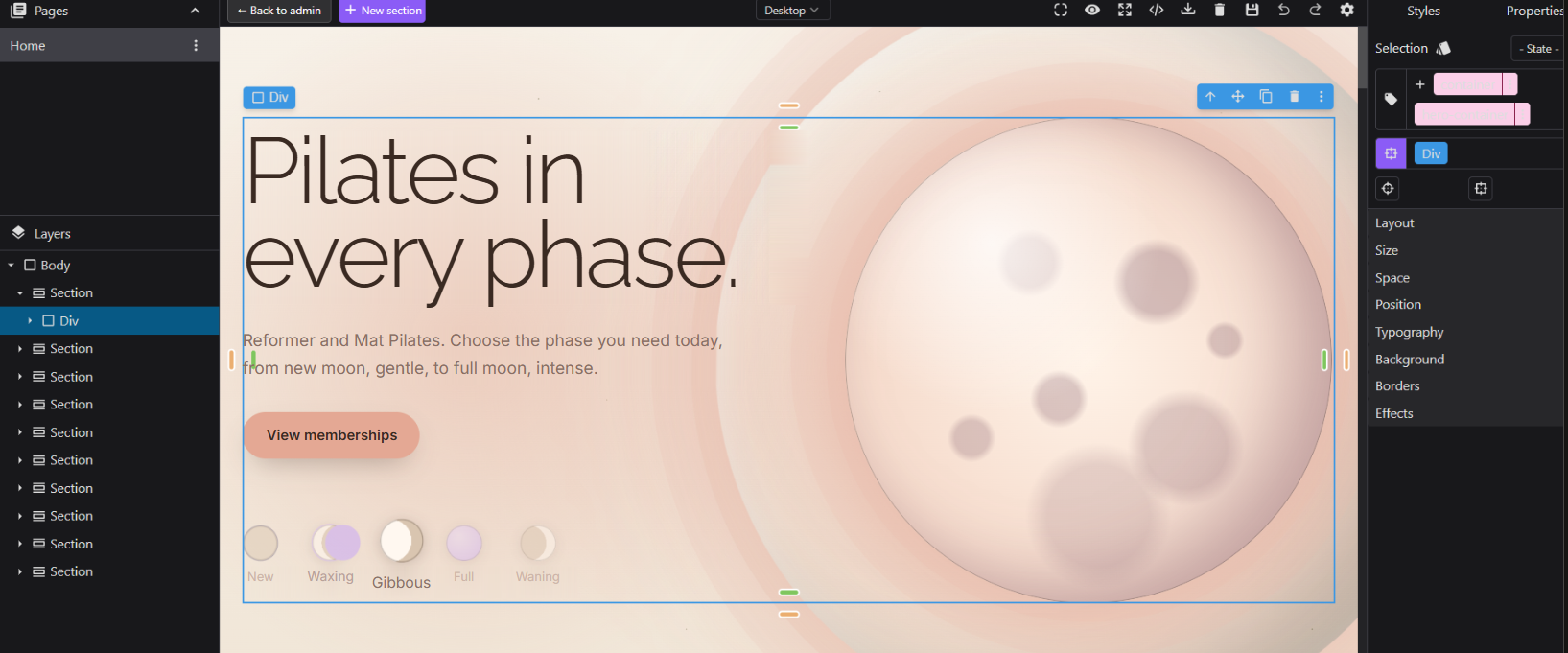
You access the site editor under Website and App > Design, in the left-hand menu.
Fitune has a new Website Builder — with six ready-made templates (Soft Coral, Strong Wellness, Good Energy, Modern Vibe, Calm Forest, Modern Dark), drag-and-drop sections and blocks, and practically no design limits. You can preview a template before choosing it, or build from scratch. If your site was built before this update, it won't migrate automatically: the sections need to be rebuilt in the new editor. See the full walkthrough of the builder's templates, sections and blocks here.
If you'd rather not build it yourself, Fitune's team offers an assisted setup service.
We configure your homepage content, images and brand styling, plus your classes, memberships and schedules, and typically deliver it within about a week of getting your info. Read more about the assisted setup service here.
The 11 points your Health Score checks on your website
1. Your website is live and anyone can visit it
Make sure your site is published — not just saved as a draft. A draft only you can see doesn't count: it needs to be live and available for everyone to visit.

2. A clear "Book Now" button that's easy to find on every page
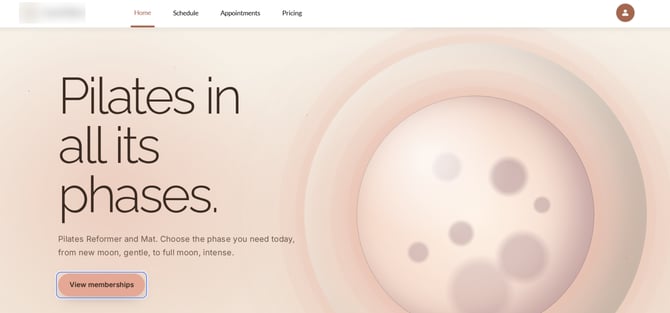
Make sure a Book Now button appears right when someone opens your homepage — before they need to scroll down — and on your Book page too (some studios still call this tab "Schedule"; we recommend renaming it to "Book," since that's the action you want people to take). See how to rename tabs here.
On your homepage, the very first thing visitors see should include this Book Now button, clearly inviting them to take action — not just a mention of your classes somewhere on the page. This is something you set up yourself in the editor, but if you'd like a hand with it, our team is here to help.
3. Show your prices without making people click to find them
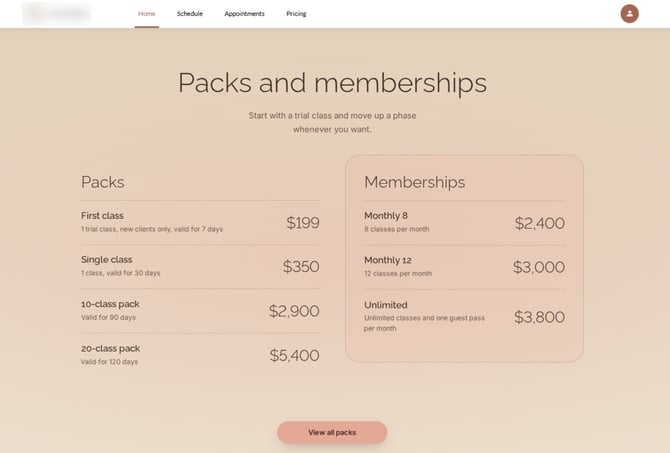
You already have a Pricing tab where clients can purchase classes directly. But some visitors land only on your homepage and never make it to that tab — so it's worth adding a section right on your homepage that shows your plans and packs, each with a link straight to purchase.
4. A special offer with a call to actnion
A great intro offer is a single-class pack priced just for new clients — usually 25–30% cheaper than a regular class. You set it up the same way as your other pricing services: create a pack, turn on the switch that limits it to new clients only, and set the discounted price right on the pack. Then feature it on your homepage with the price shown, so visitors see the deal right away.
5. A short description of each class you offer
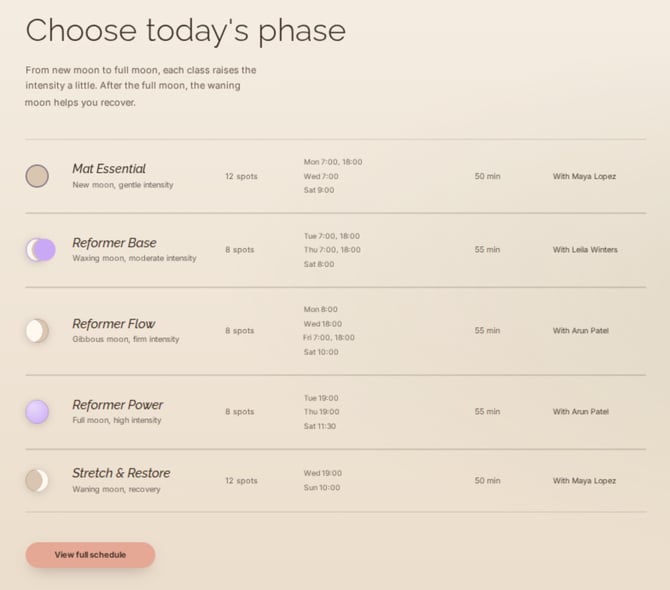
Add a section on your homepage with a short description for each class you offer — just a line or two is enough to tell visitors what the class is and what to expect. Pair it with a Book button so they can go straight from reading about the class to booking it.
6. Real photos of your actual studio
Use real photos of your studio and space — avoid stock photos on your live site. Photos of your staff and clients in action are even better: they show visitors your business is real, active, and already serving people just like them.
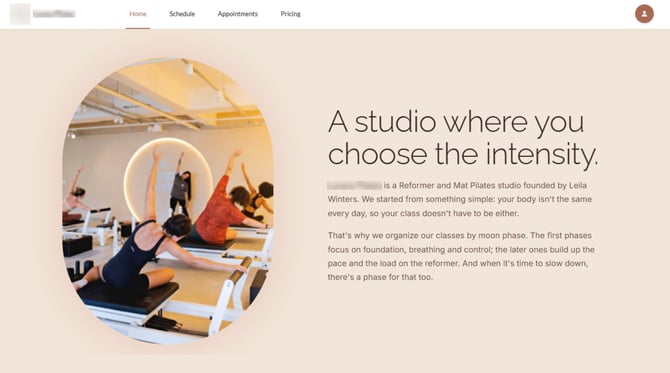
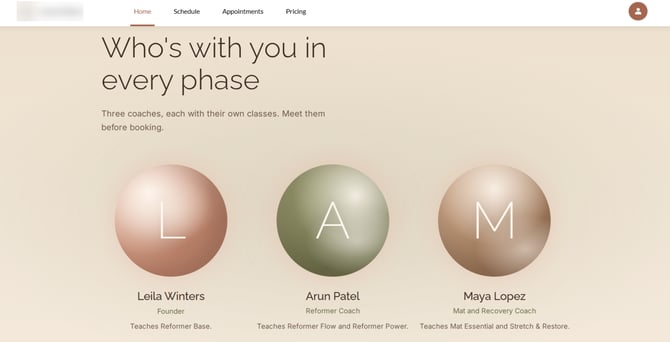
7. A section that introduces your studio and instructors
Use this section to tell your story — who you are, what your studio stands for, and who's teaching. Add photos of your space and instructors so visitors feel like they already know you before they walk in.
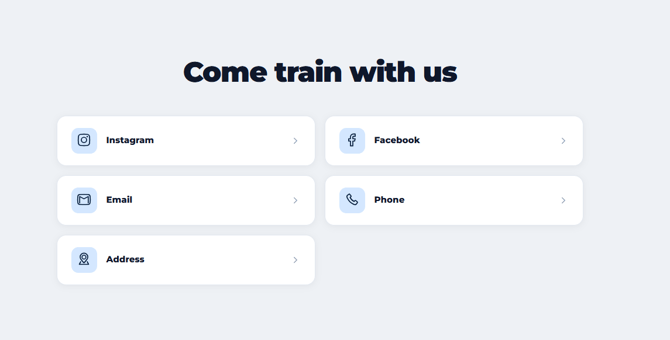
8. Your address, a map, and your opening hours
Add your address with a map, plus your opening hours, so visitors know exactly where to find you and when you're open.
9. Reviews from real clients
The more real reviews you show, the more visitors trust you. Add real client reviews to your site, and link a button straight to your Google review page (once you've set up your Google Business Profile) so people visiting your website can easily leave you a review too. The more reviews you collect, the better your studio ranks in local Google searches.
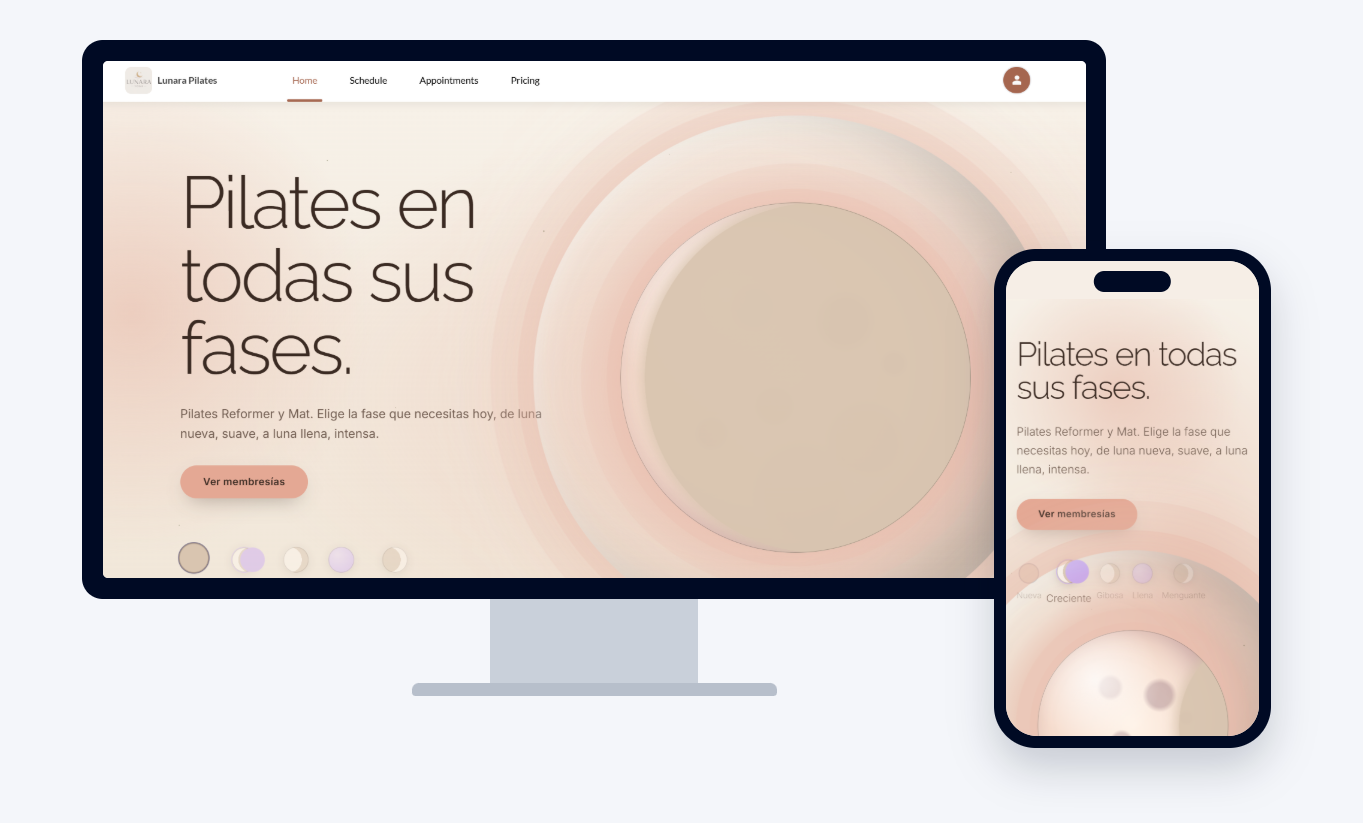
10. Make sure your website works well on every device
Your website should work well on phones and tablets, not just computers. Teste it in different devices before anouncing it's launch.
11. Have your Favvicon ready and showing.
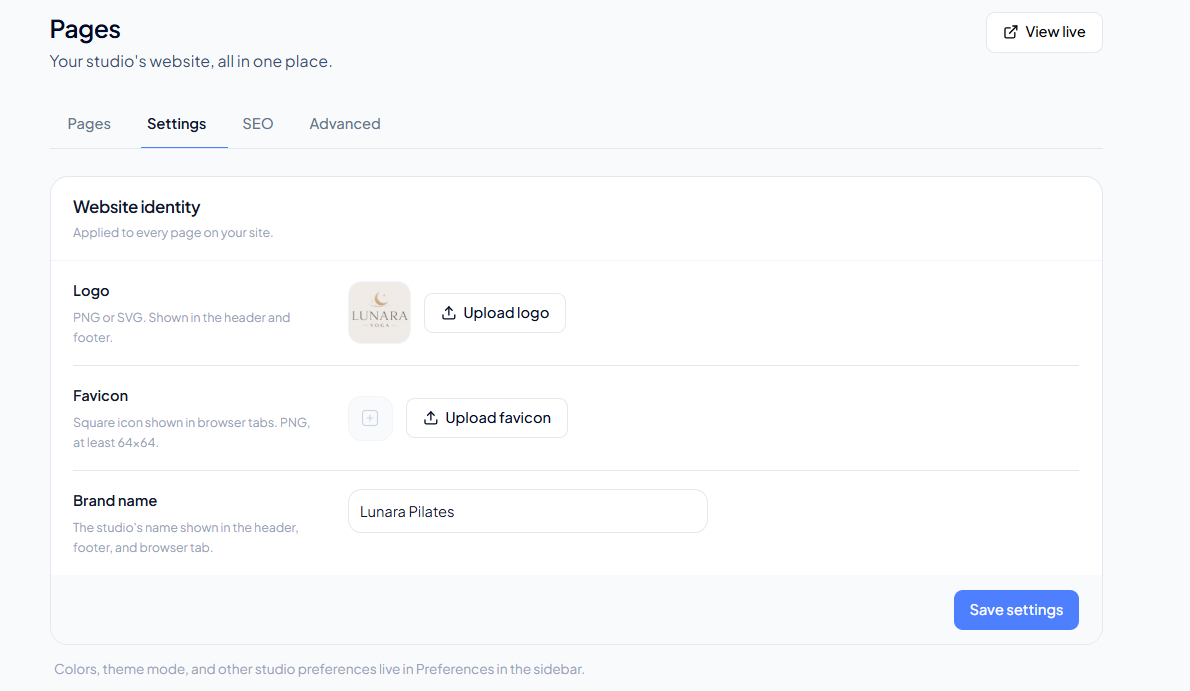
A favicon is the small icon that shows next to your site's name in a browser tab or when someone bookmarks your page — like a mini logo. You can set yours directly inside the Website Builder editor; look for the favicon option there.
Frequently Asked Questions
▶ Does the new builder replace the previous editor?
Yes, it's a complete replacement, with many more templates and features.
▶ Will my current site update automatically to the new builder?
No. Existing sites don't migrate automatically — you'll need to rebuild your sections in the new editor.
▶ Can I reuse photos and videos I've already uploaded?
Yes, everything you upload is saved in your asset library, for use in any section.
▶ Are free photos available?
Yes, you can search for free photos directly in the image picker via Unsplash — but for the real space photo (checklist point 6), use one of your own.