
This is part of the Attract pillar of your Fitune Health Score — Reserve with Google puts a "Book" button right on your Google listing, turning searches into bookings without a single message back and forth.
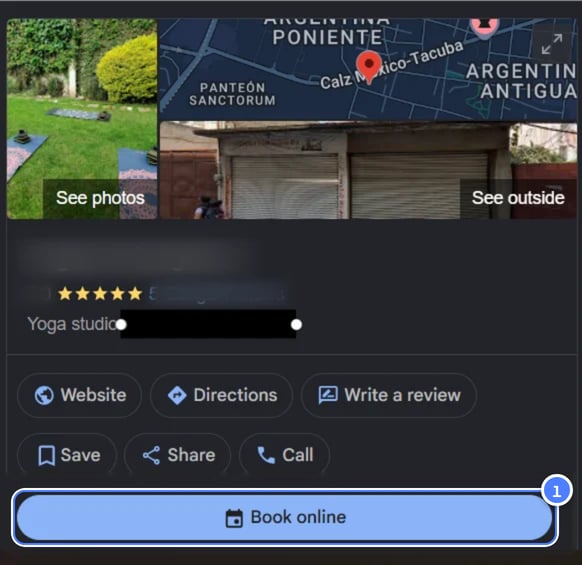
Available on the Plus and Ultra plans.
You'll also need a verified Google Business Profile set to an approved fitness category — if you haven't set that up yet, it's worth doing first, since Reserve with Google won't work without it.
If you run into any questions along the way, your onboarding team or your Fitune coach can help you through the integration.
What Reserve with Google actually does for your studio
When someone searches "[your class type] near me" or your studio's name on Google or Google Maps, Reserve with Google lets them see your schedule and book a class right there — no back-and-forth messaging, no leaving Google.
Why it's worth turning on:
- More visibility — your services show up in the exact searches potential clients are already making.
- Fewer steps to book — people can view your calendar, check class or membership details, and book directly from what they see on Google.
- Easy to track — Fitune automatically tags these clients in your CRM as "Lead Source = Reserve with Google," so you always know where a booking came from.
- No extra cost — Google doesn't take any commission on bookings that come through Reserve with Google.
Setting it up: connecting and syncing
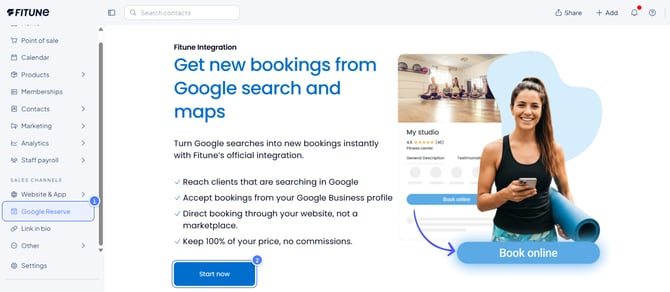
- Open the integration. From your left-hand panel, go to Reserve with Google, or Settings → Integrations → Connect, and click Get Started.
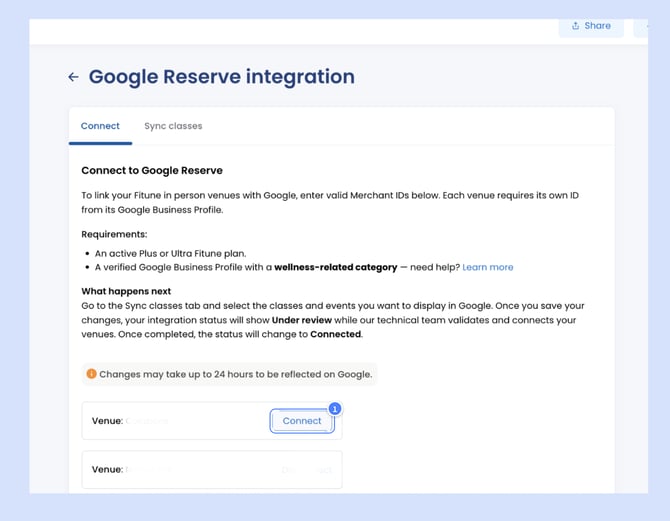
- Connect your location. If your studio has more than one location, you'll connect each one separately.
- Match it to your Google Business Profile. Search for your business name and select the option showing your address — this needs to match exactly what's registered on your Google Business Profile.
- Save your changes. Once saved, your classes start syncing with Reserve with Google.
Choose which classes and events show up on Google
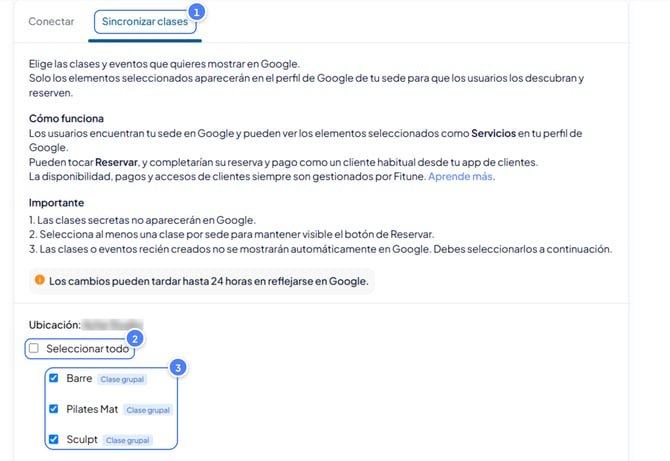
Turning on the integration doesn't automatically put your whole schedule on Google — you choose which classes and events appear as Services on your Google listing for people to discover and book.
A few things worth knowing:
- Secret classes stay hidden — they won't show up on Google, even after you connect.
- Keep at least one class selected per location — otherwise the Book button disappears from your listing.
- New classes need to be added manually — creating a class or event in Fitune doesn't automatically add it to Google; you'll need to go select it.
Availability, payments, and client access are always handled by Fitune — Google is just where people discover you and start the booking.
Keep in mind that connecting or disconnecting a location, or a class or event, can take up to 24 hours to actually show up on your Google Business Profile — so don't worry if it's not instant.
FAQ
▶ Does someone need a Google account to book?
No. They land on your Fitune website from your Google listing and are treated like any other client — they'll just be asked to create a Fitune account when they book or pay.
▶ Can I tell which bookings came from Reserve with Google?
Yes — they'll show up in your CRM with "Lead Source = Google Reserve" and a Google logo next to their name, and you can filter for them in your Contact Details report.
▶ Does Google charge any commission?
No, bookings and purchases through Reserve with Google are free of any Google commission.
▶ Do Fitune's cancellation policies still apply?
Yes — a client with a card on file gets charged any penalty automatically; without one, they'll get an offline invoice instead.
▶ Can I connect a virtual location?
No — only physical addresses can be connected to Reserve with Google.
▶ What happens to existing bookings if I disconnect?
Nothing — they stay intact. Clients just won't be able to find and book you through Google anymore.
▶ Why isn't a recent change showing up on Google yet?
Give it up to 24 hours. If it's been longer than that, reach out to Fitune support.
Once you've got this connected, it's worth double-checking your Google Business Profile is fully filled out — a complete profile with good photos and reviews makes people much more likely to actually tap that Book button when they find you.