
If you already had a site with the previous editor
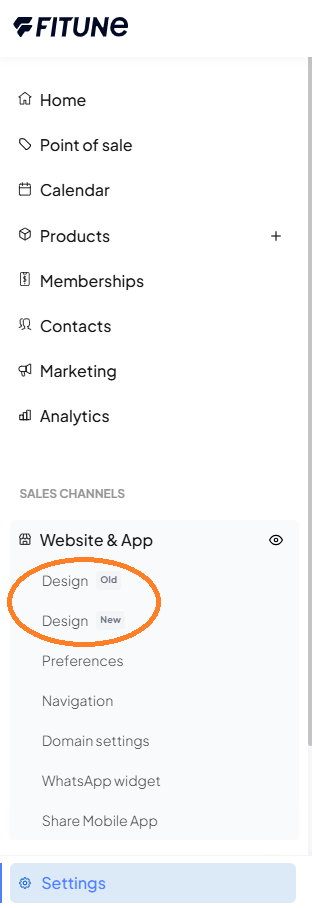
Until you make the switch, you'll see two options in your sidebar: Design, labeled Previous, and Design, labeled New. You can go in and out of both with no consequences.
The new editor doesn't touch your live site today. You can build your page at your own pace, over several sessions, without anyone seeing the changes. Everything you do in the new builder is saved as a draft — you'll see a banner at the top reminding you, with a Make this my live site button. Your live site stays the one from the previous editor until you decide to publish.
What happens when you publish
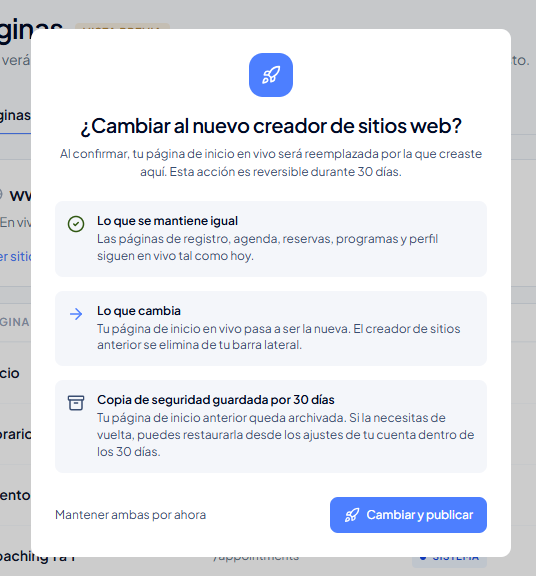
Clicking Make this my live site opens a dialog that explains exactly what will happen:
- Stays the same: your registration, schedule, booking, program, and profile pages stay live exactly as they are today.
- Changes: your new homepage replaces your live one, and the previous editor is removed from your sidebar.
- Reversible for 30 days: your previous homepage gets archived. You can restore it from your account settings within 30 days of the switch. After that window, the backup is no longer available.
You have two ways to close that dialog: Switch and publish, or Keep both for now — the second option doesn't cancel anything you've built, your draft stays waiting.
Benefits of moving to the new editor: besides more templates and design freedom, it includes features the previous editor doesn't have, like SEO and metadata settings and Meta Pixel and Google Analytics tracking. If you decide to go back to the previous editor within the 30-day window, you'll lose access to these features while you're on it.
If you're new to Fitune
You probably haven't customized your homepage yet, so your clients won't see it on your site — for now, your logo redirects them to other service pages, like bookings.
To make your homepage exist and be visible:
- Choose a template or start blank. You can preview any template before selecting it.
- Customize your page inside the editor.
- Save your progress, and your homepage will be published.
If you want to rename your pages or hide some of them, you can do that from this same Design screen.
How to customize your page in the new editor
Whether you're coming from the previous editor or you're new to Fitune, once you're inside the editor, customizing works the same for everyone. For the full detail on templates, sections, blocks, and customization, visit Design Your Website with the New Website Builder.
Marketing pages vs. system pages
- Marketing pages — the ones you customize with the editor. For now, Home is the only one available. About, Services, Team, FAQ, and Other are coming soon.
- System pages — functional pages on your platform, like checkout or the booking calendar. These aren't customizable with the editor yet.
On the Pages screen, you'll see each page's status: Draft, Hidden (the page exists but doesn't show up in your site's menu), or Live.
Frequently Asked Questions
▶ What's the difference between saving and publishing my New Design? (applies only if you already had a site with the previous editor) Saving leaves your page in preview mode, as a draft, visible only to you. Publishing, with the Make this my live site button, makes it Live and visible to your clients.
▶ Does my previous website stop working while I customize the new one? No. Your site with the previous editor stays published and working normally while you work on your new design, for as long as you need.
▶ What exactly happens when I publish my new site? Only your homepage changes: the new one replaces the previous one. Your registration, schedule, booking, program, and profile pages stay live exactly as they are. The previous editor is removed from your sidebar.
▶ Can I go back to the previous editor if I change my mind? Yes, within 30 days of switching. Your previous homepage is archived and you can restore it from your account settings. After that window, the backup is no longer available — if you're unsure, decide before the month is up.
▶ If I go back to the previous editor, do I lose my SEO and tracking pixels? Yes, while you're on the previous editor you won't have access to SEO settings or Meta Pixel and Google Analytics tracking — those features are exclusive to the new editor.
▶ Why don't I see a Home tab on my site if I'm a new studio? Because you haven't customized and saved your homepage yet. In the meantime, your clients are directed to other service pages.
▶ Can I create additional marketing pages besides Home? Not for now — this feature is coming soon.
▶ Where do I manage the names and visibility of my pages? From the same Design → Pages screen, whether you're a new studio or you've already made the switch from the previous editor.
▶ What does it mean for a page to be "Hidden"? It exists, but it doesn't show up in your site's menu. That's different from Draft, which isn't published yet.