
This counts toward the Operate pillar of your Fitune Health Score. Once you've written your cancellation window and no-show rule (covered in a separate article), the next step is deciding whether breaking that rule actually costs the client something — a fee that protects your schedule from last-minute empty spots and no-shows that eat into your revenue.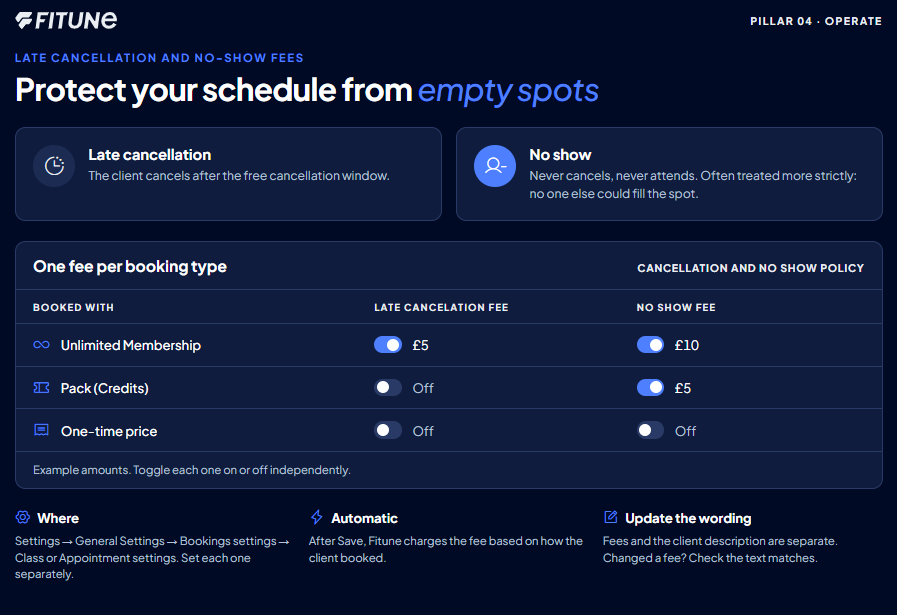
Where to set it up
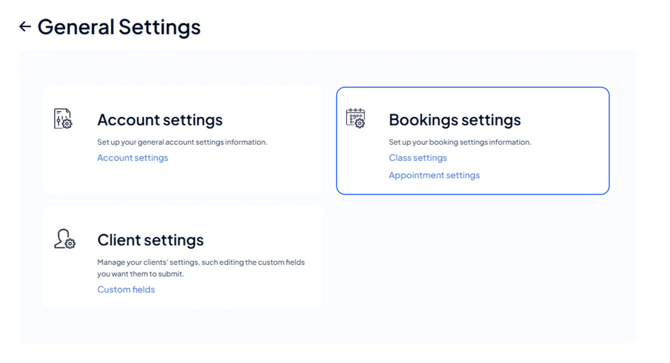
Go to Settings > General Settings > Bookings settings, then open Class settings or Appointment settings, depending on which one you're configuring — these are independent, so a fee set for classes won't automatically apply to 1:1 bookings. Scroll to the Cancellation and no show policy section, where you'll find two areas to configure: Late cancellation penalty and No show.
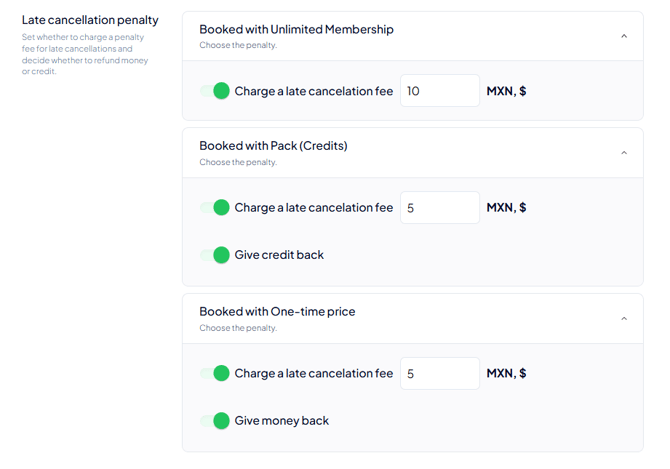
Charge a fee for late cancellations
Under Late cancellation penalty, you'll see the fee set up separately for each way a client can book: Booked with Unlimited Membership, Booked with Pack (Credits), and Booked with One-time price. For each one, toggle on Charge a late cancelation fee and enter the amount — this means you can, for example, charge a flat fee for unlimited-membership clients while handling pack-based bookings differently.
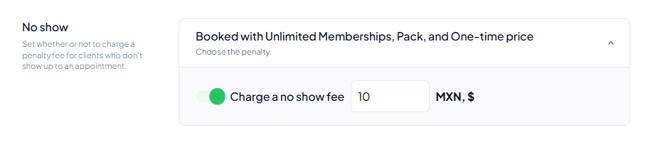
Charge a fee for no-shows
The No show block works the same way, just below it — toggle on Charge a no show fee for each booking type where you want one applied, and enter the amount. It's worth deciding deliberately here rather than leaving every type the same: a no-show is often treated more strictly than a late cancellation, since the spot couldn't be filled by anyone else at all.
Once you’re happy with the amounts for each booking type, click Save. From then on, Fitune applies the fee automatically whenever a client cancels late or doesn’t show up, based on how they booked.
Helping your team handle questions about charges
If a client questions a charge, it helps if the staff member handling it knows the day-to-day side of cancellations. The Team and Front Desk – Frequently Asked Questions! article covers common situations like canceling a class or checking a client in. Reading it alongside this one shows how the fee gets triggered.
Waiving or reversing a fee
If you need to waive or reverse a fee after it’s been charged, follow How to Refund a Client.
Frequently asked questions
▶ Do I have to charge the same fee for every type of booking?
No — memberships, packs, and one-time bookings each have their own toggle and amount, so you can set different fees (or none at all) for each.
▶ What's the difference between the late-cancellation fee and the no-show fee?
The late-cancellation fee applies when a client cancels after your free cancellation window has passed; the no-show fee applies when they simply don't attend and never cancel at all.
▶ Does setting a fee here also update the policy text clients see?
No — the fee amounts and the client-facing description are configured separately. If you update a fee, it's worth double-checking that the wording in your policy description still matches.
▶ Can I turn off the fee for just one booking type?
Yes — each booking type (Unlimited Membership, Pack (Credits), One-time price) has its own toggle, so you can disable the fee for one type while keeping it on for others.