
This counts toward the Operate pillar of your Fitune Health Score. Handing your team access to Fitune is about more than just getting them logged in — it's making sure each person has their own account, the right level of access for their role, and enough hands-on comfort with the platform that they can help a client with confidence. This counts toward the Operate pillar of your Fitune Health Score.
Give every staff member their own account
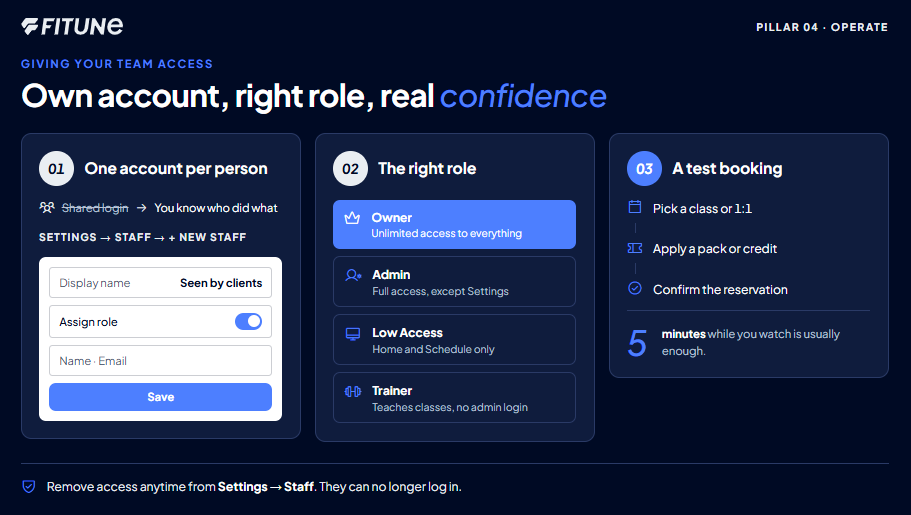
Sharing one login between multiple team members might feel quicker at first, but it makes it impossible to tell who did what, and it means everyone has the same level of access whether they need it or not. Setting up an individual account for each staff member solves both problems.
To add a new staff member:
- Go to Settings > Staff.
- Click +New Staff.
- Enter their Display name — this is what clients will see on your website and booking pages.
- Turn on the Assign role toggle, so you can set their access level right away.
- Enter their First name, Last name, and Email address.
- Click Save.
Choose the right role for each person
Fitune gives you a few different access levels, so each staff member only sees and controls what's relevant to their job:
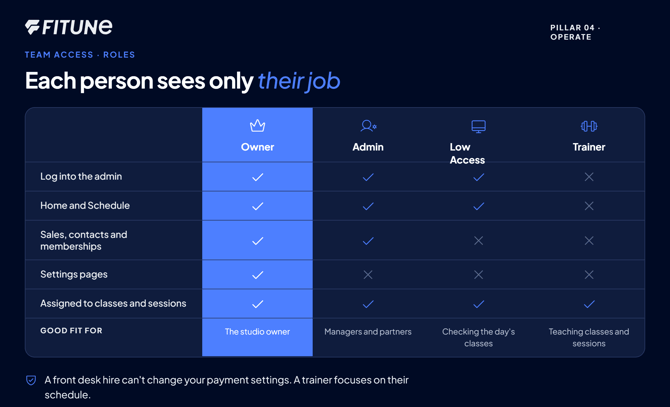
- Owner — the account that created the studio, with unlimited access to everything.
- Admin — full access granted by the Owner, with the one exception that Admins can't reach the Settings pages themselves.
- Low Access — limited to the Home and Schedule sections only — a good fit for someone who just needs to check the day's classes.
- Trainer — assigned as the trainer for classes and sessions, without being able to log into the admin side of the account at all.
Matching each person to the right role means a front desk hire isn't accidentally able to change your studio's payment settings, and a trainer can focus on their schedule without extra menus getting in the way.
Check this article for more technical details : How to Give Access to Your Team / Trainers / Staff
If you're bringing on someone new, it's worth also reading how to handle common day-to-day staff and front desk questions — the Team and Front Desk – Frequently Asked Questions! article covers things like checking clients in, managing classes, and handling purchases from the front desk, which pairs well with getting a new hire comfortable early on.
Make sure everyone's actually comfortable using it
Creating the account is only half the job — the other half is confirming that each staff member genuinely knows how to use Fitune before they're relying on it with a real client in front of them.
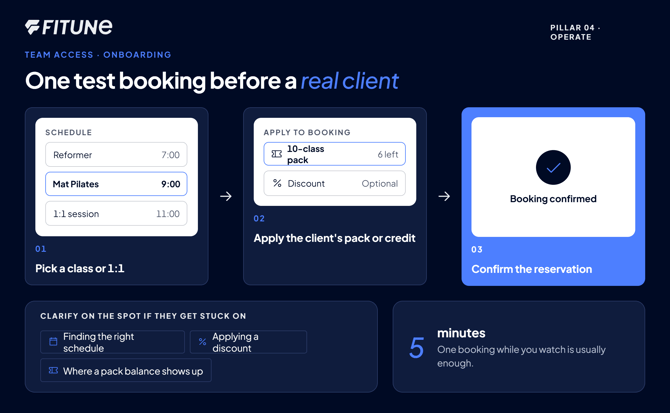
A quick way to do this is to have each new team member complete a full test booking themselves: walk them through picking a class or a 1:1 appointment, applying a client's package or credit, and confirming the reservation, the same way they'd do it for someone standing at your front desk.
If anything trips them up — finding the right schedule, applying a discount, or knowing where a client's pack balance shows up — that's exactly the moment to clarify it, before it becomes a real client's problem.
This doesn't need to be a big formal session. Even a five-minute walkthrough during onboarding, with your new hire making one real (or test) booking while you watch, is usually enough to confirm they're ready.
Frequently asked questions
▶ What happens if I remove a staff member's access?
You can remove access for any staff member directly from the Settings > Staff page — once removed, they'll no longer be able to log in.
▶ Can a staff member see or edit the email they receive when I grant them access?
No — that email is sent automatically by Fitune when you save a new staff account, and its content isn't editable from your side.
▶ Do I need to assign a role to every staff member?
Yes — turning on the Assign role toggle when creating their account is what lets you control exactly what they can see and do, so it's worth setting for everyone from the start.
▶ What if a staff member will only ever teach classes, not use the admin side at all?
The Trainer role is built for exactly that — they're assigned as the trainer for their classes without needing admin login access.