
Upload from YouTube
- Click on Videos and then on "Add video".
- Under "other ways to upload," select YouTube and paste the link of the video. Make sure it's unlisted on YouTube so nobody can search for it. After pasting the link, click on "Save".
- Write a title for the video.
- Add a description of the video so your clients know what to expect.
- Choose a category or create one right from there.
- Choose one of the trainers or hosts you added or add a new one.
- If you want to offer the video for free, switch it on.
- If you want to make the video available for purchase or rent, click on the buttons and adjust the price.
- If you click on Advanced Settings, you can add things like the intensity, equipment needed, and more.
- Click Save.
Upload from Vimeo
First, you have to connect your Vimeo account:
- Go to Settings and then Integrations.
- Click on "Connect account" under the Vimeo section.
- Click "Allow" on the next page that you will be taken to.
Note: before adding your videos to Fitune, make sure your privacy settings are set to "Hide from Vimeo" and disable the option to allow downloads.
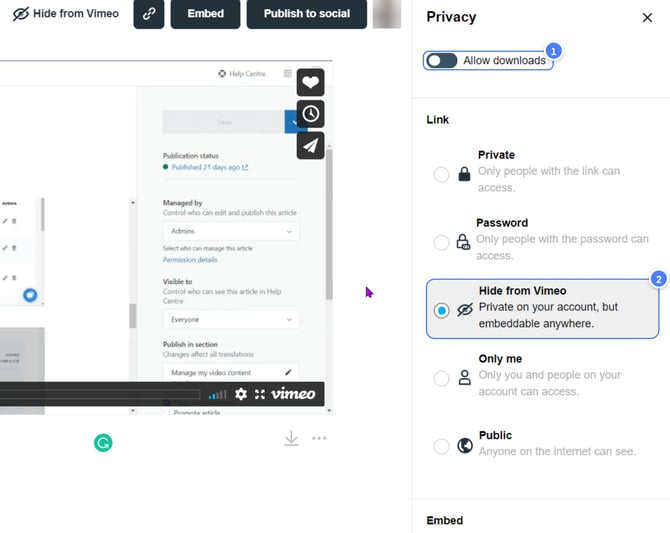
Optional: for even more security, you can scroll down to the Embed section and instead of "Anywhere," select "Specific domains" and add admin.fitune.io and myfitune.io so it can only be embedded on those 2 domains.

- Click on Videos and then Add video.
- Click on Vimeo, enter the URL of the video and click on Save.
- Fill in all the details like title, description and more.
- If you want to offer the video for free, check the free video button.
- You can choose a rental or one-time purchase price.
- When you're done, click on Save.