
If you don't have a Wellhub account yet, please sign up here first. If you already do, please follow the steps below.
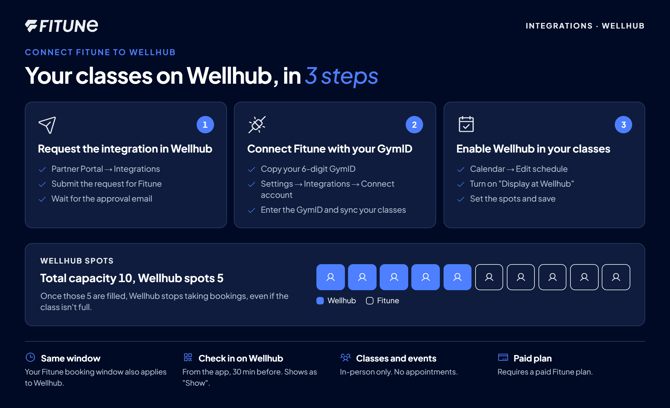
Step 1 - Request the integration in Wellhub
- Log in to the Wellhub Partner Portal.
- Go to Integrations.
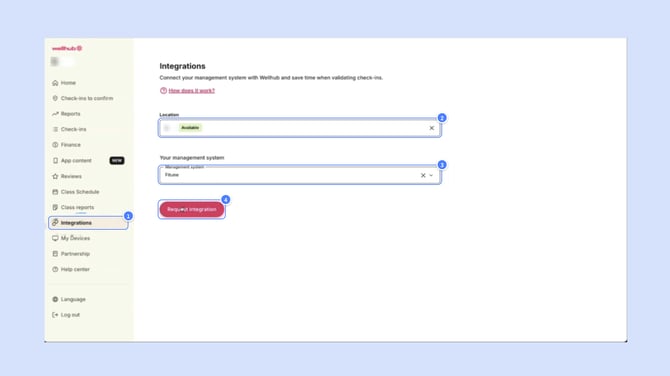
- Submit the request to integrate Fitune.
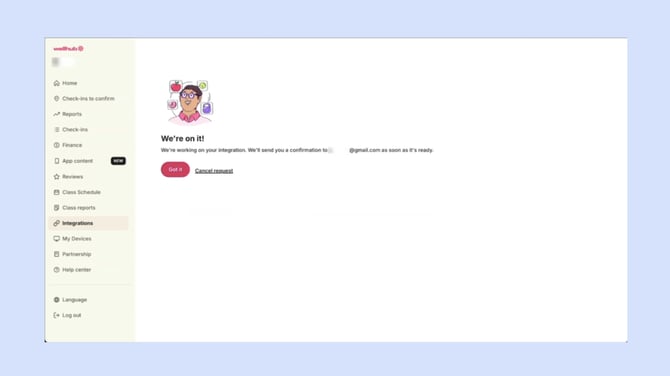
- Wait for Wellhub approval. You will receive an email once the integration is approved.
If you're having trouble finding Fitune when setting up the integration, please refer to the Wellhub / Gympass Integration FAQ's.
Step 2 - Connect Fitune using your GymID
Once Wellhub approves the integration:
- Log in to your Wellhub partner portal: http://partners.gympass.com/
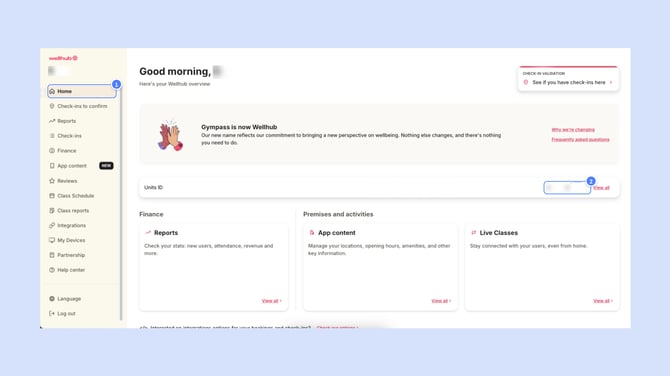
- Go to the Wellhub home page and copy the GymID provided to you on the right side.
Note: Your GymID is provided in the Wellhub Partner Portal and consists of 6 digits.
- Log in to your Fitune admin account: https://admin.fitune.io/
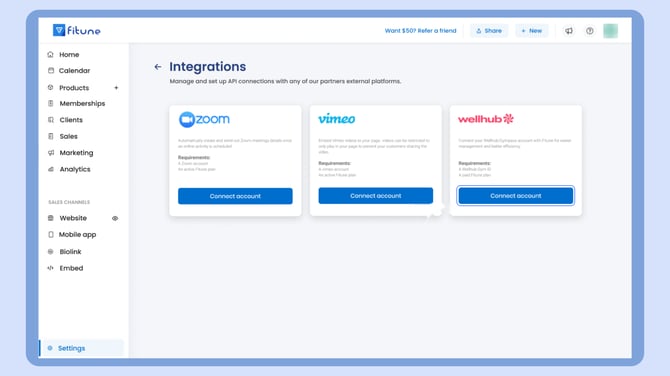
- Go to Settings > Integrations and click on Wellhub's "Connect account" button.
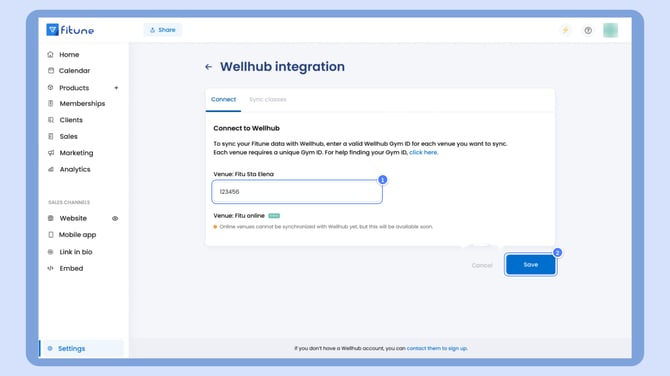
- On the Connect tab, enter the GymID you copied in step 2 and click on "Save".
Important:- If you receive the error message "Invalid Gym ID," please make sure that Fitune is properly connected, exactly as shown in Step 1.
- If it's not showing as connected, please contact Wellhub support so they can assist you with adding Fitune on their end.
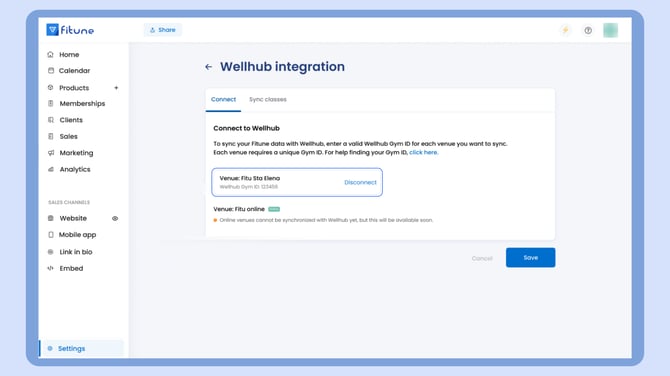
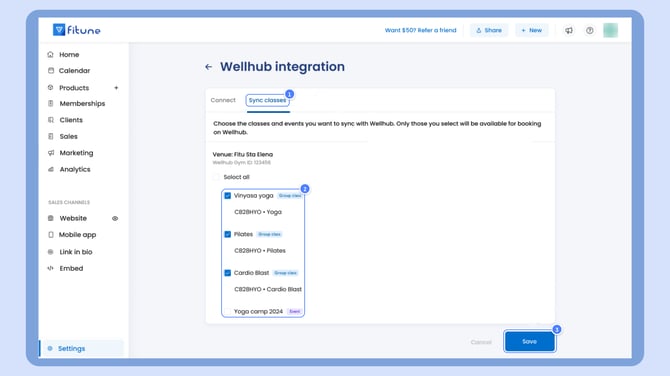
- Go to the Sync classes tab, select the classes or events you want to display at Wellhub, and click on "Save".
Step 3 - Enable Wellhub in your classes
Do you already have your Fitune schedules created?
- Go to your Fitune Calendar and click on any of the schedules you want to display at Wellhub.
- Once you are on the Schedule overview page, click on "Edit schedule".
- On the Edit schedule page, slide down and click on "Wellhub configuration," and turn the "Display at Wellhub" toggle ON.
- Enter the maximum number of Wellhub bookings you want to allow at Wellhub.
- Example: If your class has a Total capacity of 10, you can set the Wellhub maximum spots anywhere from 0 to 10.
- If you set 10 Wellhub spots, all your bookings could come from Wellhub or Fitune.
- If you set 5 Wellhub spots, only 5 bookings can come from Wellhub. Once those 5 spots are filled, no more Wellhub bookings will be allowed, even if the class isn't full.
- Once you enter the maximum, make sure you Save your changes.
- If you are editing a recurring schedule, you will be prompted to confirm if you want to apply that change to "This occasion only" or to "This and future occasions."
- Finally, repeat these steps for the schedule (recurrences) you want to display on the Wellhub app. If you have a Monday to Friday schedule recurrence, you'll need to edit the Monday, Tuesday, Wednesday, Thursday, and Friday recurrences separately.
Are you new to Fitune and haven't created your schedules yet?
- Go to your Fitune Calendar and create your first class schedule, filling out the schedule information such as class, location, recurrence, total capacity, etc.
- At the bottom of this "New schedule" page, you will see "Wellhub configuration" — click on it and turn the "Display at Wellhub" toggle ON.
- Enter the maximum number of Wellhub bookings you want to allow (same criteria as above).
- Once you enter the maximum, make sure you Save your changes.
Good to know:
- You must have a Paid Fitune Plan to integrate with Wellhub. If you are currently on the Free Forever Plan, you will need to Upgrade Your Plan.
- Classes displayed on Wellhub will show a Wellhub icon in the schedule overview.
- Clients who book through Wellhub will appear with a Wellhub tag next to their name in the Attendance list.
- In reports, bookings made through Wellhub will show "Wellhub" in the Origin column.
Booking Rules
The booking window configured in Fitune also applies to Wellhub bookings. For example, if bookings open 1 hour before the class, Wellhub clients can only book within that timeframe. The same applies to the closing booking window.
Check-ins and Attendance
- Clients must check in from the Wellhub app.
- Check-in becomes available 30 minutes before the class starts.
- Attendance cannot be marked manually from Fitune.
Once the client checks in, the attendance will appear as Show in your Fitune dashboard.
Types of Wellhub check-ins
Wellhub clients can check in in two different ways:
- With a prior booking: the client makes a booking and then checks in upon arriving at the studio.
- Without a prior booking (walk-in check-in): the client doesn't make a booking — they simply check in when they arrive at the studio. Wellhub refers to this as a "walk-in check-in."
For clients who only do walk-in check-ins, Fitune automatically creates their contact within the system, but they will not appear in any booking record, since they never made one.
Only clients who book through Wellhub and later check in upon arriving at the studio will show up in booking records.
Booking Changes
- Bookings made through Wellhub cannot be rescheduled from Fitune.
- Clients must reschedule directly from the Wellhub app.
Supported Classes
- Only group classes and events can be displayed on Wellhub.
- Appointments are not supported.
- Currently only in-person locations are supported.
Late Cancellation Payments
- Wellhub respects the free cancellation window configured in Fitune.
- If a client cancels outside that period, Wellhub is responsible for the payment.
- If you believe you did not receive the payment, please contact Wellhub support.