
This counts toward the Convert pillar of your Fitune Health Score. The whole point of an online booking system is that it works while you're closed, while you're teaching a class, or while you're asleep. If a client still has to message you to book or pay, you're losing bookings every hour your studio isn't actively answering messages. This article covers the two things your Health Score checks here: that your schedule can actually be booked (not just looked at), and that clients without a membership can still pay for a single class on the spot.
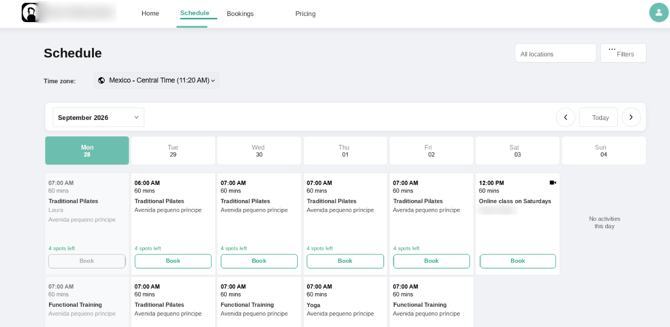
Before you start
Two things need to be in place before self-booking can really work end to end:
- Online payments must be connected through Fitune Pay. Fitune Pay is our partnership with Stripe, the service that processes your clients' payments. If your studio is in Mexico or Brazil, connecting your Stripe account to Fitune also gives you lower processing fees. Without this connection, clients won't be able to complete a purchase on their own, even if everything else is set up correctly. If you haven't connected this yet, see
What Is Stripe and How to Connect It with Fitune.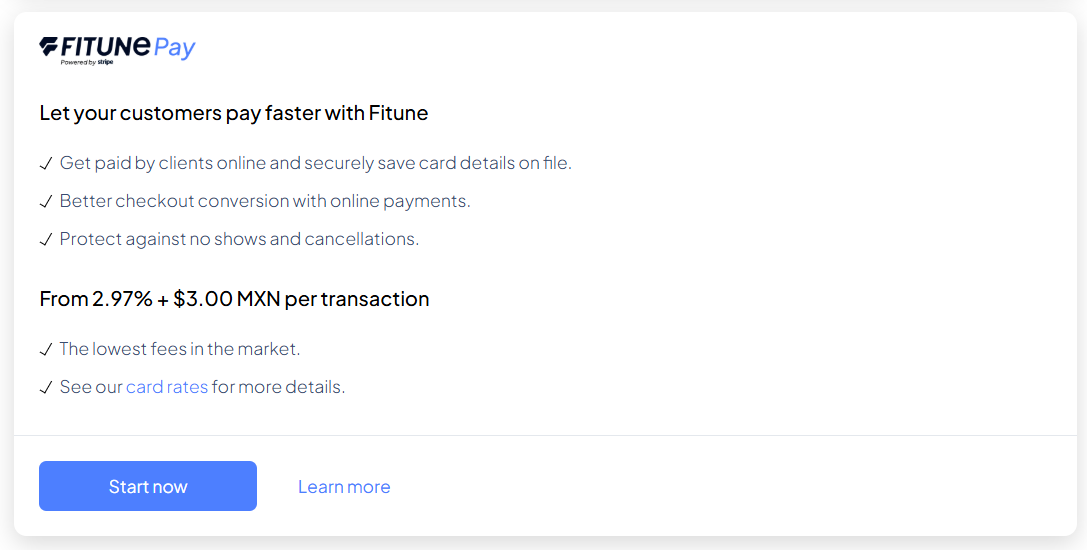
- At least one class or service needs to exist and be scheduled. If you haven't created one yet, see How to Create a Class.
The 2 points your Health Score checks here
1. Your schedule is bookable, not just visible
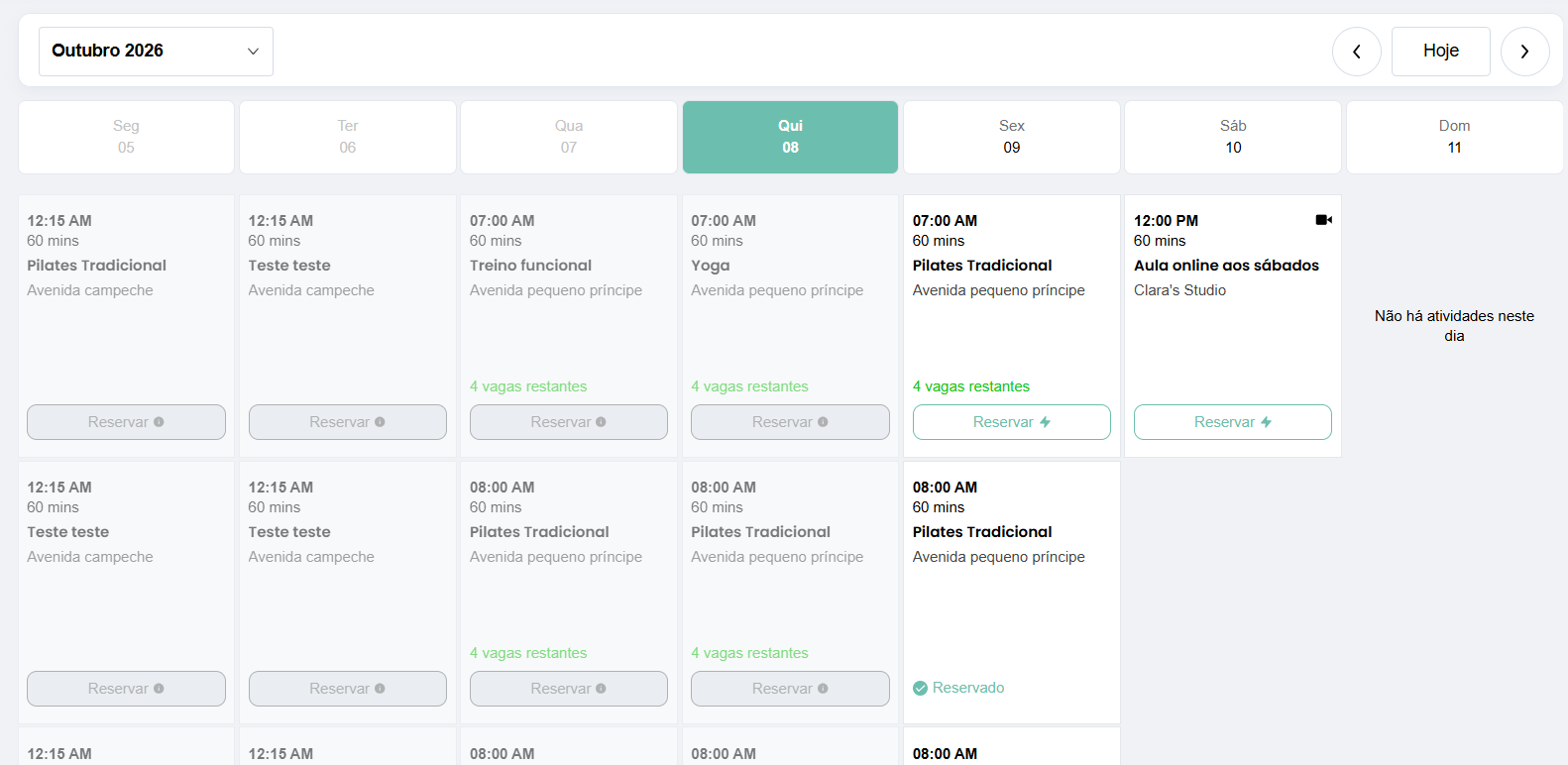
It's easy to have a schedule that looks complete — class names, times, instructors — but still requires a client to message you to actually reserve a spot. The real test is simple: go through the booking flow yourself, as if you were a client, without using any admin shortcuts.
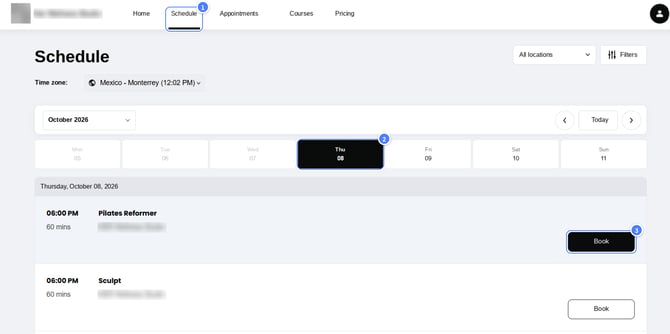
- Open your studio's website in a private/incognito browser window (so you're not logged in as admin).
- Find a class or service and click to book it.
- Complete a real booking and payment (you can use a test class or a very low-priced one for this).
- Confirm you receive a booking confirmation email, with everything you'd need to show up — no follow-up message from the studio required.
If at any point you got stuck, or found yourself thinking "a client would have to ask us about this," that's exactly the kind of friction this point is checking for.
2. A pay-as-you-go price is set
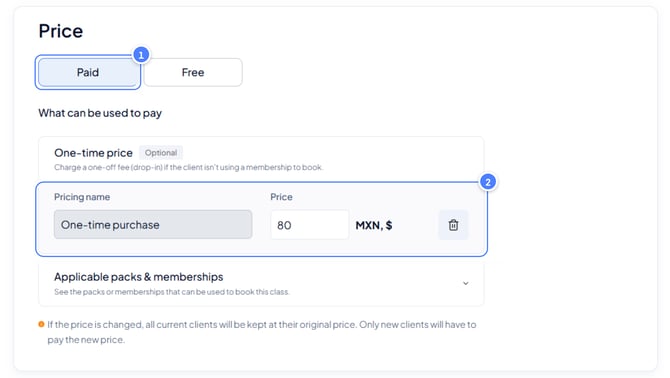
Not every client wants a membership on their first visit — some just want to try a single class and pay for that one class only. For that to be possible, at least one of your classes or services needs a Paid price set (as opposed to being Membership or pack only, which blocks pay-as-you-go entirely).
- Go to Calendar, click the class, then Edit schedule (or go to Products → Appointments → Services for 1-on-1 services).
- Make sure the price field is set to Paid, with a real price — not left blank (blank means membership/pack only).
- Save your changes.
For the full walkthrough: [How to Edit or Add a Price to an Activity].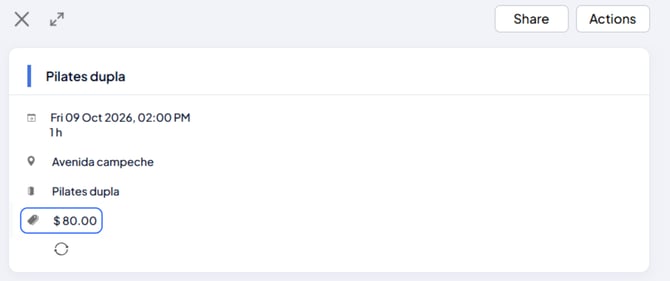
Frequently asked questions
▶ Do all my classes need a pay-as-you-go price?
No — it's common to keep some classes membership-only. But having at least a few options open to pay-as-you-go makes it much easier for a first-time visitor to try you out without committing to a membership right away.
▶ What if a client tries to book but there's no pay-as-you-go option?
They'll only be able to book using an active membership or pack. If they don't have one, they'll need to purchase a membership first, or you can enable pay-as-you-go for that class if you'd like to allow single-class purchases.
▶ I tested the booking flow and got stuck — what should I check first?
Start with the two things in "Before you start": that online payments are connected, and that the class you're testing has a Paid price (not membership-only or blank).