
This feature is available for Fitune account Owners only — those who initially sign up to Fitune. This is unavailable for Admins who have been granted access by the Owner.
How to grant access to a New staff
- Go to Settings > Staff page.
- Click on the +New Staff button at the top-right of the page.
- Add the Display name for the new staff — this is the one that will be shown to your clients on the website.
- Set the Assign role toggle On.
- Enter the staff's First name, Last name, and Email address. Ensure the email address is correct because your staff will receive an invitation with the admin login link and temporary password to get started.
- Click the Save button. Your staff will immediately receive an invitation, and you will see them listed on the staff list with the Admin role.
How to grant access to an Existing staff
- Go to Settings > Staff page.
- Look for the staff you've previously created and click on the Edit action button (pencil icon).
- Set the Assign role toggle On.
- Enter the staff's First name, Last name, and Email address. Ensure the email address is correct because your staff will receive an invitation with the admin login link and temporary password to get started.
- Click the Save button. Your staff will immediately receive an invitation, and you will see them listed on the staff list with the Admin role.
Possible questions answered
▶ What roles are there?
There are 4 roles:
- Owner – this is the person who signed up to Fitune initially. This role has unlimited access to see and do anything and can create staff with Admin or Trainer roles.
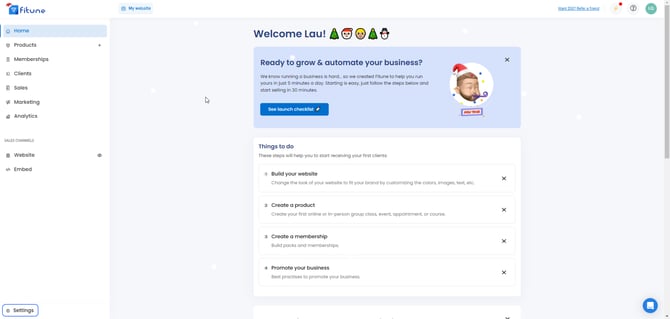
- Admin – those who are given access by the Owner so they can log in with their own email and password. They can do everything the Owner can, except access the Settings pages (General settings, Payment gateway, Integrations, Admin notifications, Staff, Locations, and Plans & Billing).
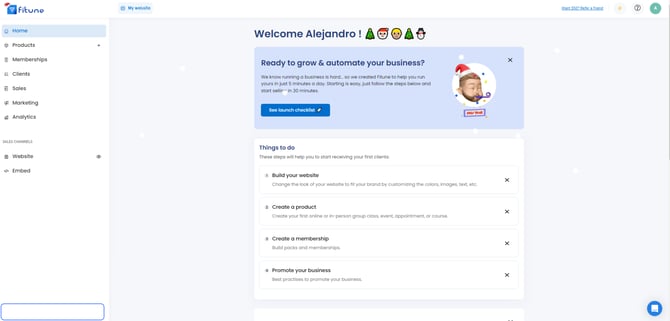
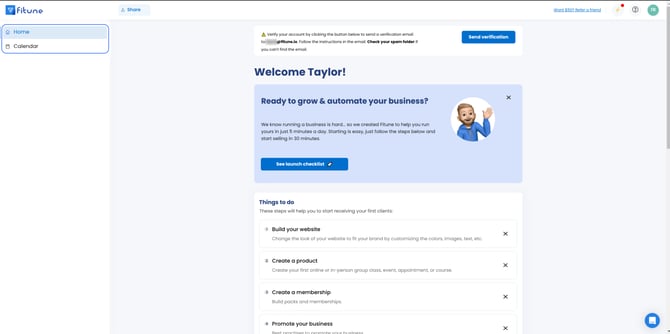
- Low Access – those who only have access to Home and Schedule. Within Schedule, they can view the calendar, and they can also create and edit group class schedules or events, as well as create and edit appointments. They don't have access to any other section of the account (Clients, Settings, Reports, etc.).
- Trainer – everyone you create as a staff so they can be assigned to teach a schedule, 1 on 1 service, video, or course. These don't get access to log in to your admin account. FYI: The Owner and Admins are also considered Trainers.
▶ How do I remove access from a staff?
- Edit that staff and set the Assign role toggle Off.
- Don't forget to Save your changes. Next time the staff with removed access tries to log in, they won't be able to.
▶ Can you view or edit the email that the staff receives when they're granted access?
Yes! Follow these steps:
- Go to Marketing > Email templates.
- Click on the Edit icon for the Staff Access template if you want to view or modify it.
- If you modify it, do not fill in or edit the curly brackets # or the text within them, as these are automatically filled when sent.
- Do not remove the email or password brackets — # or # — since these are generated automatically.
Go to the Staff page
Frequently Asked Questions
▶ Can the "Low Access" role make any changes, or is it view-only? It's not a view-only role. Anyone with this role can view the calendar and can also create and edit group class schedules or events, as well as create and edit appointments. However, they don't have access to any other section of the account, such as Clients, Reports, or Settings.
▶ Is there a separate "read-only" role apart from "Low Access"? No. Fitune currently has 4 roles: Owner, Admin, Low Access, and Trainer. "Low Access" allows managing schedules and appointments, but it's not read-only and doesn't grant access to other sections of the account.
▶ What's the difference between Admin and Owner? Admin can do everything the Owner can, except access the Settings pages (General settings, Payment gateway, Integrations, Admin notifications, Staff, Locations, and Plans & Billing).