
This counts toward the Operate pillar of your Fitune Health Score. Left wide open, a booking window can work against you: clients booking a class minutes before it starts leaves your team scrambling, and a client dropping into a 1:1 slot with no notice can catch a staff member unprepared. Setting clear limits on when a booking can be made — not just whether it can — keeps your schedule predictable for both your team and your clients.
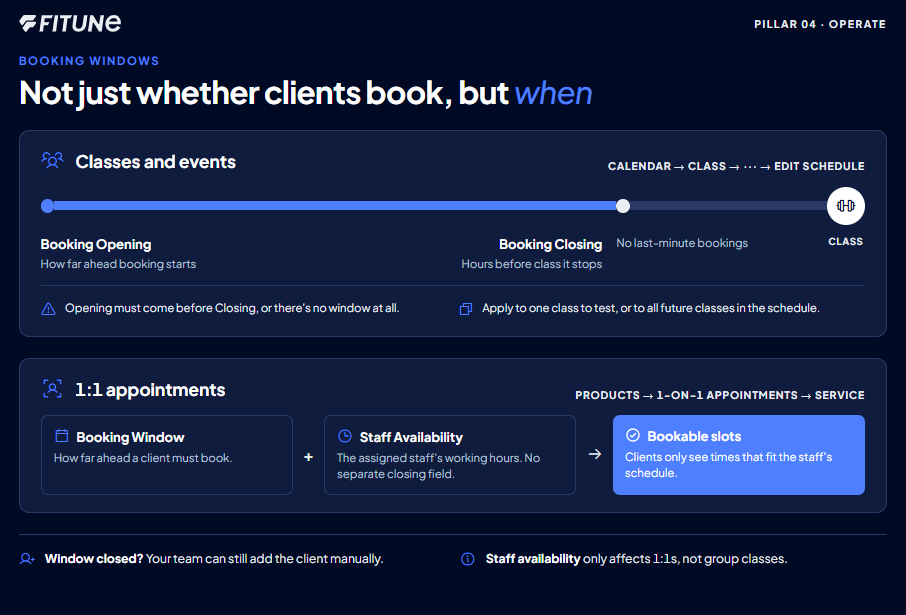
Setting the booking window for classes and events
Go to Calendar, select the class or event you want to adjust, open its three-dot menu (⋯), and choose Edit schedule. Inside, the Booking Window section has two fields:
- Booking Opening — how far in advance clients are allowed to start booking that class.
- Booking Closing — how many hours before the class starts booking should stop.
One detail worth knowing: Booking Opening has to fall earlier than Booking Closing, or the class ends up with no bookable window at all. You'll also be asked whether the change applies to just that one class, or to all future classes in the same schedule — useful if you're testing a new window before rolling it out everywhere.
Setting the booking window for one-on-one appointments
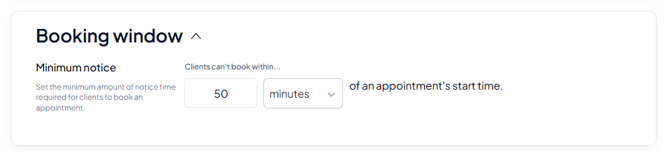
One-on-one appointments (your 1:1 services) use a different screen, but the same idea. Go to Products > 1-on-1 Appointments, and open Add new service (or, for a service you already offer, its three-dot menu > Edit). Inside, the Booking Window field sets how far in advance a client has to book before the session — the same "how far ahead" idea as for classes.
Unlike classes, there's no separate "closing" field for appointments — because the real cutoff comes from somewhere else: staff availability, covered next.
For the full walkthrough of building a 1:1 service from scratch, you can check the complete guide to one-on-one appointments.
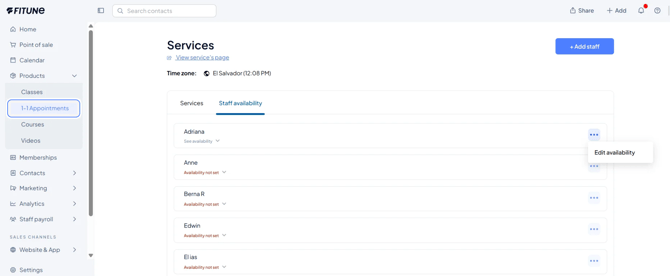
How staff availability shapes what's bookable
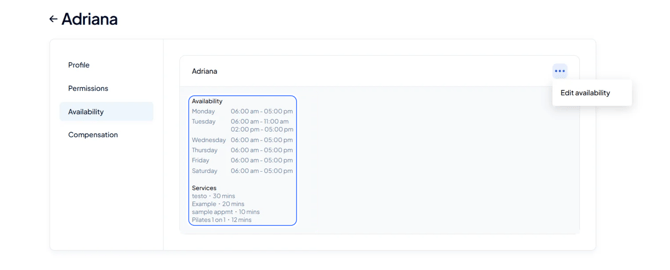
A 1:1 slot is only bookable while it falls inside the availability you've set for the staff member assigned to it — so instead of a fixed number of hours before the session, the window closes naturally the moment it no longer fits their schedule. Fitune puts it directly: clients will only see availability based on the assigned staff.
To set or adjust this, go to Products > Appointments, open the service, go to Staff Availability, and create or edit a staff member's working hours there before saving. This only affects 1:1 appointments — it has no effect on your group class schedules, which follow the Booking Window section above instead. For the exact steps on adding a staff member and setting their availability, see how to add trainers to your schedule.
Frequently asked questions
▶ What happens if a client tries to book after the window closes?
The class or slot simply won't show as bookable anymore — your team can still add the client manually from the admin if you want to make an exception.
▶ Can I set a different booking window for different classes?
Yes — the Booking Window section is set per schedule, and you choose whether a change applies to just one class or to every future class in that schedule.
▶ Does the staff availability setting affect group classes too?
No — it only controls what's bookable for one-on-one appointments. Group class booking windows are set separately, in the Booking Window section covered above.