
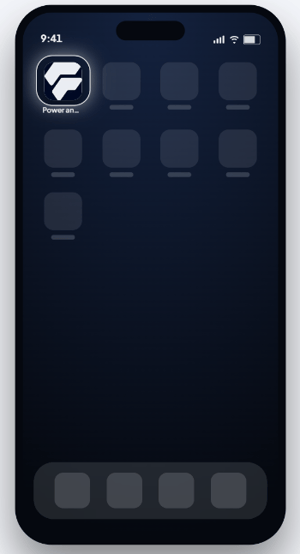
This counts toward the Retain pillar of your Fitune Health Score. When your app sits on a client's home screen, booking takes one tap, and clients come back more often. Your app is your Fitune website, with your logo, saved on the phone like any other app. There is nothing to download from an app store.
💡 Good to know: the app is included in plans from Pro and up.
🔗 Step 1: Copy your links
Fitune gives you two links and two QR codes, one pair for each type of client:
- New clients: opens your welcome page, where people log in or create an account.
- Active clients: opens the page that shows how to add your app to the phone.
- In the left menu, under Sales channels, open Website & App.
- Select Share Mobile App.
- Select the New clients or Active clients tab.
- Click Copy next to the link. (View lets you preview the page first.)
📧 Step 2: Send the link to your clients
Add your link to messages clients already read, like your welcome email, WhatsApp, or Instagram. On the same screen, under Send to phone, you can also click WhatsApp or Email to send it right away.
- Email: how to email your clients to download your app
- Instagram: how to create your link in bio
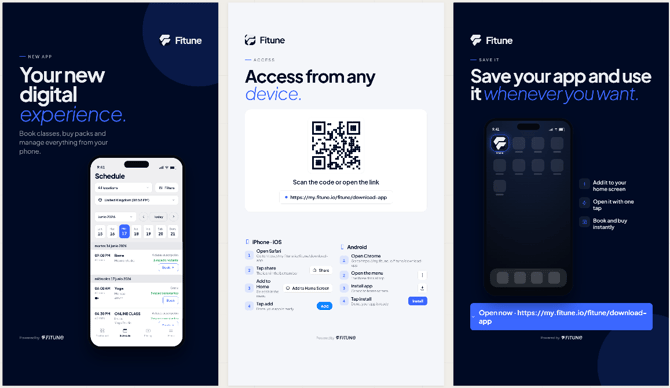
🎁 Launch Kit: Fitune gives every new studio a Launch Kit, usually once onboarding is under way. It is a set of ready-to-share images with your logo, your link, a QR code, and the steps below. Post them or send them to your clients as they are. Don't have yours yet? Ask your onboarding contact at Fitune.
📲 Step 3: Your clients add the app to their phone
When clients open the Active clients link or scan its QR code, they land on a page with your logo, the title "Download our client app", and two buttons, iOS and Android. They tap the one for their phone, and a short guide shows the steps.
iPhone (iOS)
- Open the link in Safari.
- Tap the Share icon (the square with an arrow).
- Tap Add to Home Screen.
- Tap Add.
Android
The guide works with Chrome, Firefox and Opera. Clients pick their browser at the top.
- Open the link in Chrome.
- Tap the three dots (⋮) at the top right.
- Scroll down and tap Add to Home screen. On some phones it reads Install and create shortcut.
- Tap Install.
Clients don't need to download anything. They only save the app from the browser menu. ✅
Want to send a longer guide with screenshots? Share how to install the web app.
🪟 Step 4: Display your QR codes at the studio
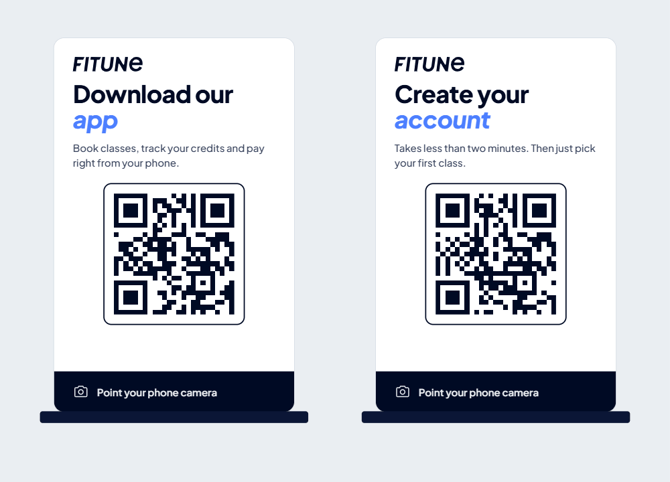
A QR code is a square code that phones read with the camera. Clients scan it instead of typing a link. Display both QR codes at your reception, one for each type of client:
- New clients: for people who don't have an account yet.
- Active clients: for people who want to add your app to their phone.
To get a QR code:
- Open Website & App > Share Mobile App.
- Select the New clients or Active clients tab.
- Under Send to phone, click QR.
- Click Download to save it, or Copy. Then print it.
Where to place them:
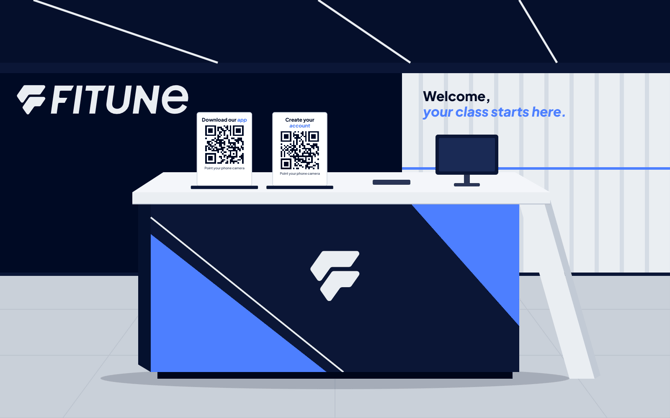
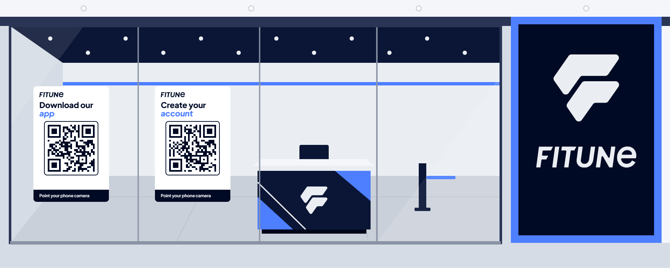
At your reception. Clients already at your desk can scan before or after class. Put both QR codes side by side with a short label on each, for example "New here? Create your account" and "Already a client? Get the app".
On your window. People walking by can scan it, even when you're closed. The New clients QR code works best here, because passers-by don't have an account yet.
Before you print:
- Print it large enough to scan from an arm's length away.
- Test it with your own phone first.
- Add a short line next to it that says what people get.
Frequently asked questions
▶ Do my clients need the App Store or Google Play?
No. They save your app from the browser menu, with the steps in Step 3.
▶ What can my clients do in the app?
They can book classes, check your schedule, buy packs and memberships, pay, and manage their credits. They can also cancel or reschedule without calling, and receive notices from your studio.
▶ Do my clients need an account?
Yes. They create one, or log in with the account you made for them at your front desk.
▶ Can clients log in with Google or Facebook?
Yes, or with their email.
▶ Does the app send notifications?
Yes, by email. Phone pop-up notifications are coming soon.
▶ What if I change my logo or colors?
The app updates automatically. Clients don't need to do anything. To change them, see how to customize your logo and home page.
▶ What if a client deletes the app and installs it again?
They don't lose anything. Their information stays in their account, and they can also open it from a computer.
▶ Does the app cost extra?
No. It is included in plans from Pro and up