
This is a plan-specific item — it only counts toward your Fitune Health Score if your studio is on the Ultra plan. If that's you, this small feature can make a real difference: letting a client choose their own spot, instead of leaving it to chance, is a small touch that makes booking feel more personal. This counts toward the Retain pillar of your Health Score.
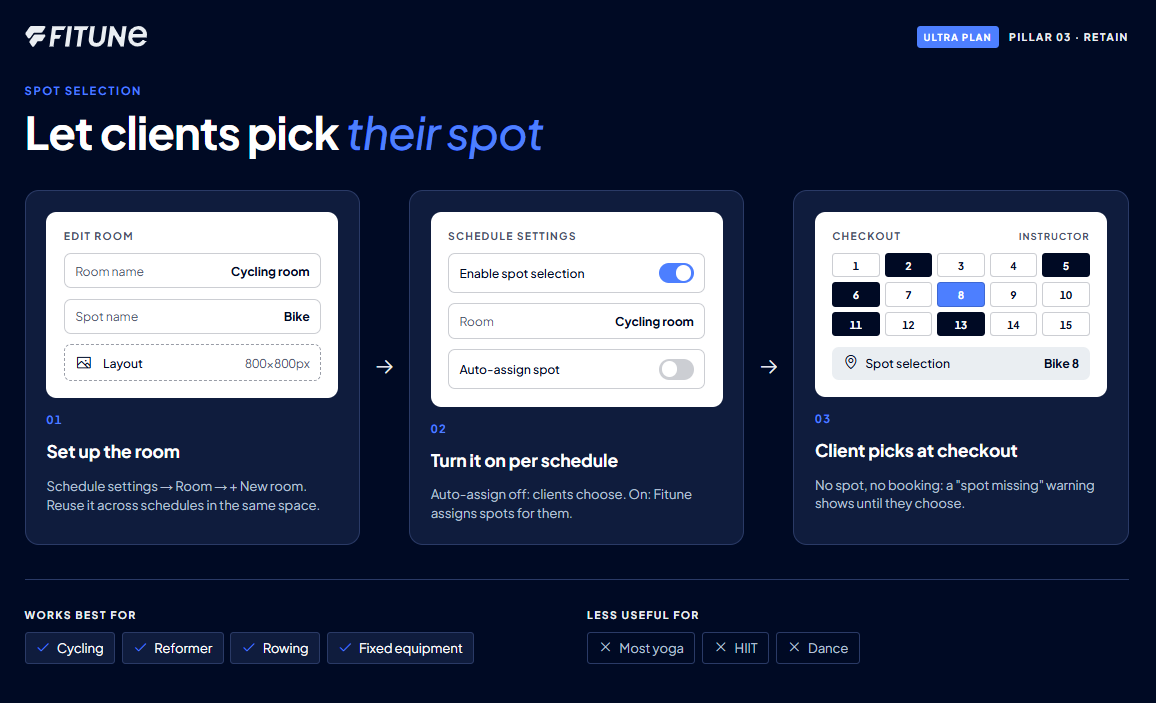
If you run a cycling, pilates, or reformer studio — or any format where where a client sits or stands really matters — spot selection turns that detail into part of the booking experience. Instead of leaving seat assignment to chance or to a whiteboard at the front desk, clients pick their own spot right when they book, and show up already knowing exactly where they'll be.
This is one of the checks in your Studio Health Score under the Retain pillar — it's a small feature, but for room-based formats it can meaningfully improve the client experience and reduce day-of confusion at the front desk.
What you'll need before you start
Spot selection is built around a room map — a visual layout of where each spot sits in the room. Before turning the feature on, you'll want:
- A class format where spot really matters (cycling bikes, reformer beds, mat spots, etc.)
- A room layout image you can upload — most studios build this with a simple template in Canva or a similar design tool
To help you in designing your room layout, you can use our room layout template. - A few minutes to test the flow yourself before clients start booking
Set up your room
- Go to the schedule you want to add spot selection to, and open its settings.
- Look for the Room field. If you haven't created a room yet, click + New room.
- On the Edit room screen, fill in:
- Room name — what you'll call this space internally.
- Spot name — the word for a single position in the room, since this varies by studio (a cycling studio might call it "Bike," a mat-based class "Mat" or "Bag").
- Layout — use the room layout template linked on this screen to lay out your spots, then upload the finished image (Fitune recommends 800×800px).
Once the room is created, you can reuse it across any schedule that shares the same physical space.
Turning it on for a class
Back on the schedule's settings panel:
- Toggle on Enable spot selection.
- Select the room you just created from the Room field.
- Decide whether to turn on Auto-assign spot. Leave it off if you want clients to choose freely; turn it on if you'd rather Fitune assign spots automatically as bookings come in.
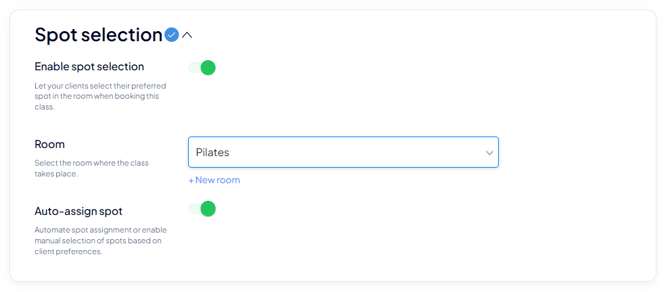
Save the schedule once everything looks right, and the class is ready to accept spot-based bookings.
What the client sees
Once spot selection is on for a class, it shows up at checkout, not on the schedule page itself. After a client picks a class and moves to book it, checkout includes a Spot Selection row — if they haven't picked one yet, it shows a clear "spot missing" warning until they do, so they can't finish booking without choosing where they'll be.
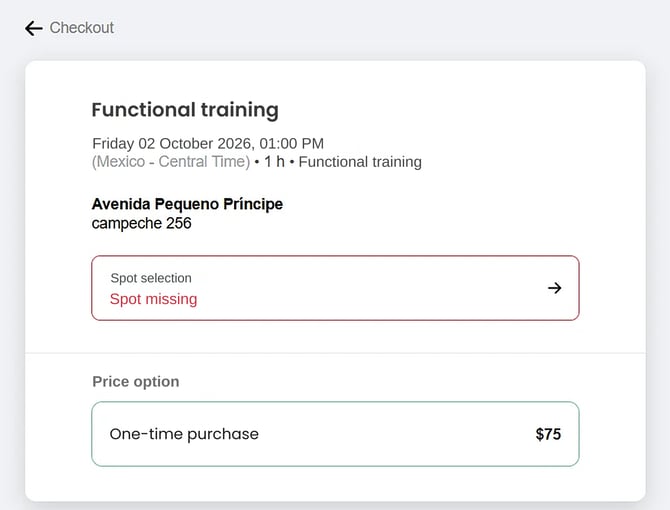
A few things worth knowing:
- If Auto-assign spot is on, clients skip this step — Fitune assigns a spot for them automatically.
- If a client tries to complete checkout without picking a spot (and auto-assign is off), they'll see a "spot missing" error and won't be able to finish booking until they select one.
- Once booked, the client's chosen (or assigned) spot appears alongside their reservation in the class schedule, so both the client and your staff can see it at a glance.
Is spot selection right for your studio?
Spot selection works best when a client’s position in the room matters, like in cycling, reformer, or rowing classes, where the equipment is fixed in place.
It’s less useful for open-floor classes, like most yoga, HIIT, or dance. In those, clients move around, so a fixed seat map wouldn’t match what really happens.
Do you teach both kinds of classes? You can turn Spot selection on only for the schedules that use a room with fixed equipment. Everything else stays as it is.
Frequently asked questions
▶ Do I need to turn this on for every class?
Yes — it's a per-schedule setting, so you choose which schedules use it.
▶ Do I need a new room for every class?
No — once a room is set up with its layout, you can select it for any schedule you turn spot selection on for.
▶ What's the difference between spot selection and auto-assign spot?
Spot selection is the feature overall — it's what makes spots exist for a class. Auto-assign spot decides who picks the spot: turn it on and Fitune assigns spots for you, turn it off and the client picks their own at checkout.
▶ Is this available on my current plan?
Only on the Ultra plan. If you're not sure which plan your studio is on, that's worth checking before you go looking for this setting.