
This is part of the Attract pillar of your Fitune Health Score — TotalPass gives you access to thousands of members already looking for gyms and studios like yours.
If you're already connected to Wellhub, it's worth adding TotalPass too rather than treating it as redundant — the two networks' members overlap less than you'd expect, since a company typically contracts one or the other, not both. Being on both roughly doubles the corporate audience that can discover your studio.
Requires an active paid Fitune plan (Pro, Plus, or Ultra) and an administrator account on TotalPass. Only account owners can access the integration settings on either platform.
What connecting TotalPass gets you
TotalPass is a corporate wellness platform used by employees at partner companies to access gyms and studios — over 4,500 of them across Mexico and Brazil. Connecting it to Fitune means:
- Bookings and membership tracking for TotalPass clients live in the same place as everything else — no separate system to check.
- Your schedule stays in sync automatically across both platforms, so you're not updating things twice.
- You can see exactly how much revenue is coming from TotalPass bookings, right alongside your other numbers.
- Your studio gets in front of a much wider audience of people who are actively using their wellness benefit and looking for somewhere to use it.
Setting it up: getting your API key connected
- In Fitune, go to Settings → Integrations → Connect TotalPass.
- In your TotalPass admin account, go to Integrations → New configurations to get your API key.
- Copy the key exactly as it appears — it's 36 characters long, and even a small typo will break the connection — and paste it into the TotalPass integration section in Fitune.
Turning TotalPass on for your classes
Once you're connected, you choose which classes are open to TotalPass members, and how many spots they can take:
- Go to your Calendar and open the class you want to configure.
- Turn on TotalPass Settings for that class.
- Set the maximum number of spots available to TotalPass members, and the required TotalPass plan tier for booking it.
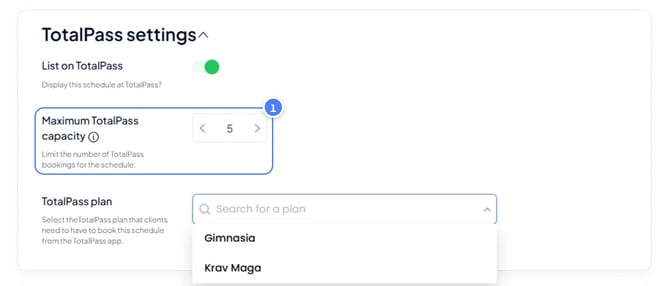
First time setting this up?
If you don't have any TotalPass schedules yet, you're done after this step.
Already had classes on TotalPass before connecting Fitune?
- Check that the capacity numbers match on both sides, so you don't overbook a class.
- Remove old TotalPass schedules that have no real bookings, so they don't cause confusion later.
Tip: start with off-peak spots
Don't open your whole schedule to TotalPass right away. Open your off-peak classes first, then use the maximum number of spots setting to cap how much of your peak-hour capacity TotalPass members can take. This fills time that would otherwise sit empty, without crowding out your regular clients at your busiest hours.
A few important things to keep in mind
- The Location and TotalPass Plan fields can't be changed once you save them — so it's worth double-checking these before confirming.
- If you ever need to change your API key, disconnect it in Fitune first, then update it on TotalPass, and reconnect using the new key — changing it the other way around can break the connection.
- Clients check in through their TotalPass app, within 30 minutes before or after the class start time.
- Your Fitune booking windows still apply to TotalPass bookings — but TotalPass clients can only see and book up to 1 week ahead, regardless of how far out your booking window goes.
- Fitune's cancellation and no-show policy does not apply to TotalPass reservations — that's managed separately by TotalPass.
- You can still cancel a TotalPass booking yourself from the Fitune admin if you ever need to.
- Editing a class's name, schedule, or description in Fitune updates automatically on TotalPass too — no need to recreate anything.
- Since TotalPass and Wellhub bring in different audiences, it's a good idea to welcome each group in its own way — while keeping check-in simple and consistent at the front desk, through Fitune, no matter which network a client comes fro
- Not every TotalPass member can access every studio — plan tiers vary, so double-check which tier your studio is listed under so you can set your expectations for booking volume accordingly.
FAQ
▶ Do I have to pick a TotalPass plan tier for every class?
Yes — if TotalPass visibility is turned on for a class, choosing a plan tier is required.
▶ A TotalPass client's booking got canceled automatically — why?
Check your Fitune booking windows first, then check whether someone canceled it manually. If neither explains it, reach out to Fitune support.
▶ What happens if I disconnect a location from the integration?
Its schedules are removed from TotalPass, and any future reservations tied to it are canceled.
▶ My TotalPass plan changed — what do I do?
Disconnect the integration, wait about 5 minutes, reconnect using the same API key, and re-enable it per class with your updated plan.
▶ How can I tell who canceled a TotalPass booking?
Check the reservation history — a client's email means they canceled it themselves; a staff or owner email means it was canceled from the admin side.