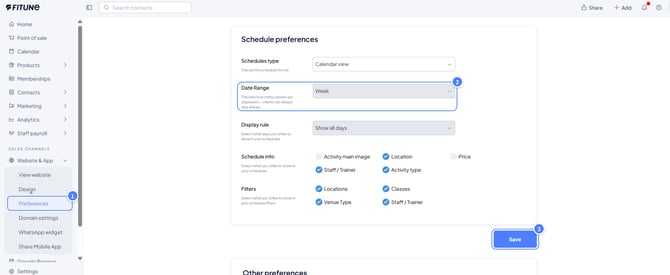
This is part of the Attract pillar of your Fitune Health Score — a live, up-to-date schedule on your website makes it easy for potential clients to see what's available and book right away.
When someone lands on your studio's website, your class schedule is often the first thing they check. If it's clear, current, and shows real availability, they're far more likely to book. Here's how to set it up.
What "schedule view" means
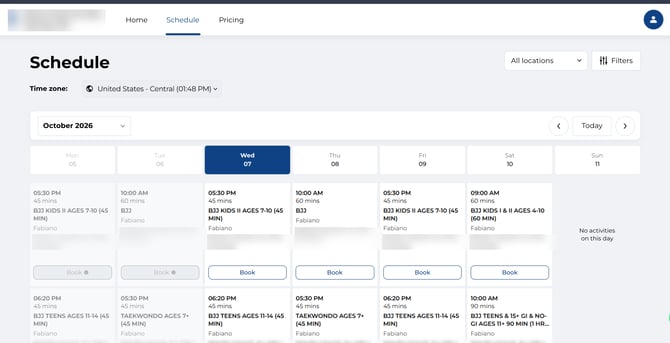
The schedule view is the calendar or list of classes clients see on your website. You control how it looks and what information shows for each class.
To get there:
- From the left-hand sidebar, go to Website, then click Preferences.
- Scroll down until you see the Schedule Preferences section.
Choose how your schedule looks: List or Calendar
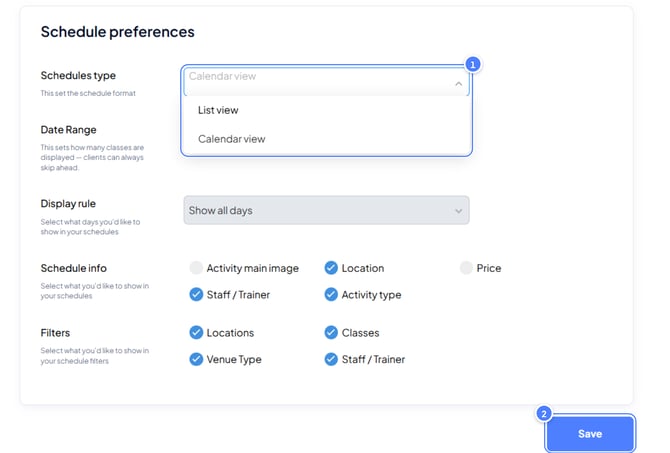
You have two options:
- List view — the default. Classes are shown one after another in a simple list.
- Calendar view — lets clients see more classes at a glance, laid out like a calendar. Keep in mind that class photos won't show in this view until a client clicks into a specific class.
If you're not sure which to pick: List view tends to feel simpler for studios with fewer classes per day, while Calendar view works well if you run a busy schedule and want clients to see the full week at once.
If you use List view: set the date range and display rule
These two options only apply when List view is selected:
- Date range — choose whether the schedule shows classes by week or by day.
- Display rule — choose whether to show all days, even ones with no classes, or only days that have activities.
Choose what info shows for each class
In the Schedule info section, check or uncheck what you want clients to see for each class — for example, instructor name, spots left, or class length.
Showing spot availability is useful: it creates urgency and helps clients decide to book faster.
Let Clients Narrow Down the Schedule
In Filters, choose which options clients can use to narrow down the schedule — for example, filtering by class type, instructor, or location. The more relevant filters you offer, the easier it is for a client to find a class that fits their schedule.
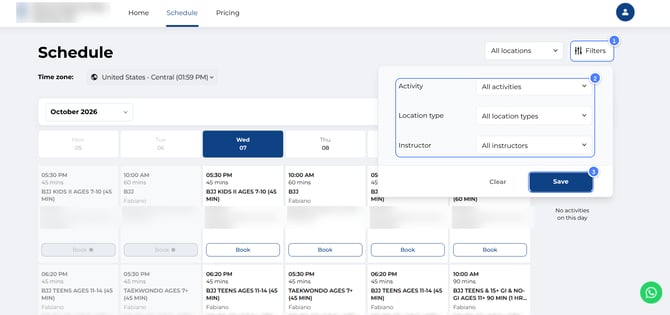
Once everything looks right, click Save.
How to change the number of days your schedule shows
You can also control how many days ahead your schedule displays:
- Go to your Website preferences.
- Find the Schedule display settings section.
- Adjust the number of days you want visible.
- Save your changes.
A shorter range (like 3–5 days) can feel more current and less overwhelming; a longer range gives clients more flexibility to plan ahead. There's no single right answer — it depends on how far in advance your clients usually book.