
Collect phone numbers, birthdays and other key details when clients sign up, so you can follow up and send special promos. This article is part of the Convert pillar of Fitune’s Studio Health Score.
What lead capture means in Fitune
Clients only need an email address to sign up. With custom fields, you can ask for more information at sign-up, such as their phone number, birthday, or anything else that matters to your studio. You can also make those fields required.
That way you have what you need to follow up and send special promos.
Default fields
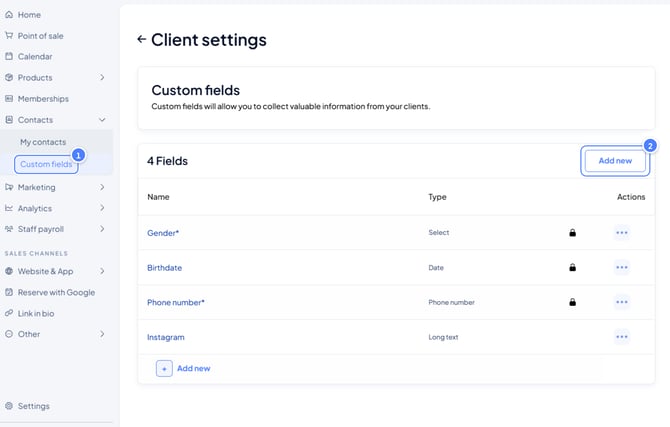
Your account already includes some fields, such as Gender, Birthdate and Phone number. You can’t remove them, but you can edit their settings.
How to set up your fields
- Go to Contacts → Custom fields.
- To use a default field, click ••• → Edit. To create a new one, click Add new.
- Enter a Name and, if you like, a Description.
- Choose the Type:
- Date: shows a calendar picker. Good for birthdays or other key dates.
- Long text: lets clients type a free answer, such as their Instagram handle.
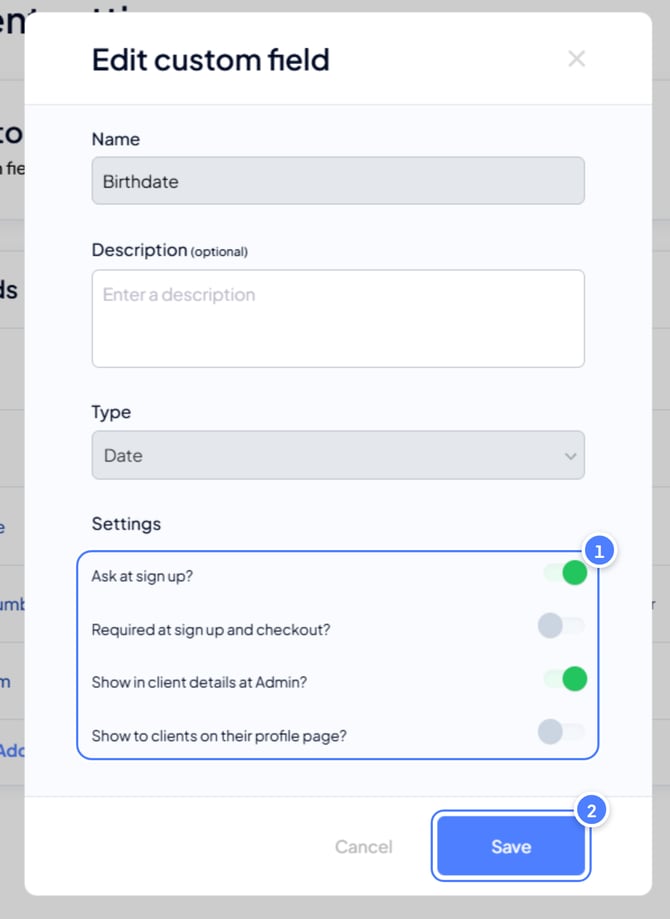
- Under Settings, turn on the options you need:
- Ask at sign up?: shows the field on the sign-up form.
- Required at sign up and checkout?: clients must fill it in to sign up or check out.
- Show in client details at Admin?: shows the answer in the client’s profile.
- Show to clients on their profile page?: clients can see it on their profile.
- Click Save.
Required fields are marked with an asterisk (*) in the list.
How to use the information
- Client profile: view a client’s details at any time.
- Contact Details report: go to Analytics → Contact Details to view and export your custom field data.
- Birthdays: a cake icon appears next to the client’s name in their profile, class rosters and the schedule overview. Use it to send a special promo.
Frequently asked questions
▶ Is there a separate leads screen? No. The information appears in each client’s profile and in the Contact Details report. However, in the contact report you can review them by choosing the filter tag lead.
▶ What field types can I create? Date and Long text.
▶ Can I make a default field, like phone number, required? Yes. Edit the field and turn on Required at sign up and checkout.
▶ Can I add a client’s birthday manually? Yes. In their profile, go to Summary, click + Add, choose Birthday and save with Update General Details.