
How does this help you?
- See every pay period in one place, most recent first.
- Get everything calculated at the end of every cycle, so you never have to do the counting and math yourself.
- See how much you owe each staff member, and why.
- Keep a clear record of who you've paid, how, and when.
Where to find it
In the left menu, go to Staff payroll > Payroll reports.
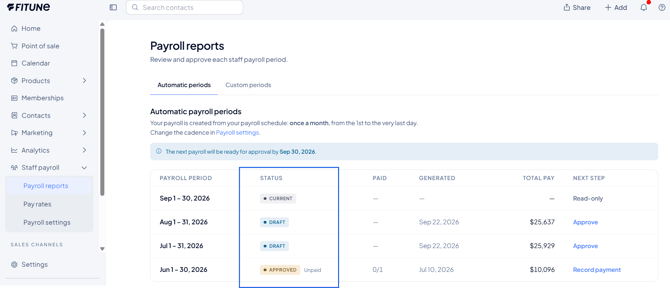
At the top of the page, you'll see your current cycle (for example, "once a month, from the 1st to the very last day") and the date your next payroll will be ready for approval. To change your cycle, click Payroll settings.
The Payroll reports list
The Automatic periods tab lists every pay period created from your payroll cycle. For each period, you'll see:
- Payroll period – the dates of the period.
- Status – where the report is in the process (see below).
- Paid – how many staff members you've paid, out of the total. For example, 3/5.
- Generated – the date the report was created.
- Total pay – the total you owe for that period.
- Next step – what to do next.
The list loads 10 periods at a time. Scroll down to see older ones.
The Custom periods tab isn't available yet. It's planned for a future version.
What each status means
- Current – the period is still in progress. You can open it, but there's nothing to review yet. Next step: Read-only.
- Draft – the period has ended and the report is ready for you to review. Next step: Approve.
- Approved – you've approved the report, next step: Record payment.
- Partially completed – you've recorded payment for some of your staff, but not all. Next step: Record payment.
- Completed – everyone has been paid. This is the final status. Next step: Read-only.
Step 1 — Review the report
When a period ends, Fitune creates its report automatically and sets it to Draft. Click the period to open it.
At the top, a summary shows the Payroll period, Status, Payment, Paid, Approved date, and Total pay. Use the period selector to jump to another period without going back to the list.
Below it, you can switch between two views:
- Total by staff – one line per staff member, with the number of classes, bookings, and attendees, plus their class pay, appointment pay, fixed pay, and total pay.
- Detail by staff – every class and appointment behind each person's total, grouped into Classes, 1:1 appointments, and Fixed salary, with the date, time, bookings, and attendees. Click a category to expand it.
If you open the Current period, you'll see a message that there's no data yet. The report is created on the last day of the period.
Step 2 — Approve the payroll
- Open a report with the status Draft.
- Check the amounts in Total by staff and Detail by staff.
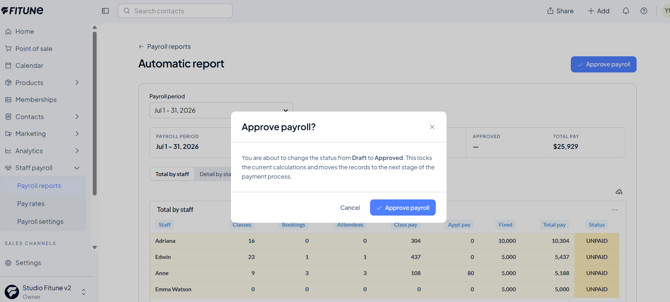
- Click Approve payroll.
- Confirm by clicking Approve payroll again in the confirmation window.
The report changes to Approved.
Important: approving locks the amounts. If a schedule or rate changes after you approve, this report stays the same. Take a moment to review before you approve.
Step 3 — Record your payments
Once you've paid your staff (by cash, bank transfer, or card), record it in Fitune:
- Open an Approved or Partially completed report.
- Click Record payment.
- Under Select staff, check the staff members you paid, or click Select all. People already marked as paid appear checked and can't be changed.
- Choose the Payment method: Cash, Bank transfer, or Card.
- Check the Payment date. It's set to today by default, and you can change it.
- Click Mark as paid.
If you paid only some of your staff, the report changes to Partially completed. Come back and repeat these steps for the rest. When everyone is paid, the report changes to Completed.
Each staff member's payment status, method, and date then appear in Detail by staff.
Frequently Asked Questions
▶ Why can't I see numbers for the current period?
The period is still in progress. Fitune creates the report on its last day, and then you can review it.
▶ When will my next report be ready?
At the top of the Payroll reports page, you'll see the date your next payroll will be ready for approval.
▶ I changed a staff member's rate after approving. Why didn't the report change?
Approving locks the amounts, so your records stay accurate. The new rate is used in the next report.
▶ I assigned a schedule to a trainer or changed a rate after the period ended. Will the Draft or Approved report update?
No. Once the last day of the period has passed and the report moves to Draft, the amounts are locked. Changes to schedules, trainer assignments, or rates won't update it. That's why it's important to make these edits before the period closes, while the report still shows Current.
▶ Can I edit an approved report, or add a bonus or deduction?
Not yet. Manual adjustments are planned for a future version.
▶ Does "Mark as paid" send money to my staff?
No. It only records that you paid them. Send the payment the way you usually do.
▶ Can I pay only some of my staff now and the rest later?
Yes. Select only the people you paid. The report shows Partially completed until everyone is paid.
▶ Can I create a report for custom dates?
Not yet. Custom periods are planned for a future version.