
⚠️ Ultra plan only: Self check-in runs through Fitune's Check-in Kiosk feature, which is only available on the Ultra plan. Only the studio Owner can turn it on.
This counts toward the Operate pillar of your Fitune Health Score. For every class or appointment that happens, someone on your team usually still has to confirm who actually showed up — scrolling through a client list, tapping through profiles one by one. Self check-in hands that job to the client instead: they check themselves in from a tablet or computer at your front desk, and Fitune records their attendance automatically, so your team's attention stays on the person in front of them, not on a screen.
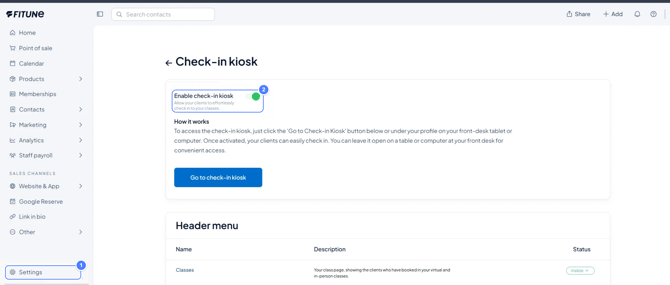
Turning on the check-in kiosk
Go to Settings > Check-in Kiosk, and switch on Enable check-in kiosk. The setting description puts it simply: "Allow your clients to effortlessly check in to your classes."
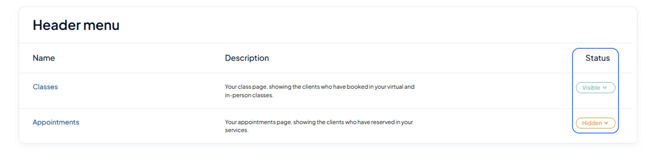
Choosing what shows up on the kiosk
Once it's on, a "Header menu" table lets you decide what clients can check into from the kiosk: "Classes" (your class page, covering clients booked into virtual and in-person classes) and "Appointments" (your appointments page, for clients booked into one-on-one services). Each one has its own Visible/Hidden status — so if your studio only runs group classes, for example, you can hide the Appointments option and keep the kiosk screen simple for clients.
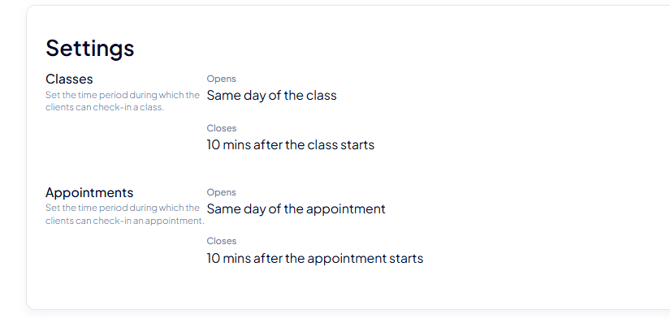
The check-in window
By default, for both Classes and Appointments, the window opens the same day of the class or appointment, and closes automatically 10 minutes after it starts — after that, a client (or your team) would need to confirm attendance manually instead.
Putting the kiosk on a device at your front desk
On the tablet or computer you want to use, click Go to check-in kiosk to load the kiosk on that device. You’ll find the button on the settings page or in the profile menu.
A confirmation window titled Check-in kiosk mode appears first. It tells you that:
- From then on, the device can only be used for check-ins.
- To get back to the regular admin view, someone has to enter your password.
This is what makes it safe to leave the device out at the front desk. Whoever uses it can only check people in and can’t open anything else in your account.
Who can set it up
Any staff member who can log in can set up the kiosk, so the Owner doesn’t need to be at the tablet every day. If you haven’t set up your team’s accounts and roles yet, see how to give your team access first.
What clients see and do
Once the kiosk is loaded, clients see a list of the day's Upcoming classes (or appointments), with filters for date and location. A client taps their class, finds their name on the list for that session, and taps Check-in — a confirmation pop-up marks them as Show, and that's it. Remember the 10-minute cutoff from the section above: after that point, the check-in button will no longer be available for that session.
If a client misses the window or needs help, your team can still confirm attendance manually — see how to take attendance for that flow.
Getting your clients comfortable checking themselves in
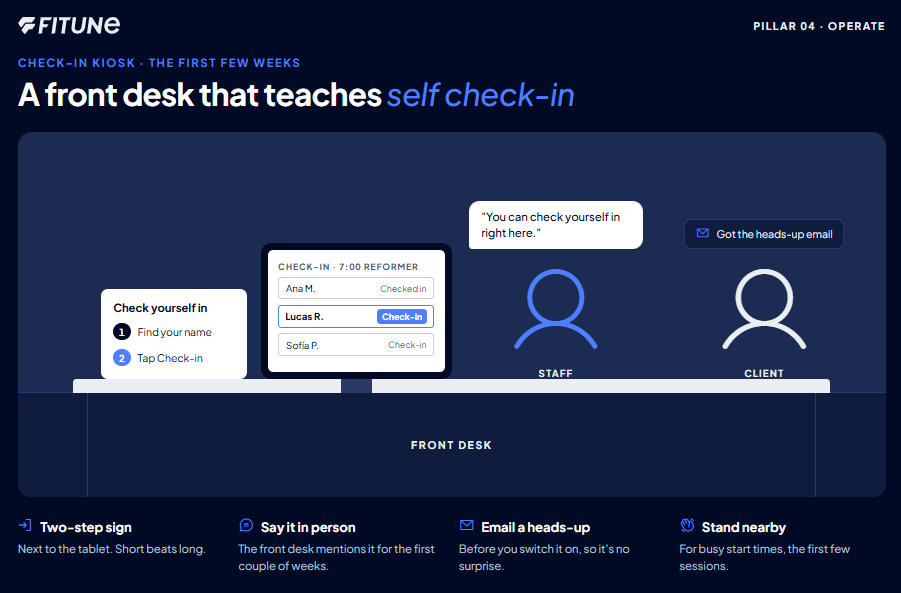
Turning the toggle on is the easy part — getting clients into the habit takes a little nudging in the first few weeks:
- Put up a simple sign next to the tablet with the two steps: find your name, tap Check-in. Clients won't read a long explanation, but a two-step sign gets picked up fast.
- Let your front-desk team introduce it in person for the first couple of weeks — a quick "you can check yourself in right here" as clients arrive does more than any announcement.
- Send a short heads-up by email before you switch it on, so it doesn't feel like a surprise the first time someone walks in.
- If a class tends to get busy right at start time, have a staff member standing near the tablet just for the first few sessions, ready to help anyone who's unsure.
Frequently asked questions
▶ Can more than one staff member use the kiosk during the day?
Yes — any staff member with access can load the kiosk on a device and hand it off; there's no limit on who opens it, only on what happens while it's in kiosk mode.
▶ What happens if a client checks in for the wrong class by mistake?
Your team can still open the client's booking and adjust their attendance manually — the kiosk speeds up the common case, but it doesn't remove your team's ability to fix a mistake.
▶ Does self check-in replace regular attendance tracking?
No — it's a faster way to do it. Everything a client checks into on the kiosk shows up the same way in your regular attendance records.