
This counts toward the Convert pillar of your Fitune Health Score. Payments don't always go through the first time — a card gets declined, a renewal fails, a client forgets to update their details. When that happens, Fitune doesn't ask the client to start over: it keeps the invoice open so it can still be paid, and gives your team a link they can send the client to finish paying remotely. This item is about making sure your team actually knows this exists and knows how to use it.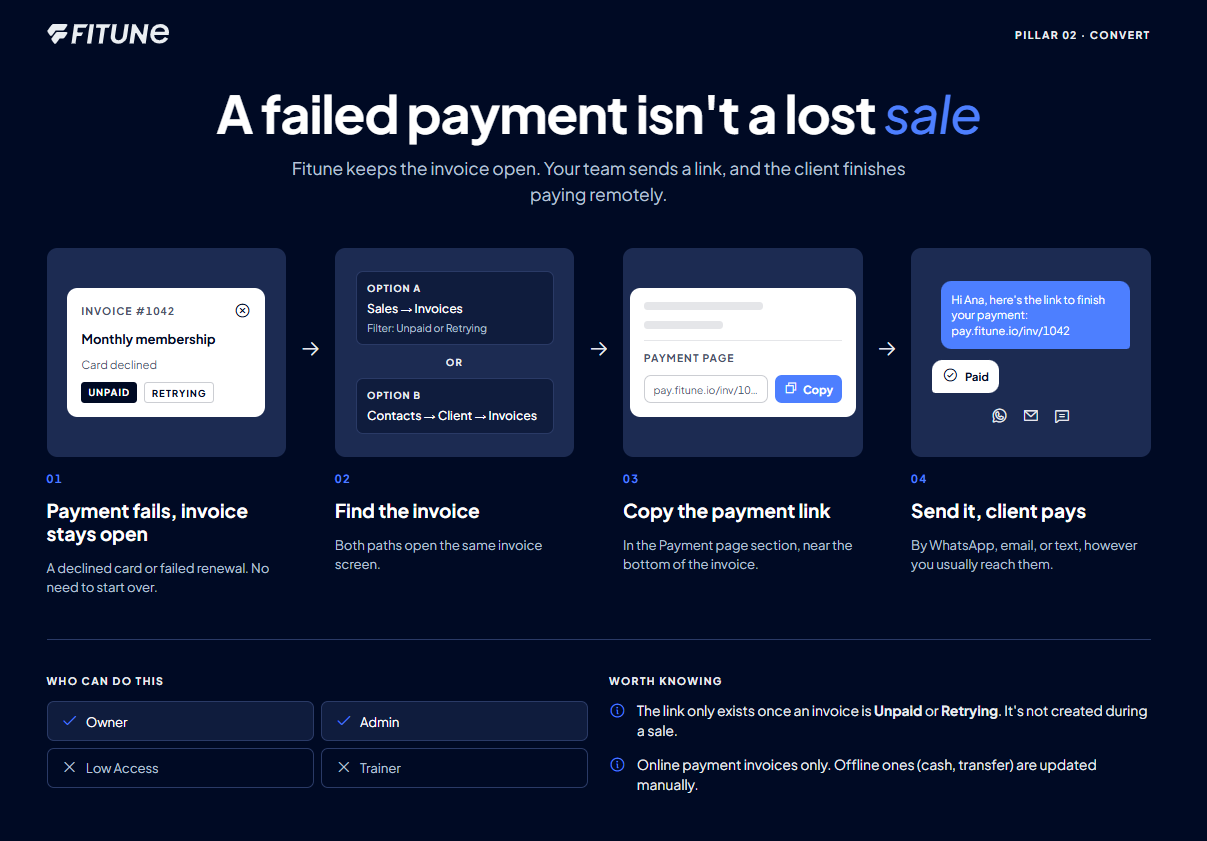
Worth knowing before you train your team
-
A payment link only exists once an invoice has already been created and is sitting as unpaid or retrying — it's not something your team generates on the spot while making a sale.
-
It also only works for invoices created through online payments;
if a client's invoice was created for an offline payment (cash, transfer) and is still pending, there's no payment link for it — that one gets updated manually instead, as covered in How to Change the Invoice Status of Your Clients.
A note on who can actually do this
Who can work with invoices
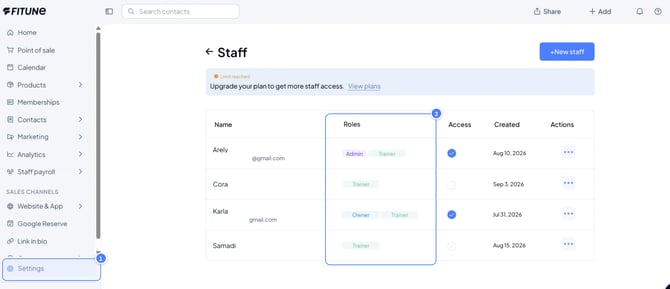
Not every role in Fitune can see or act on invoices:
- Owner and Admin can open Sales → Invoices and a client’s Invoices tab.
- Low Access is limited to Home and Schedule, so it can’t reach invoices.
- Trainer accounts can’t log into the admin side at all.
Before you train your team on payment links, check that the people who’ll do this (front desk or sales staff) have the right role. You can review and change roles anytime in How to Give Access to Your Team / Trainers / Staff. Only give broader access if someone’s current role doesn’t cover it.
Finding the invoice
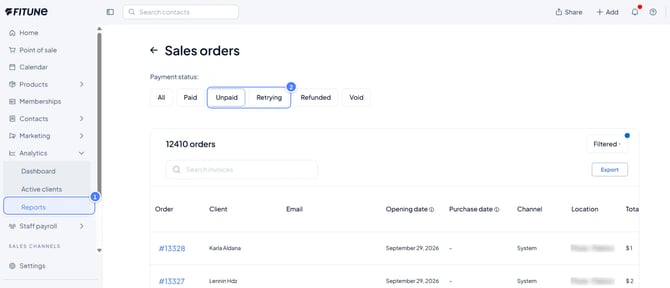
There are two ways to find it:
- Go to Sales → Invoices and filter by Unpaid or Retrying.
- Or go to Contacts → [client] → Invoices tab and open the invoice from the client’s history.
Both paths take you to the same invoice screen.
Copying and sending the link
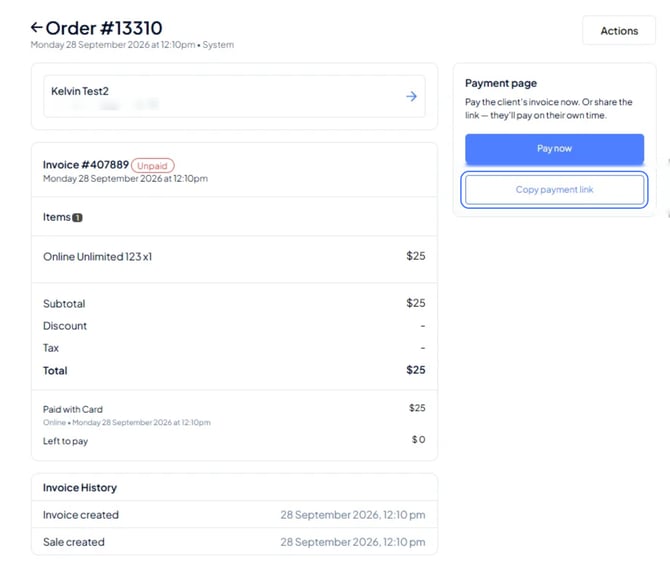
Open the invoice itself, and look for the Payment page section near the bottom of the screen — it shows the client's payment link in full, with a Copy button right next to it. Select Copy, then paste that link into a message to the client, however you'd normally reach them (WhatsApp, email, text).
Frequently asked questions
▶ Can my team send a payment link during checkout, before an invoice exists?
No — a payment link only becomes available once an invoice already exists and is unpaid or retrying. For payment during an active sale, use the regular checkout or POS flow instead.
▶ Does this work for invoices created from an offline payment, like cash or transfer?
No — payment links are only available for invoices originally created through online payments. An offline invoice that's still pending needs to be resolved manually instead.
▶ What does "retrying" mean on an invoice?
It means Fitune already attempted to charge the client automatically (for example, on a membership renewal) and the charge didn't go through, so it's set to try again — the payment link is a way to resolve it without waiting on the automatic retry.
▶ Should the whole team know how to do this, or just front-desk staff?
Anyone who might interact with a client about billing — front desk, sales, or anyone following up on renewals — should know where to find the invoice and how to send the link.