
This counts toward the Retain pillar of your Fitune Health Score. A client who hits a fully booked class and has no way to queue for it often just looks elsewhere for their next session — sometimes at another studio. Turning on waitlists closes that gap: instead of losing the client's interest, you keep them queued and ready the moment a spot frees up.
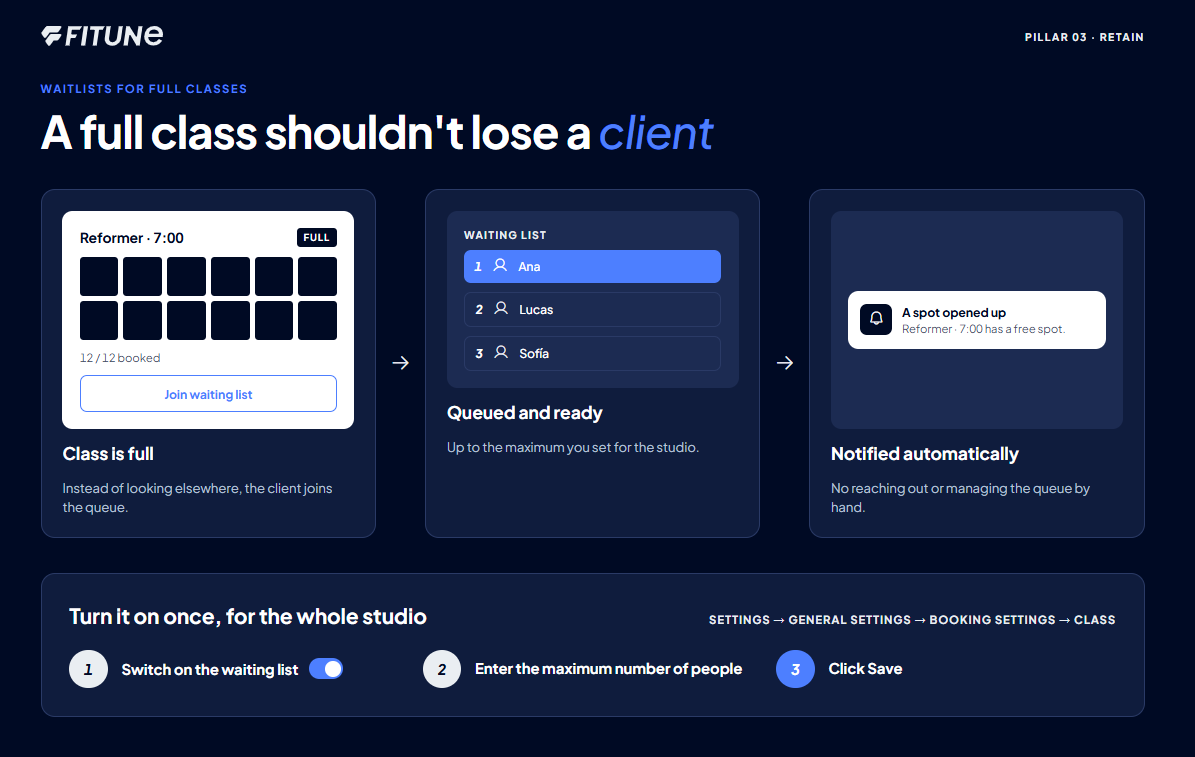
Turning it on
This is a global setting, not something you configure class by class — once it's on, it applies across your bookings.
- Go to Settings and click General Settings.
- Click Booking Settings, then Class.
- Switch on the waiting list toggle — this is the on/off switch that activates the feature.
- Enter the maximum number of people who can join the waiting list.
- Click Save.
What happens once it's on
When a spot becomes available, clients on the waiting list automatically receive a notification — you don't need to reach out to them yourself or manage the queue by hand.
FAQ
▶ Do I set a waitlist size for each class, or one number for the whole studio?
It's one setting that applies across your bookings, not something you configure separately per class.
▶ Do I need to notify waitlisted clients myself when a spot opens?
No — Fitune sends that notification automatically once you've turned the feature on.
▶ Can I turn this off later if it's not working for my studio?
Yes — it's the same toggle under Settings > General Settings > Booking Settings > Class, so switching it off is just as quick as turning it on.