Skip to content
English
  • There are no suggestions because the search field is empty.

Design Your Website with the New Website Builder

Choose a template or start from scratch with total freedom

Fitune has a new Website Builder, with many more templates and features than the previous editor, and practically no design limitations. 

 Important: existing websites are not automatically migrated to the new builder. If you already had your site designed with the previous editor, you'll need to recreate it using the new tools, or follow the guided transition explained in the Publishing and Transition Between Editors article. 

How to access it

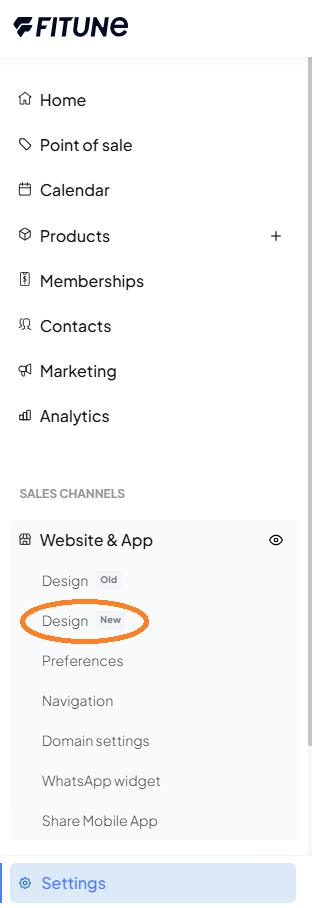
  1. From the left-hand sidebar, go to Website and App.
  2. Click on Design.


Choose a template for your homepage

When you enter, you'll see the "Let's design your homepage" screen, where you can choose from 6 pre-built templates (Soft Coral, Strong Wellness, Good Energy, Modern Vibe, Calm Forest, Modern Dark) or start with a blank canvas.

Note: for now, pre-built templates are only available for the Home page. Templates for About, Services, Team, FAQ, and Other pages are coming soon.

Before deciding, you can click View on any template to preview it without selecting it yet. This opens a modal where you can scroll through the entire template design to see if it's a good fit for your studio.

  • If it's not what you're looking for, just close the preview and keep browsing.
  • If you like it, you can click Select directly from that same modal.


What happens when you select a template

If you choose one of the 6 templates, a window will open with two options:

  • Edit manually: opens the editor so you can adjust the template to your liking.
  • Generate with AI (Coming soon): describe your studio and let artificial intelligence adapt the template for you.

You can also set the page name at this same step (it appears as "Home" by default).

If you instead choose "Start from blank", you'll be taken directly to the editor with no pop-up window, ready to add your first section.


The editor: available sections and blocks

Inside the editor, click New Section to choose from the pre-built options:

  • Text banner
  • Video banner
  • Video and text
  • Services
  • Pricing
  • Testimonials
  • Links
  • Frequently Asked Questions
  • Announcement bar
  • Multi-column (1, 2, or 3 columns)
  • Image banner
  • Image with text
  • Content (text only)

You also have basic blocks to build your design from scratch (section, divider, heading, text, link/link box, image/image box, video, map, icon), plus additional blocks like carousel, slider, Iconify, accordion, and animations.

To add sections or blocks, you can drag and drop them into the editor.


Tip: We recommend saving your progress after finishing each section, rather than waiting until the end. This way you avoid losing your work if your connection drops or you accidentally close the tab.


Manage your sections: duplicate, reorder, and delete

In addition to adding new sections, you can:

  • Duplicate an existing section — useful if you want to create a variant, compare it with the original, and keep the one you like best.
  • Reorder sections by dragging them to the position you want.
  • Delete a section without affecting the rest of the page.

Asset library

Any image or video you upload within the builder is saved in an asset library so you can reuse it in other sections without uploading it again. You can upload several images or videos at once.

If you don't have your own content yet, you can also use Unsplash directly from the image selector to find free placeholder photos while you prepare your own.

Note: the way you change a section's media varies depending on whether it's an image or a video:

  • For images: select the section, go to the Styles tab, open Background, and click the box that says Image — from there you can change it for another one from your asset library or Unsplash.
  • For videos: select the section and, in the toolbar that appears below it, click Change video. A window will open where you can:
    • Paste any YouTube link (from the address bar, the Share button, or just the video ID), or
    • Choose a video you've already uploaded to your asset library, with Choose uploaded video.


Customize each element

When you select any section or block on your page, a menu opens on the right with two tabs: Styles and Properties. The options available in both vary depending on the type of section or block you've selected.

  • Styles: adjust the layout type, size, spacing, image position, typography (including line height), borders, and effects. This tab also includes Background, with three options:
    • Image — upload a background image or choose one from your asset library / Unsplash.
    • Gradient — select the gradient colors.
    • Solid color — choose a single background color.
    The same way, you can customize the text color of each section. If your section includes a video, you can also edit its link (for example, if it comes from YouTube).
  • Properties: shows the element's unique ID (auto-generated), an editable Title field, and the option to add Custom Attributes if you need additional settings — for example, a Pricing section may show different attributes than an Image block.


Icon libraries

Several sections — like Links (for social media) or Multi-column — let you add icons. Clicking the icon selector opens multiple libraries with many options each, so you can find the style that best fits your brand.


From the top of the editor you can also:

  • Switch between desktop, tablet, and mobile (landscape and portrait) views.
  • View the components Outline, to preview how your section would look on your real website.
  • View in full screen.
  • View your section's code (to import it).
  • Delete the entire page.
  • Undo/redo changes.
  • Save your progress.
  • Return to the admin panel at any time.


Frequently Asked Questions

Does the new builder replace the previous editor? Yes, it's a complete replacement with many more templates and features.

Will my current website update automatically to the new design? No. Existing sites don't migrate automatically — you'll need to recreate your site using the new builder.

Can I reuse images or videos I already uploaded? Yes, everything you upload is saved in your asset library for use in any section.

Can I use free images if I don't have my own content yet? Yes, you can search for free photos directly in Unsplash from the image selector.

Can I duplicate a section to test variants? Yes, you can duplicate any section, modify it, and delete the one you don't want to keep.

What happens if I choose "Start from blank"? You're taken directly to the editor with an empty canvas, with no template setup pop-up.

Can I already use AI generation? Not yet, this feature is marked as "Coming soon."

Can I design other pages besides Home with templates? Not yet — templates for About, Services, Team, FAQ, and Other are coming soon. You can keep editing those pages manually in the meantime.

Where do I find icons for social media or other sections? When you select the icon block, several libraries open with many options each.

Can I delete an entire page I've created? Yes, from the top of the editor you have the option to Delete page.