
Important: existing websites are not migrated automatically to the new builder. Rebuild your site with the new tools or follow the guided transition in Publishing and transition between editors.
Full Website Builder guide: every task step by step, with screenshots of the builder. Open the guide
How to access it
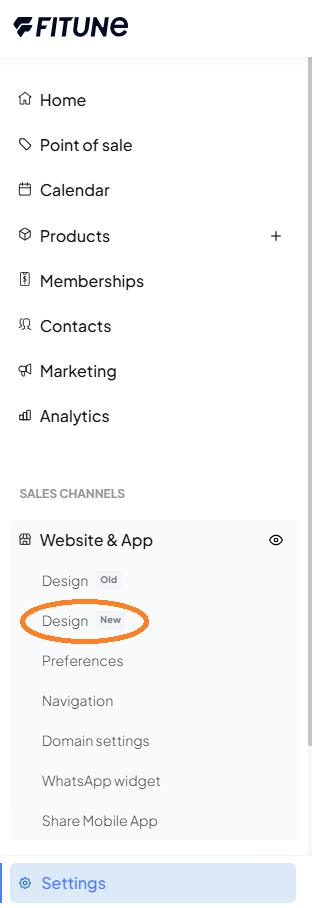
- In the left sidebar, go to Website and App.
- Click Design.
Choose how to start
When you open it, you'll see the Let's design the homepage screen. Pick one of the 6 templates (Soft Coral, Strong Wellness, Good Energy, Modern Vibe, Calm Forest, Modern Dark) or Start blank. Use View to browse a template before choosing it.

For now, templates are only available for the Home page.
Which template fits your studio
Get to know the builder
The builder has four areas: the sections panel on the left, your page in the middle, Styles and Properties on the right, and the top bar. The top bar is where you switch device views, undo changes and save.
- One click selects a section or an element.
- Double-click a text to type.
The top bar also has the AI button (robot icon), which opens the AI assistant. More on that below.

The builder does not save automatically. Click Save after finishing each section. How not to lose your work
Edit your site with the AI assistant
You no longer have to make every change by hand. Describe what you want to change and the AI assistant applies it to your site. It's ideal if design tools aren't your thing, or if you want to try ideas quickly.
How to open it
- Open the page you want to edit in the builder.
- In the top bar, click the AI button (robot icon).
- A chat panel opens on the right side of the editor.
- Type what you want to change and send it. You can write in English, Spanish or Portuguese.
- The assistant applies the change to the page. Review the result and click Save.
What you can ask for
- Copy: rewrite headings, descriptions or calls to action.
- Sections: adjust a section's content or layout.
- Styling: change colors, fonts or the look of the page.
Example requests:
- "Rewrite this page's heading to highlight our beginner classes."
- "Change the button color to dark green."
- "Make the pricing section look cleaner and easier to read."
Good to know
- It works on the open page. The assistant only edits the page you have open in the builder. To change another page, open it first.
- It does what the editor does. The assistant can make the same changes you could make by hand in the builder, nothing more. If something can't be done in the editor, the AI can't do it either.
- You can undo. Don't like a change? Use Undo in the top bar. It reverts any change, including the ones made by the AI.
- Saving publishes. The builder doesn't save automatically. If your site is already live, clicking Save publishes the changes right away. Review them before saving.
Tips for better results
- Be specific: name the section and what you want to change.
- Ask for one change at a time. It's easier to review the result.
- If you don't like the result, ask for a tweak or try phrasing it differently.
Most common tasks
- Change some text
- Change a background photo
- Change a video
- Make a button go to a page
- Choose the colours and fonts for my whole site
- Edit my prices
- Add my social media
- Add my location on a map
- Which sections to use and in what order
Before publishing
While you work, everything stays as a draft and your current site does not change. At the top you'll see a preview banner with the Make this my live site button.
- Check your page in every view and test each button.
- Click Make this my live site.
- Confirm with Switch and publish.
Review checklist · Publish your site
Frequently Asked Questions
▶ Will my current site update automatically to the new builder? No. Rebuild it with the new builder or follow the guided transition. See how
▶ Are my changes saved automatically? No, there is no autosave. Save after finishing each section.
▶ Does saving publish my site? No. What you save stays as a draft until you click Make this my live site.
▶ Can I design pages other than Home? Yes, you edit them by hand with the same sections, without a template. For now, you can't create new pages. See how
▶ Do I need to build a menu or footer? No. Fitune generates them automatically with your logo and your pages. If you build your own, they show up twice.
▶ Can I upload my brand's font? No. Pick the closest of the 22 available fonts. See equivalents
▶ Can I use AI generation yet? Not yet, it's marked as Coming soon.
▶ Can I go back to my previous site after publishing? Yes, for 30 days. How to restore it
▶ Something isn't working, where do I look? In the guide's common problems. Each one comes with a short fix.