
This counts toward the Convert pillar of your Fitune Health Score. When a client is standing in front of your team ready to buy — a membership, a pack, a t-shirt — the last thing you want is friction. The Point of Sale, or POS (a quick-checkout screen for selling things in person, separate from your online booking flow), lets your team close that sale in a few clicks, from wherever they already are in the admin.
Where to find it
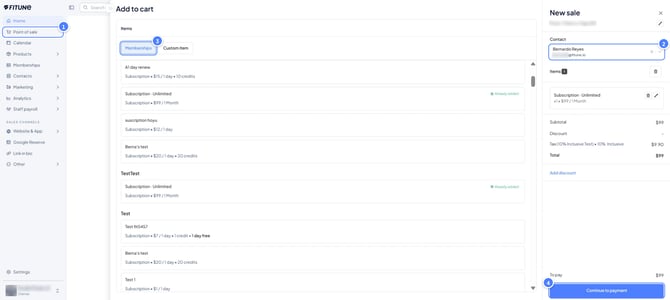
You can open the POS from almost anywhere in your Fitune admin, in two ways:
- Select Point of sale in the left-side menu.
- Select + New, which is at the top right on desktop and a plus icon on mobile.
Both open the same quick-sale screen, so your team doesn’t have to leave what they’re doing to ring up a sale. Anyone with access to a Fitune admin account can use it.
What you can (and can't) sell through it
What you can sell
The POS covers:
- Memberships, packs and plans, including more than one in the same order.
- Custom items, such as merchandise, equipment or extra fees.
- Any mix of the two in a single order.
Intro offer memberships have a yellow tag, so your team can spot them at a glance while selling. If you want to give a client a membership, pack or plan without a sale, see how to add one manually. It’s useful for a free first class or an offer you promised in person.
What the POS doesn’t cover yet
Bookings, appointments, courses and video content. These go through the regular booking flow. If you also sell physical products, like apparel or equipment, the companion guide on personalized items explains how to set them up.
Accepting payment
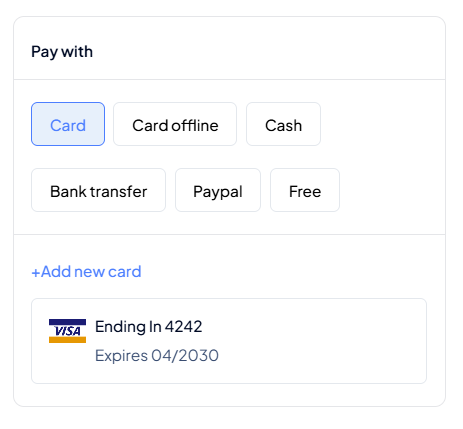
At checkout, use the Pay with options:
- Card, for card payments.
- Card offline, Cash, Bank transfer or Paypal, for payments taken outside Fitune.
- Free, when there’s nothing to charge.
You can also apply a promo code to memberships. It’s the same code you create under Marketing > Promo codes, as explained in How to Create Promo Codes. To save a client’s card to their profile during checkout, select + Add a card, so they don’t have to enter it again next time.
A few extra things worth knowing
- Discounts and price changes. Your team can apply a discount, as a percentage or a fixed amount, or change an item’s price right on the order. It’s handy for one-off exceptions, with no need for a separate promo code.
- Seller and location. Each order gets a seller and a location, so you can track who sold what and where. You can only change them before the sale is completed.
- Reports. Every completed sale shows up in your order reports, next to your other sales.
Frequently asked questions
▶ Can I use the POS to sell a class or appointment booking?
Not currently — the POS is built for memberships, packs, and items. Bookings, appointments, courses, and videos still go through your regular booking flow.
▶ Can more than one membership be sold in the same order?
Yes, and you can also mix memberships with custom items in a single order.
▶ Who can access the POS?
Anyone with access to a Fitune admin account — there's no separate permission needed beyond that.
▶ Can I change the seller or location after completing a sale?
No — both need to be set before you finish the checkout; they can't be edited afterward.
▶ Does the POS accept promo codes?
Yes, for memberships specifically, using the same codes created under Marketing → Promo Codes.