
Every time you open Fitune, your Home page now shows four blocks of live data instead of just a welcome screen:
Quick overview, Things to action, Business at a glance, and Celebrations.
Together, they give you a fast read on what happened today, what needs your attention, how your studio is performing over time, and which moments are worth celebrating — all without opening a single report.
These blocks are visible to anyone with access to your studio's admin — Owners, Admins, and staff with Low access — even if they don't have permission to view the Analytics section.
Quick overview
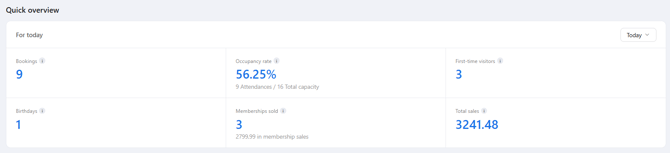
Quick overview shows your studio's headline numbers for today — or any period you choose — so you can do a fast morning check-in in under 10 seconds.
Choosing a period: use the dropdown above the numbers to pick the period you want to see. Every KPI in this block updates to match your selection. Available options: Today (default), Yesterday, This week, Previous 7 days, Previous week, This month, and Previous 30 days.
The 6 KPIs:
- Bookings — — Number of bookings made in the selected period, not necessarily taking place in that period.
- Occupancy rate — The percentage of available spots that were actually attended, across group classes, events, and appointments, in the selected period. Below the percentage, you'll see the exact numbers behind it (for example, "9 Attendances / 16 Total capacity"). Appointments count as 1 spot, so they're included in both attendances and total capacity.
- First-time visitors — Clients whose very first booking at your studio was made in the selected period.
- Birthdays — Clients with a birthday during the selected period. Check the Celebrations block for the full list.
- Memberships sold — Total memberships sold (i.e. paid) in the selected period, including both subscriptions and one-time payment memberships. Below the count, you'll see the total amount from those sales.
- Total sales— The total amount of everything paid for in the selected period — memberships, one-time purchases, penalty fees, and anything else sold through Fitune. This is a broader number than Memberships sold, and refunds aren't subtracted from it. Only staff with the "Show analytics' pages" permission can see this value.
Hover over the info icon next to any KPI to see its full definition at any time.
Memberships sold and Total sales are shown as plain numbers, without a currency symbol — but they always reflect your studio's own currency.
Who can see the Total sales value
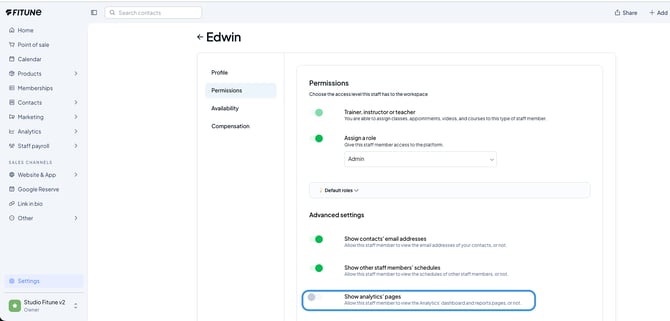
You decide who sees your studio's sales. The Total sales value only appears for staff members who have the "Show analytics' pages" permission turned on, even if their role is Admin. Anyone without it sees the other five cards as usual, but on Total sales they'll see a sailboat image instead of the number.
To let a staff member see the Total sales value:
1. Open the staff member's profile and go to the Permissions tab.
2. Under Advanced settings, turn on "Show analytics' pages".
This way you can give your team access with peace of mind: set the permission, and everyone sees only what you decide.
What it looks like without access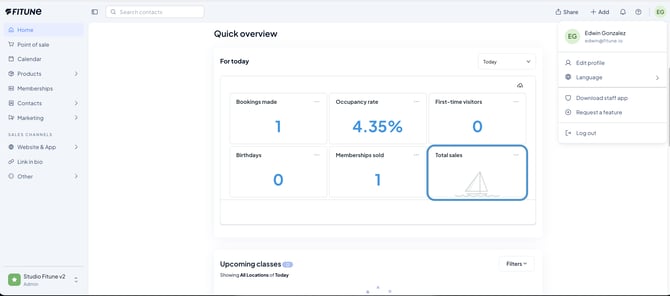
This is how Quick overview looks for a staff member who doesn't have the "Show analytics' pages" permission. All six cards appear, but Total sales shows a sailboat instead of the value. Everything else on the page works as normal.
Things to action
Things to action gathers everything that needs a human response — pending payments, membership changes, and clients who might be slipping away — organized into three tabs so you can focus on one category at a time.
How it works:
- Each tab groups related items into sections you can expand or collapse.
- Every section shows up to 3 items at a time. The count on the tab and the "See all" link always reflect the full total, even when only 3 are shown.
- Use "See all" to open the complete list in its own report.
Money
Online payments pending shows invoices with an online payment method (card, Google Pay, Apple Pay) that are Unpaid or Retrying. Unpaid means Stripe has stopped trying to collect payment; Retrying means it's still attempting to collect it. Sorted with the most overdue invoices first, with the total pending amount shown at the top of the section.
Columns shown:
- Client – the client's full name.
- Items – what the invoice is for (there can be more than one item).
- Method – the payment method on file. If Fitune has the card's last 4 digits, they're shown; otherwise you'll just see "Card."
- Status – Unpaid or Retrying.
- Overdue – days since the invoice was due. 7+ days in red, 1–6 days in amber.
- Amount – the total invoice amount.
Offline payments pending shows invoices with an offline method (cash, bank transfer, PayPal, offline card, etc.) that are Unpaid, sorted the same way. To resolve one, mark the invoice as paid once the client has settled it, or switch it to an online method if they have one on file. Same columns as above, minus Status — offline invoices don't have a Retrying state.
Memberships
Recently cancelled shows memberships cancelled in the last 15 days — whether the cancellation has already taken effect or is still scheduled for a future date. These are win-back opportunities: if the effective end date is still in the future, the membership is technically still active and the win-back window is still open. If it has already ended, re-engagement is still possible, but retention no longer is — winning the client back at that point means a new membership, not saving the old one. Sorted by most recently cancelled first.
Columns shown:
- Client – the client's full name.
- Cancelled on – when the cancellation was requested. Red badge if it happened in the last 48 hours.
- Days left – days remaining until the membership actually ends. Amber badge at 7 days or fewer. If it has already ended, you'll see "Ended" instead.
- Membership – the name of the cancelled membership.
- Type – Subscription or One-time payment.
- Last booking date – the client's most recent scheduled class, event, or appointment. Shows "No last booking" if there isn't one.
Upcoming expirations shows memberships and packs ending in the next 15 days, including cancelled subscriptions and one-time packs about to run out. Sorted by most urgent (soonest to expire) first.
Columns shown:
- Client – the client's full name.
- Expiration date – the date the membership expires.
- Days left – days remaining until expiration. Red badge at 3 days or fewer.
- Membership – the name of the membership.
- Type – Subscription or One-time payment.
- Next booking date – the client's next upcoming scheduled class, event, or appointment. Shows "No upcoming booking" if there isn't one.
People
Clients to recover shows clients with an active membership whose last visit falls into one of two tiers: Warming (15–30 days since their last booking) or At Risk (31–60 days). Clients who visited more recently, or who haven't visited in over 60 days, aren't shown here — dedicated reports for those are coming soon. The preview shows your 3 most urgent clients across both tiers combined.
Columns shown:
- Client – the client's full name.
- Status – Warming or At Risk.
- Last attendance – how long ago, e.g. "47 days ago".
- Total attendances – across the client's whole history.
- Next booking date – shows "No upcoming booking" if there isn't one.
- Active memberships – every membership the client currently holds.
This section doesn't have a "See all" link yet — you'll see "Full report coming soon" instead. Once the dedicated report is ready, the link will appear automatically.
Business at a glance
Your studio's health, at the period level — built for a weekly or monthly check-in, not a daily one. Volume, retention, and revenue, together in one place, so you don't have to open three separate reports to get the full picture.
Choosing a period: the default is Previous 30 days. You can also choose Today, Yesterday, This week, Previous 7 days, Previous week, or This month. Unlike Quick overview, this block doesn't compare the period to a previous one.
The 8 KPIs:
- New contacts — Total new contacts created in the selected period.
- Active subscription memberships — Subscription-type memberships that were active at the end of the selected period.
- Active one-time memberships — One-time payment memberships that were active at the end of the selected period.
- Occupancy rate — The percentage of available spots that were actually attended, across group classes, events, and appointments. Appointments count as 1 spot in both the attendances and the total capacity.
- Bookings — Total bookings created in the selected period, regardless of whether the client attended.
- Attendances — Bookings marked as Attended in the selected period.
- No shows — Bookings marked as No show in the selected period.
- Cancellations — Bookings cancelled in the selected period, whether it was a late or an early cancellation.

Celebrations
A positive signal you can act on — upcoming birthdays and recent first-time visitors. A quick shout-out or personal note here goes a long way for client relationships.
Choosing a period: the same period picker applies to both tabs below. The default is Next 15 days. Other options: Today, Next 7 days, Next 30 days, and This month.
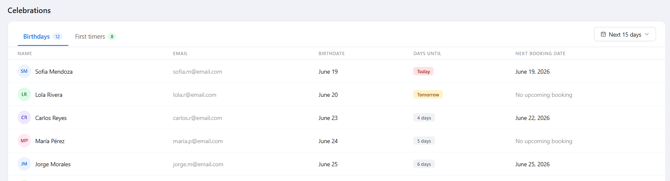
Birthdays shows clients with a birthday within the selected period, soonest first (today's birthdays pinned at the top). Shows up to 10 clients. Use "See all" to open the full birthdays report, which includes more columns, filters, and export options.
Columns shown:
- Name – client's full name.
- Email – client's email address.
- Birthdate – day and month (no year shown).
- Days until – "Today" (red badge), "Tomorrow" (amber badge), or the number of days away (grey badge).
- Next booking – shows "No upcoming booking" if there isn't one.
First timers shows clients whose very first booking date falls within the selected period — even if they haven't attended it yet. Shows up to 10 clients, sorted by first booking date. This section doesn't have a "See all" link yet — you'll see "Full report coming soon" instead.
Columns shown:
- Name – client's full name.
- Email – client's email address.
- First booking date – the date of the class, event, or appointment they booked for their first time.
- First attendance date – the date they actually attended for the first time. Shows "Not yet attended" if that hasn't happened yet.
- Active membership – Yes or No.
- Contact since – the date the contact was added to your studio.
Frequently Asked Questions
▶ Who can see the Home page dashboard?
Anyone with access to your studio's admin can see it — Owners, Admins, and staff with Low access — even without permission to view the Analytics section. The exception is the Total sales value: it only shows for people who have the "Show analytics' pages" permission turned on.
▶ Why do I see a sailboat instead of the Total sales value?
Because your profile doesn't have permission to view the Analytics pages. Ask your studio's Owner to turn on "Show analytics' pages" in your staff profile, and you'll see the value.
▶ Are the other KPIs hidden too for staff without that permission?*
No. All 6 Quick overview cards always show; the permission only affects the Total sales value.
▶ Can I give my team admin access without letting them see the Total sales value? Yes. Give them admin access and leave "Show analytics' pages" turned off: your team will see the Home page, but not the Total sales value.
▶ How often is the data updated?
The numbers update in real time, so every payment, booking, or cancellation is reflected as soon as it happens.
▶ Can I change the date range?
Yes. Quick overview, Business at a glance, and Celebrations each have their own period picker, so you can adjust one without affecting the others.
▶ Why don't some sections in Things to action and Celebrations have a "See all" link?
Some sections (like Clients to recover and First timers) don't have a dedicated full report yet. You'll see "Full report coming soon" instead — once that report is ready, the link will appear automatically.
▶ Where do the "See all" links take me?
Each one opens the matching full report, where you can see every record, filter, and export the data.
▶ Why does Occupancy rate include appointments?
Appointments count as a service with one spot, so they're included in both the attendances and the total capacity used to calculate the percentage.