
This counts toward the Retain pillar of your Fitune Health Score. Recurring memberships and packs are one of the clearest ways to turn a one-time visitor into a client who keeps coming back. But a plan only helps your retention if two things are true: it's built correctly, and it's actually published so clients can find and purchase it. This article walks you through both.
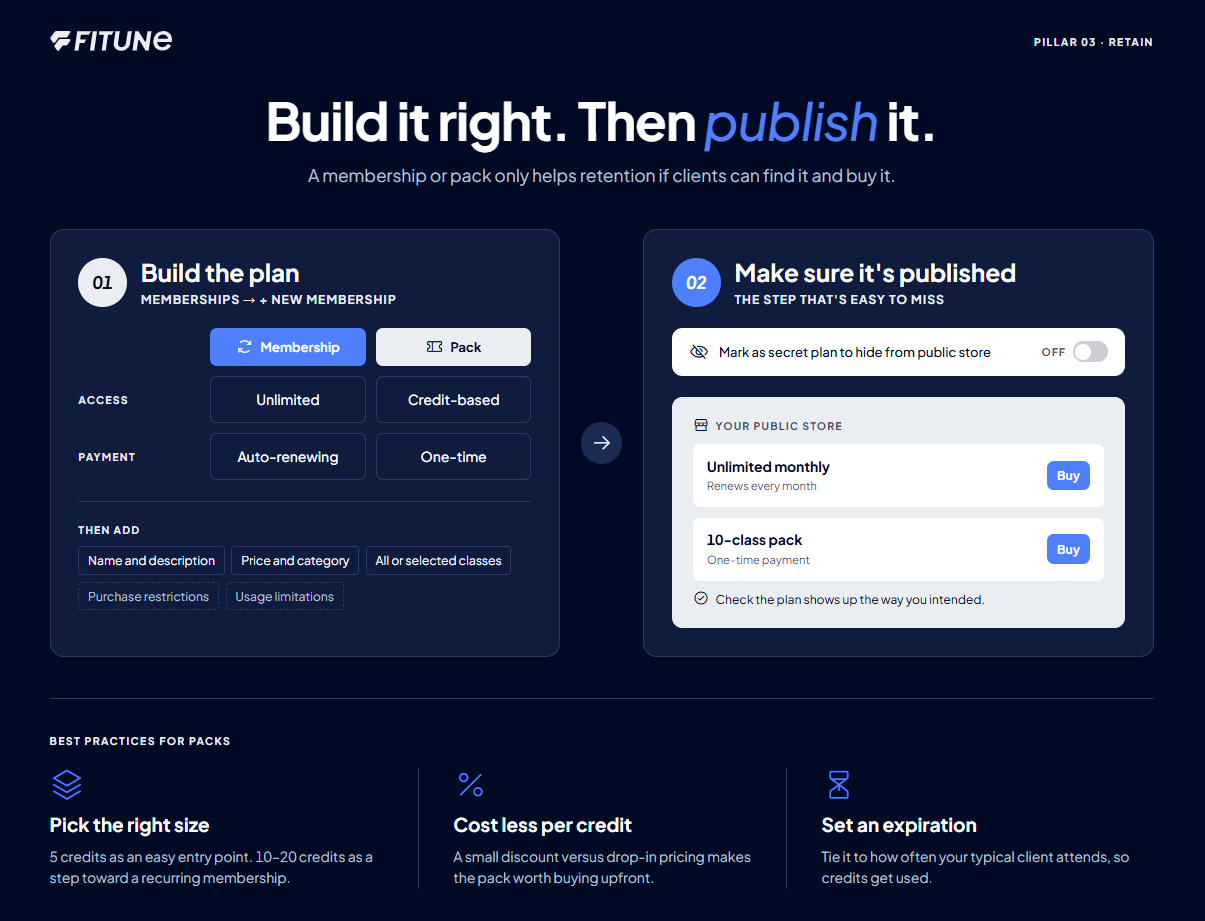
Creating a membership or pack
Follow these steps to set up a new plan:
- Open the Memberships area. From your dashboard, go to Memberships, then select the Memberships tab.
- Start a new plan. Click +New Membership.
- Choose the access type. Decide whether the plan is Unlimited (the client can book as much as the plan allows, without counting individual visits) or Credit-based (the client uses a set number of credits, which is the structure typically used for packs).
- Choose the payment structure. Select Auto-renewing subscription if you want the plan to bill and renew automatically (this is what makes a plan "recurring"), or One-time payment if it's a single purchase, such as most packs.
- Fill in the core details. Add the plan's name, a description of what's included, the price, and the plan category.
- Define what the plan can be used for. Choose whether it applies to All classes or only Selected classes.
- Add optional purchase restrictions, if relevant. You can limit the plan so it's a one-time purchase only, restrict it to new clients only, or block clients from buying it if they already have another active membership.
- Add optional usage limitations, if relevant. You can set the plan so it does not allow cancellations, or so it can't be used to book outside its valid period.
- Save the plan.
For the full breakdown of every field, see How to Create a Membership.
Making sure it's actually published
Creating the plan isn't the last step — it still needs to be visible to clients. This is the part that's easy to miss, and the reason a studio can have great plans that nobody ever buys.
- Check the "Mark as secret plan to hide from public store" toggle. If this is turned on, the plan is hidden from your public store and clients won't see it as an option to purchase. Make sure it's turned off for any plan you want clients to be able to find and buy on their own.
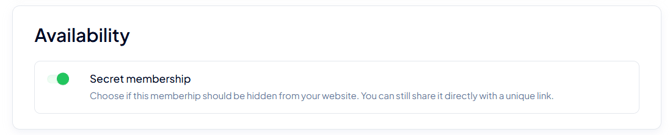
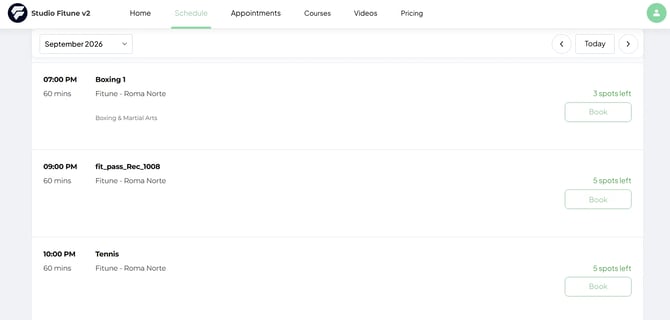
- Confirm it appears where you expect. Take a look at your public store (or wherever clients browse plans) to double-check the membership or pack shows up the way you intended.
A few best practices for structuring a pack
Packs work a little differently from ongoing memberships, since they're usually a fixed number of credits rather than an auto-renewing plan. A few things worth considering when you set one up:
▶ How many credits should a pack include?
Smaller packs (like 5 credits) are a good entry point for clients who aren't ready to commit to a full membership. Larger packs (10–20 credits) work well as a step toward convincing a client to eventually switch to a recurring membership.
▶ Should a pack cost less per credit than paying one at a time?
Generally yes — a small discount compared to drop-in pricing is what makes the pack worth buying upfront instead of paying per visit.
▶ Should packs expire?
Setting a reasonable expiration window (tied to how often your typical client attends) encourages clients to actually use their credits and stay engaged, rather than letting the pack sit unused indefinitely.
FAQ
▶ What's the difference between a membership and a pack?
In Fitune, both are created the same way, in the same place. The difference comes from the choices you make: a membership is typically Unlimited access with an Auto-renewing subscription, while a pack is typically Credit-based with a One-time payment.
▶ Why can't my clients find the plan I just created?
Check whether "Mark as secret plan to hide from public store" is turned on for that plan. If it is, clients won't see it as a purchase option.
▶ Can I limit a plan to new clients only?
Yes — when creating or editing the plan, you can restrict it so it's only available to clients who don't already have an active membership