
This counts toward the Operate pillar of your Fitune Health Score. If your studio sells credit-based packs — a 10-class pack, a 5-session pack, anything with a set number of uses — you don't have to spend time each week checking who has used what, or closing out packs by hand. Fitune already does that in the background. With one-time payment packs there is a bonus: clients can buy the same pack again as many times as they want, with no renewal date to wait for, so selling the next pack takes no extra work from your staff.
What one-time payment packs are and how they work
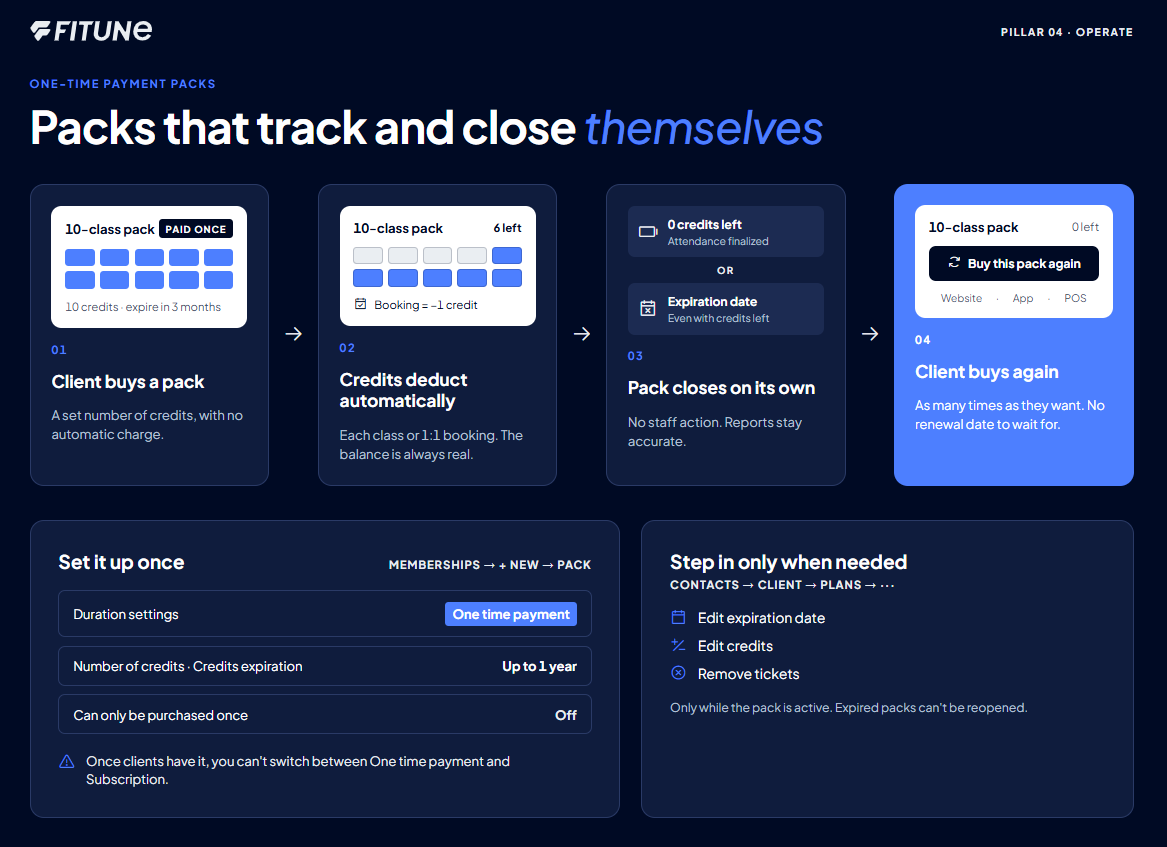
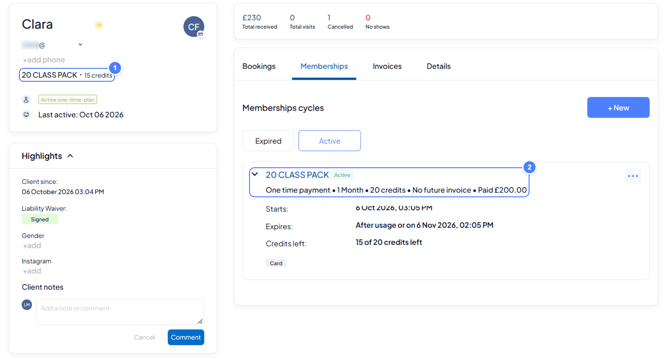
A one-time payment pack is a pack your client pays for once. It comes with a set number of credits, and those credits expire a set time after the purchase. It doesn't renew automatically, but it can be purchased again. That is the main difference from a subscription, which charges your client automatically on the frequency you set (weekly, monthly, and so on) until the client cancels it. With a one-time payment pack there is no automatic charge and no renewal date, so your client decides when to buy again.
Every time a client books or attends a class or a 1:1 booking using a pack, Fitune deducts one credit from that pack automatically. No staff member needs to open the client's profile and subtract it by hand. The credit count you see on a client's pack is always the real, current balance, updated the moment a booking happens.
A pack ends on its own in one of two ways, and you don't need to do anything for either:
- By running out of credits. Once all the credits on a pack have been used and every booking tied to it has had its attendance finalized (marked as Show or No Show), Fitune automatically expires the pack. It simply stops being usable, so your team doesn't need to remember to close it. A past class with no attendance recorded keeps the pack active, and so does a cancelled booking whose credit was returned, until that credit is used.
- By reaching its expiration date. If a pack has a set expiration date, Fitune expires it on that date regardless of how many credits are left.
This automatic closing is what keeps your reports accurate without upkeep: an expired pack won't quietly keep showing up as "active" on a client's profile, and it won't be usable for a new booking.
Setting up a one-time payment pack
You choose one-time payment when you create the pack. It takes a few minutes, and you only do it once per pack.
- Open Memberships from your main dashboard, click +New, and select Pack (or Membership).
- Choose the access type: Credit-based for a set number of uses, or Unlimited.
- Enter the Membership name, What's included, and Price.
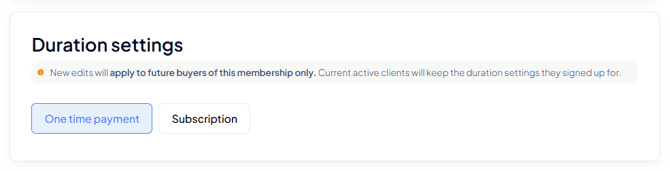
- In the Duration settings section, select One time payment. The other option is Subscription.
- In the What the client receives section, enter the Number of credits the client gets when they purchase the plan. One credit is redeemed for one booking. Then set Credits expiration: enter a number and choose Day, Week, Month or Year from the list. This is how long the credits last after the client's purchase, up to a maximum of one year (52 weeks or 12 months).
- Under What this plan can be used for, choose which classes the pack covers: All classes or Only selected classes.
- Leave Can only be purchased once disabled if you want clients to buy this pack again.
- Click Save.
Choose carefully: once you create the membership and clients actively have it, you won't be able to switch between One time payment and Subscription.
The full list of optional settings, such as limiting a plan to new clients or keeping it out of your public store, is covered in How to create a membership and, for packs, How to Create a Pack. Keep your pack visible rather than secret, so clients can find it and buy it again on their own.
How clients buy a pack, and buy it again
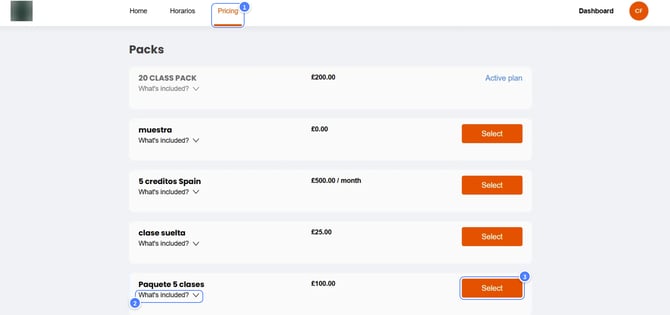
On your website, clients open the Pricing tab, click the arrow next to Includes to see the details, and click Select. They log in if prompted, can add a promo code, and click Continue. A confirmation email follows. Every step is explained in Packages / Memberships / Plans: What Are They and How to Purchase?.
Clients can also buy from the app on their phone. Fitune is a web app, so there is nothing to download from an app store: clients add it to their home screen using your studio link or QR code, as explained in How to Install the Web App.
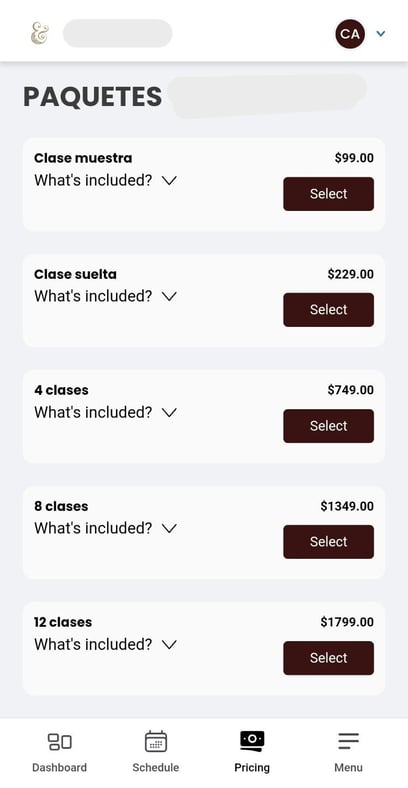
A client can buy a one-time payment pack as many times as they want, with no renewal date to wait for. They buy it again the same way they bought it the first time, and the steps are in How to Buy a Pack / Plan / Membership Again When You Ran Out of Credits?.
Note: a client can hold different packs at the same time. The only thing Fitune doesn't allow is buying an identical pack while the one they already have still has credits left.
Your staff can sell the pack again from the front desk. Open the client's profile and click +New membership in the Point of Sale (POS), Fitune's built-in checkout. When the client's current pack has 0 credits, Buy this pack again appears. You can also add a pack by hand, as shown in Add a Membership, Pack, or Plan Manually.
To make repurchasing easier, share your website or app with clients using the Share button, which includes a QR code(Share Your Fitune Website and App with Clients), or add the pricing page to your Instagram bio with Create Your Link in Bio.
When you might still want to step in manually
Automation covers day-to-day usage, but you may still want to adjust a pack by hand: a client had a service issue, a credit was used by mistake, or you're extending a plan as a goodwill gesture. To make these adjustments:
- Go to Contacts, open the client's profile, and click the pencil icon to edit it.
- Open the Plans tab, where all of that client's active packs are listed.
- Click the three-dot menu next to the pack you want to adjust. From here you can:
- Edit expiration date: pick a new date and save. The exact steps are in How to Edit a Client's Pack: Expiration Date and Credits.
- Edit credits: use the arrows or type a number directly to add or remove credits, then save. This is only needed to correct a specific mistake, and there is a dedicated walkthrough in How to Edit Credits in Active Packages for Your Clients.
- Remove tickets: sets the remaining credits to zero, the manual equivalent of what auto-expiration does when a pack runs out. This option is also covered in How to Edit a Client's Pack: Expiration Date and Credits.
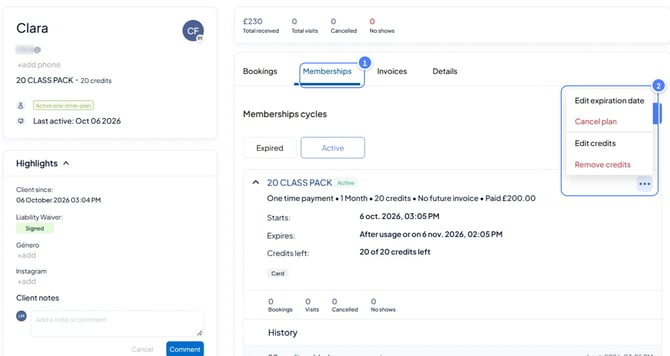
One limitation worth knowing: credits can only be edited while a pack is still active. Once a pack has expired, whether automatically or manually, it can't be reopened for editing.
Frequently asked questions
▶ Do I need to do anything to enable automatic credit tracking? No. This runs automatically for every pack, with nothing to enable or configure.
▶ Can a client's pack expire before all its credits are used? Yes. If the pack has a set expiration date, it will expire on that date even with unused credits remaining. It also expires automatically once all credits are used and attendance is finalized.
▶ How long can the credits last after a purchase? You set it in Credits expiration, in days, weeks, months or years, up to a maximum of one year (52 weeks or 12 months).
▶ Can a client buy the same one-time payment pack more than once? Yes, as many times as they want, as long as Can only be purchased once is disabled on the pack. The only limit is that they can't buy an identical pack while the one they have still has credits left. They can hold different packs at the same time.
▶ Can clients buy a pack from the app? Yes. Clients can buy from the app on their phone as well as from your website.
▶ Can I change a pack from one-time payment to subscription later? No. Once you create the membership and clients actively have it, you can't switch between One time payment and Subscription. If you want to offer a subscription version, create it as a separate plan.
▶ What happens if I try to edit credits on a pack that already expired? Credits can only be edited while a pack is active. Once it has expired, that option is no longer available for that pack.
▶ Will removing tickets manually cancel a client's upcoming bookings? Removing tickets sets the remaining credit balance to zero. It doesn't cancel bookings already made, so check the client's upcoming bookings separately if that is part of what you're resolving.